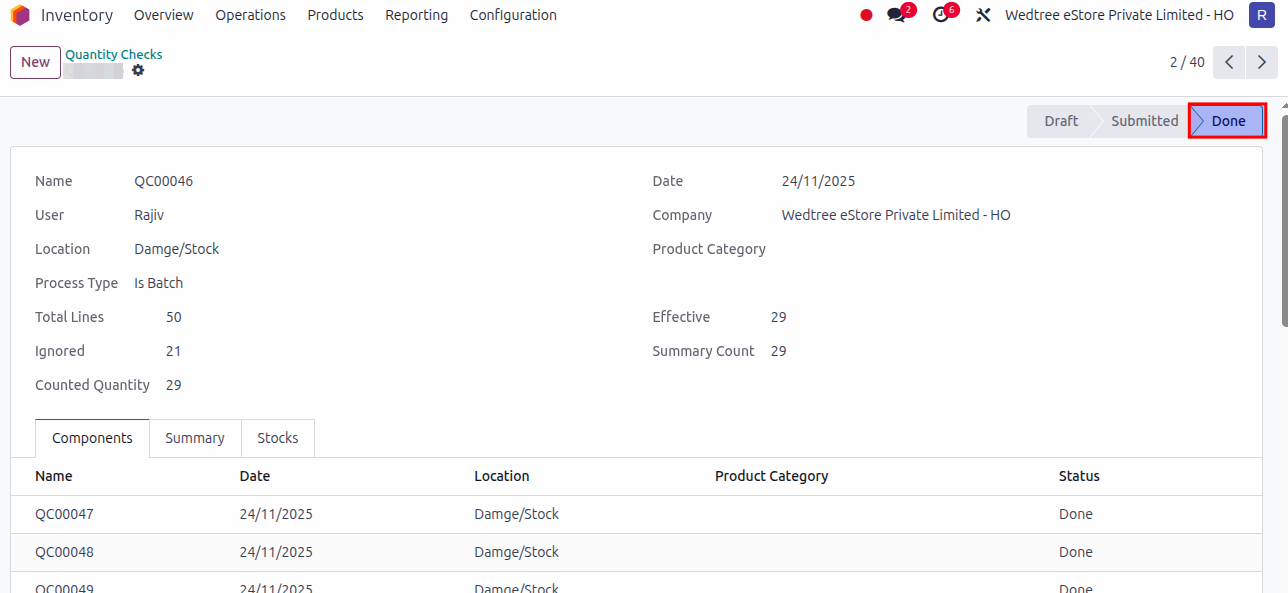
Quantity Check
Quantity Check - Stand Alone Process
For standalone QC, login as a Quantity User. The user shyamchandar@wedtree.com is used for demonstration purposes.
To access the Quantity Check, go to .
The Tree View of Quantity Checks will open as shown below. Click on the New button.
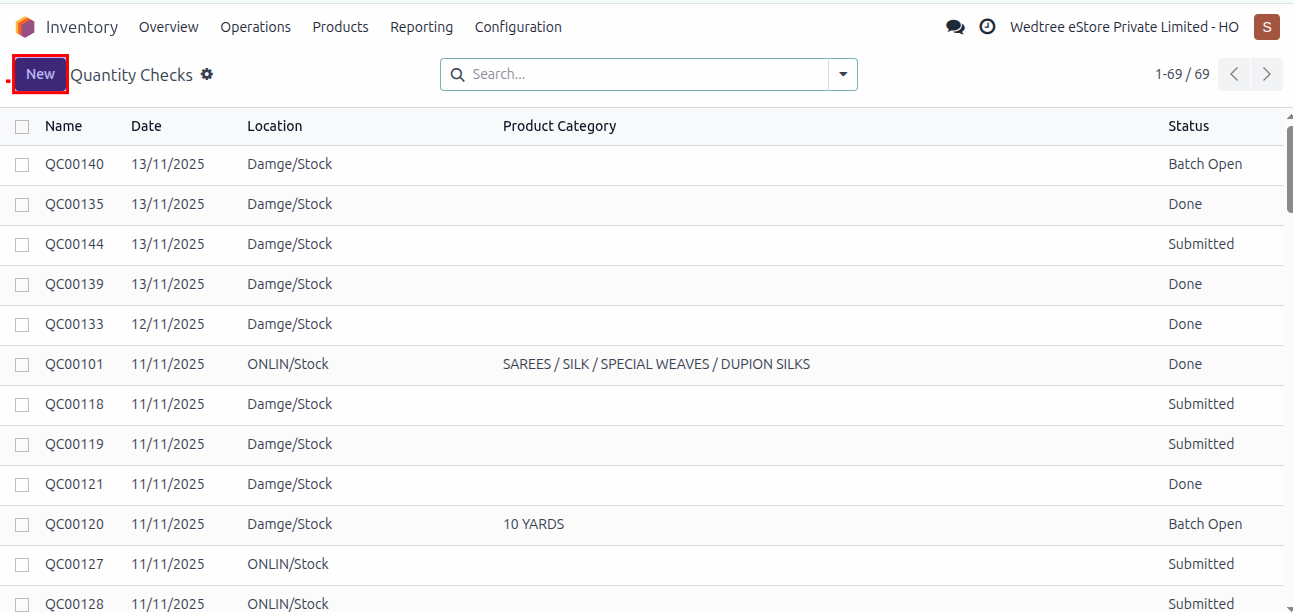
The Form View for creating a Quantity Checks will appear as shown below.
Fill in all mandatory fields in the form view. Enter the ‘Location’ detail, select the process type as Stand Alone. Scan the products under Lines one by one and then click the Save button. It is now in Draft state.
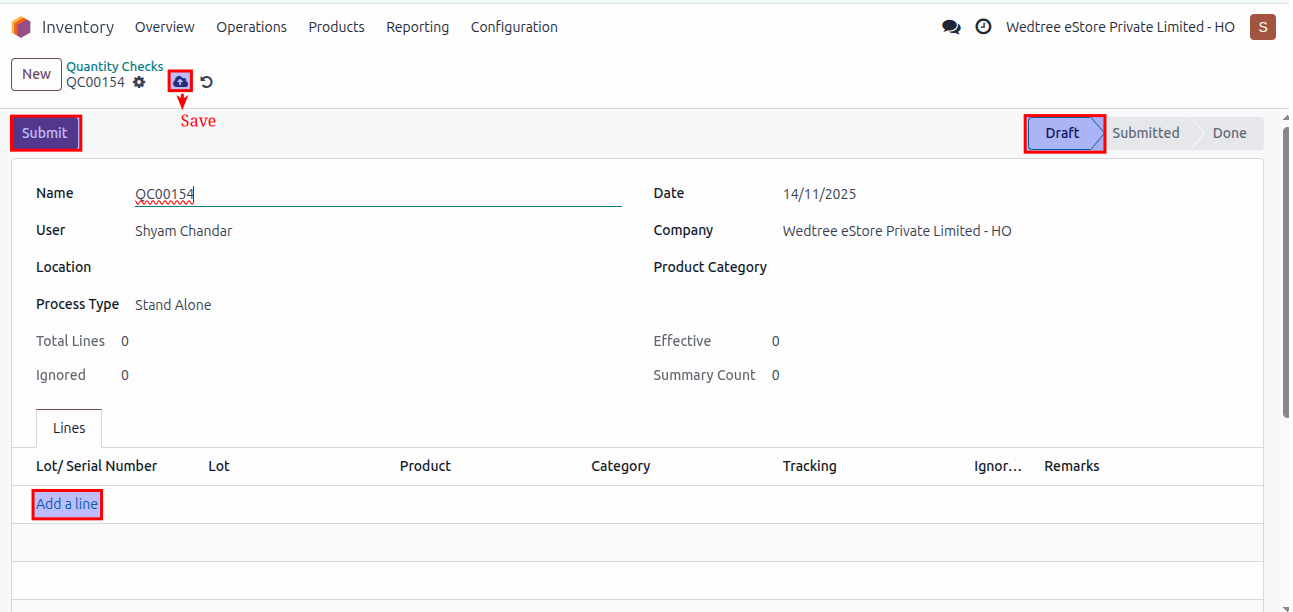
Click Submit, it goes to Submitted state.
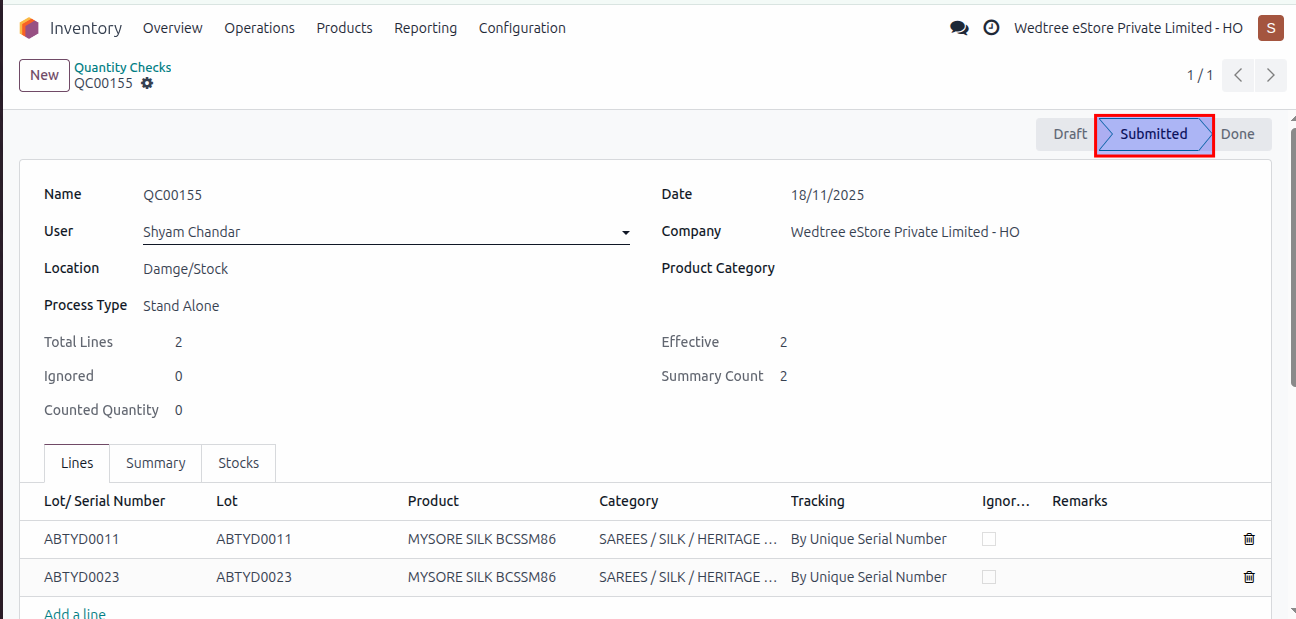
Log in as Quantity Manager, The manager rajiv@wedtree.com is used. Open the relevant submitted QC.
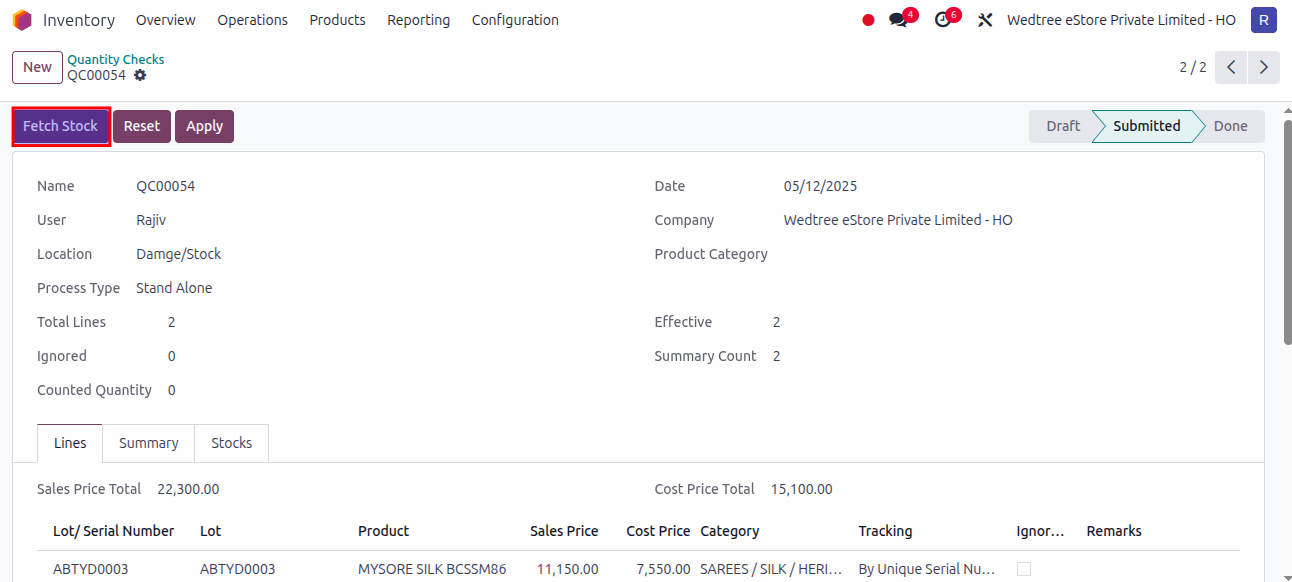
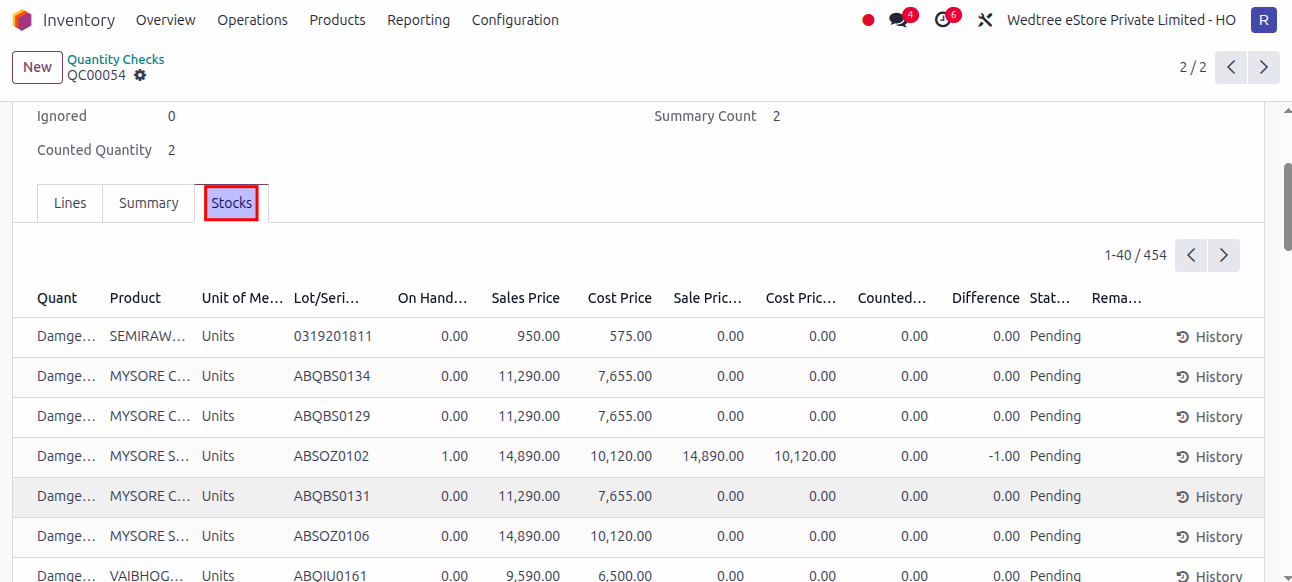
Click Fetch Stock, the stock tab shows all stocks in that location.
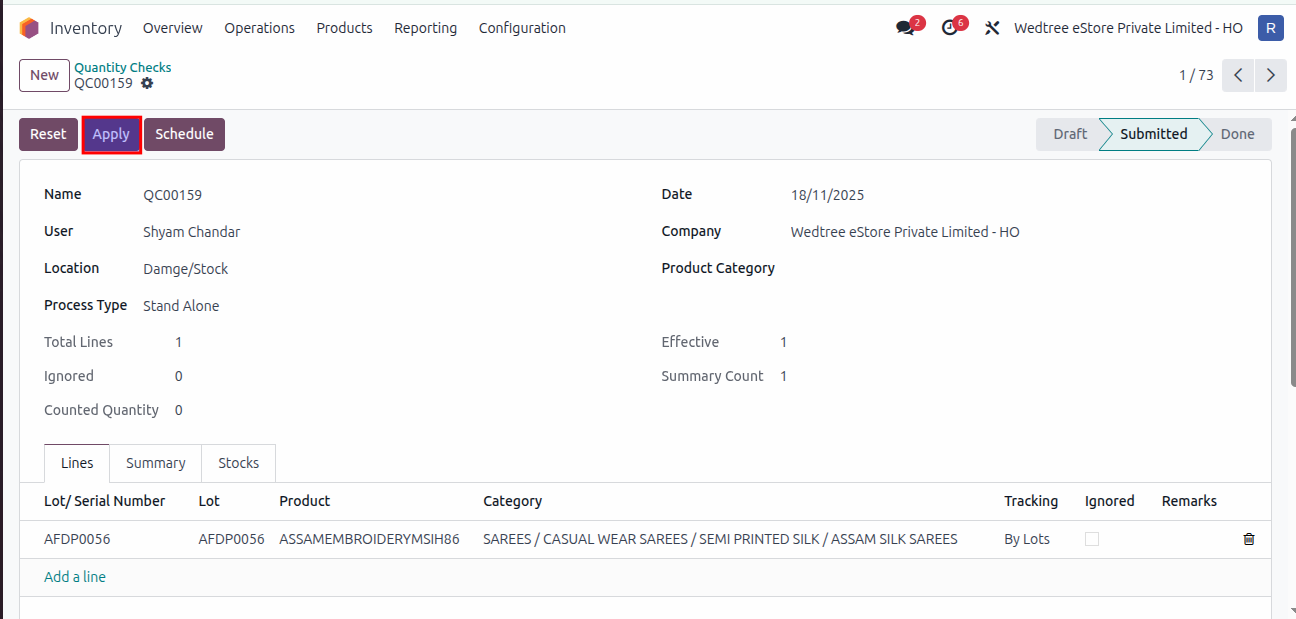
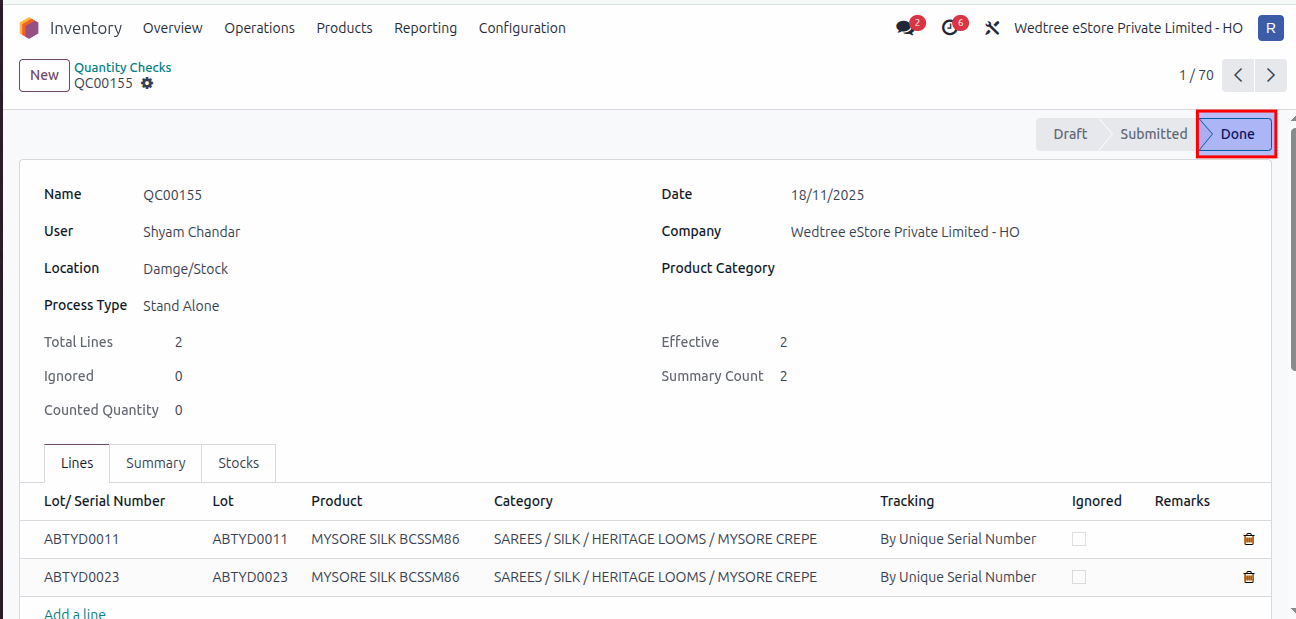
If everything is correct, click Apply and it goes to Done state.
If Manager finds anything wrong, click on Reset.
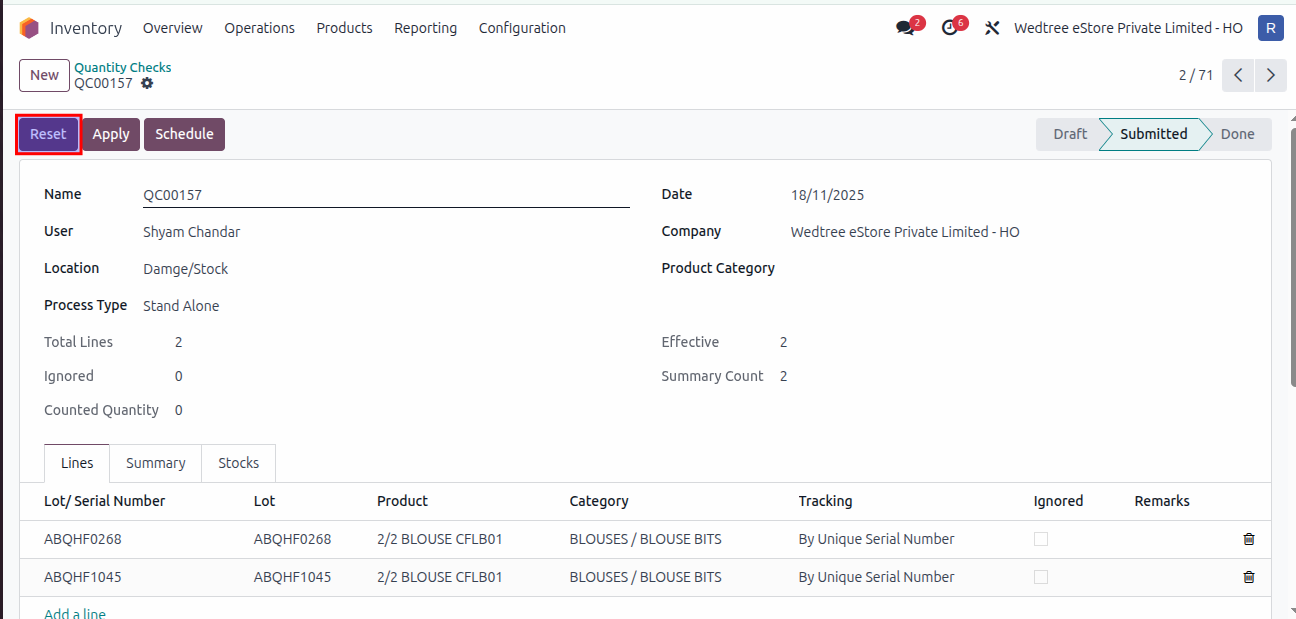
It goes again to Draft state.
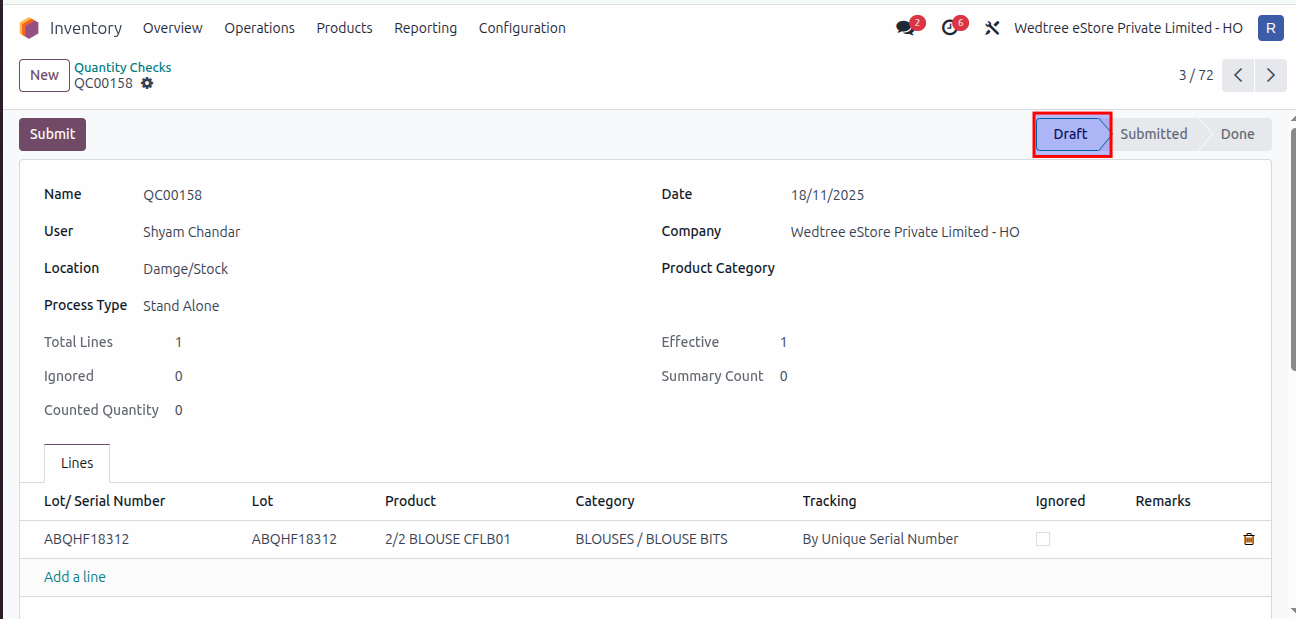
Demo Video
Quantity Checks - Batch Process
Login as a Quantity Manager. The user purchase@prashantisarees.com is used for demonstration purposes.
Go to .
The Tree View of Quantity Checks will open as shown below. Click on the New button.
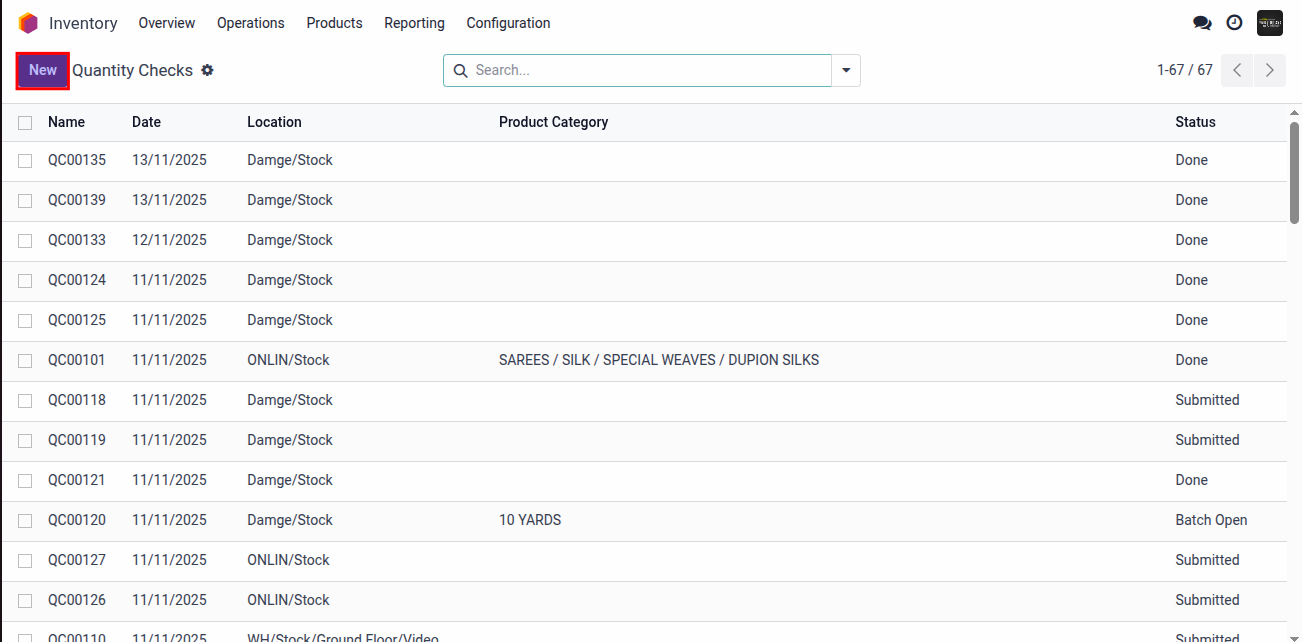
The Form View for creating a Quantity Checks will appear as shown below.
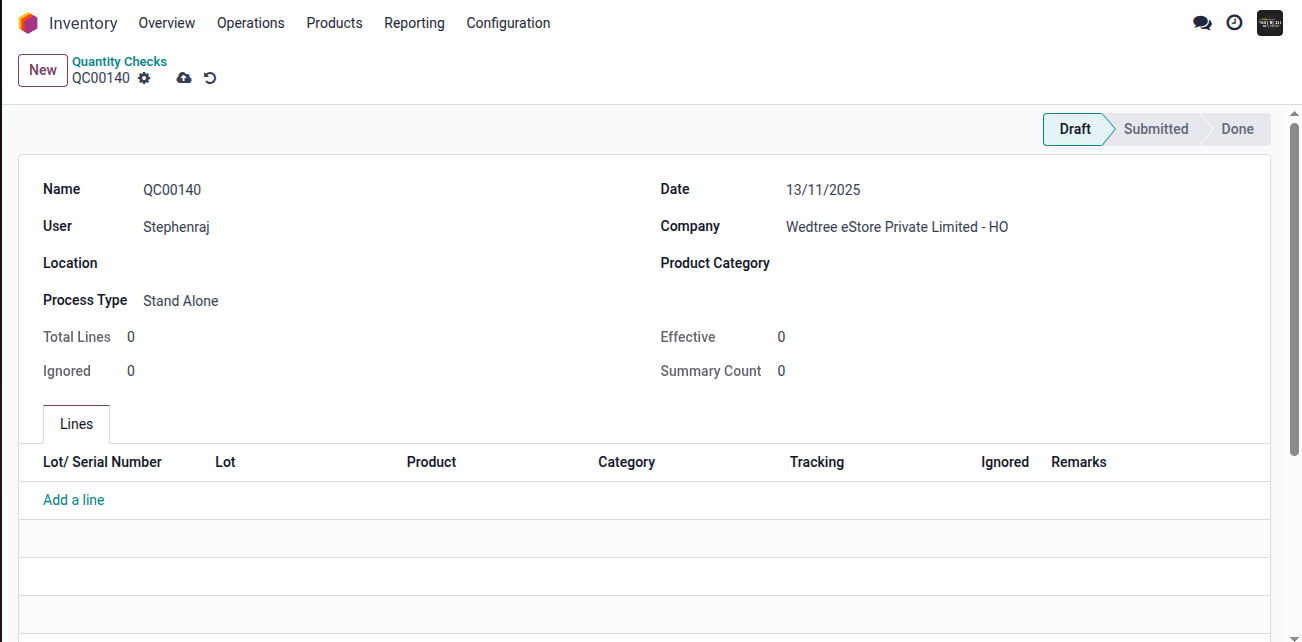
Fill in all mandatory fields in the form view. Enter the Location detail, select the process type as Is Batch. Click the Save button.
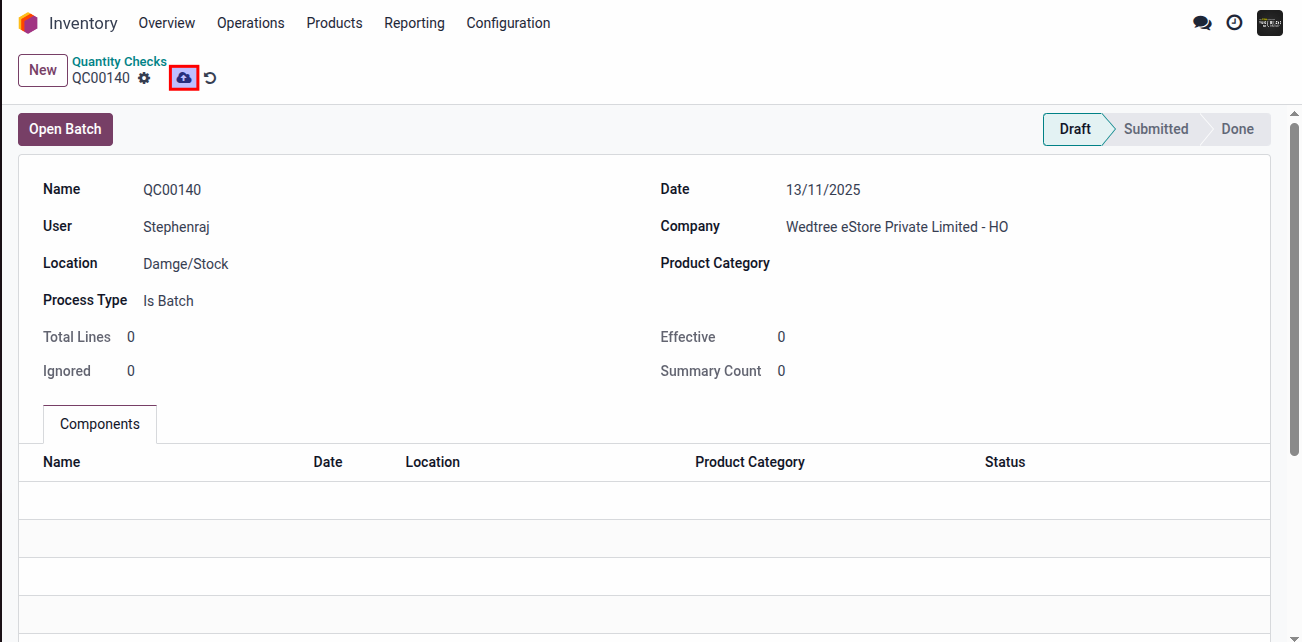
Click on Open Batch button.
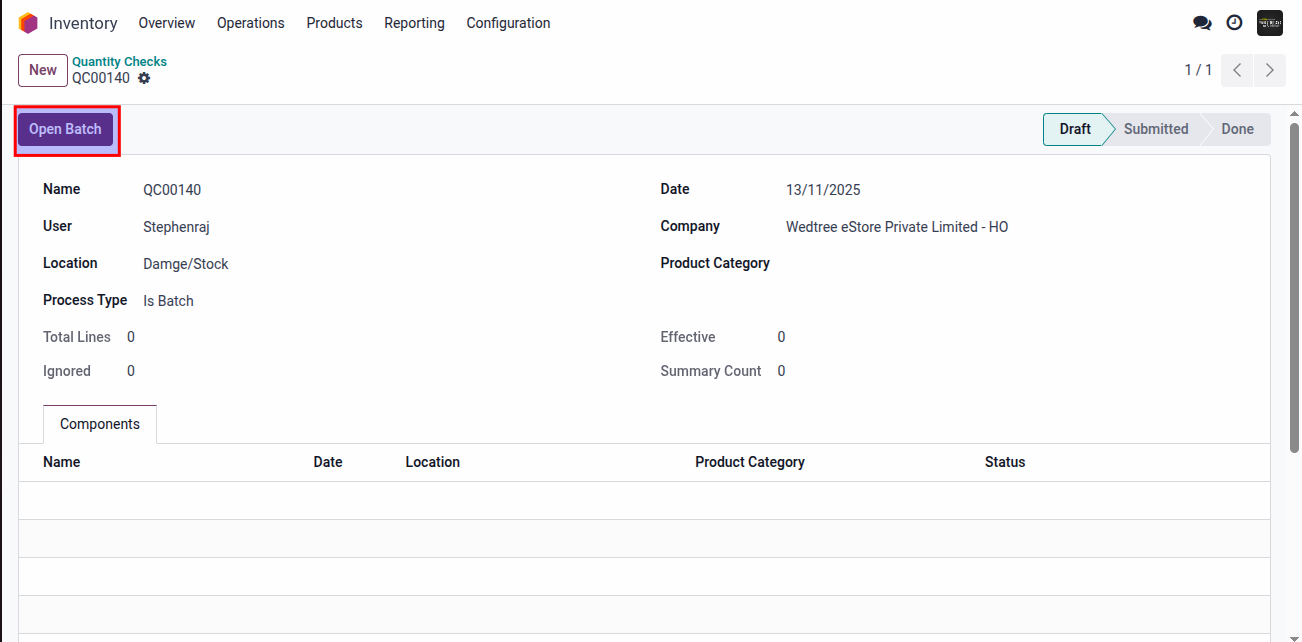
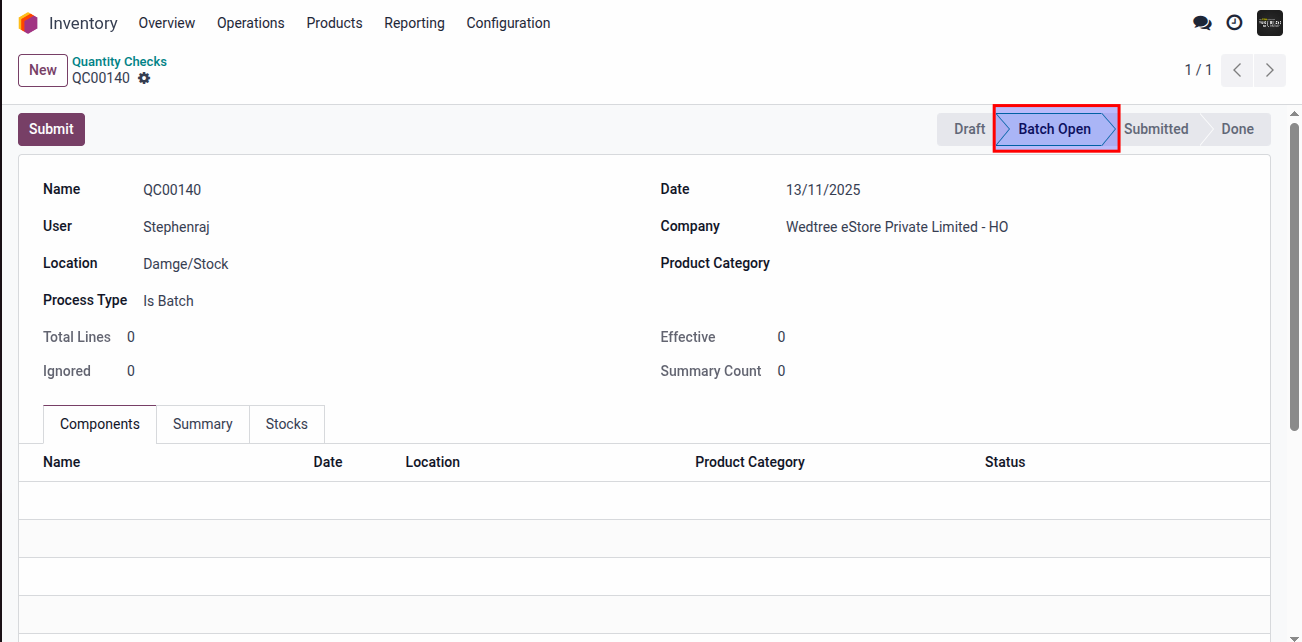
The status would change from Draft to Batch Open.
Login as a Quantity User. The user shyamchandar@wedtree.com is used for demonstration purposes.
Go to .
The Tree View of Quantity Checks will open as shown below. Click on the New button.
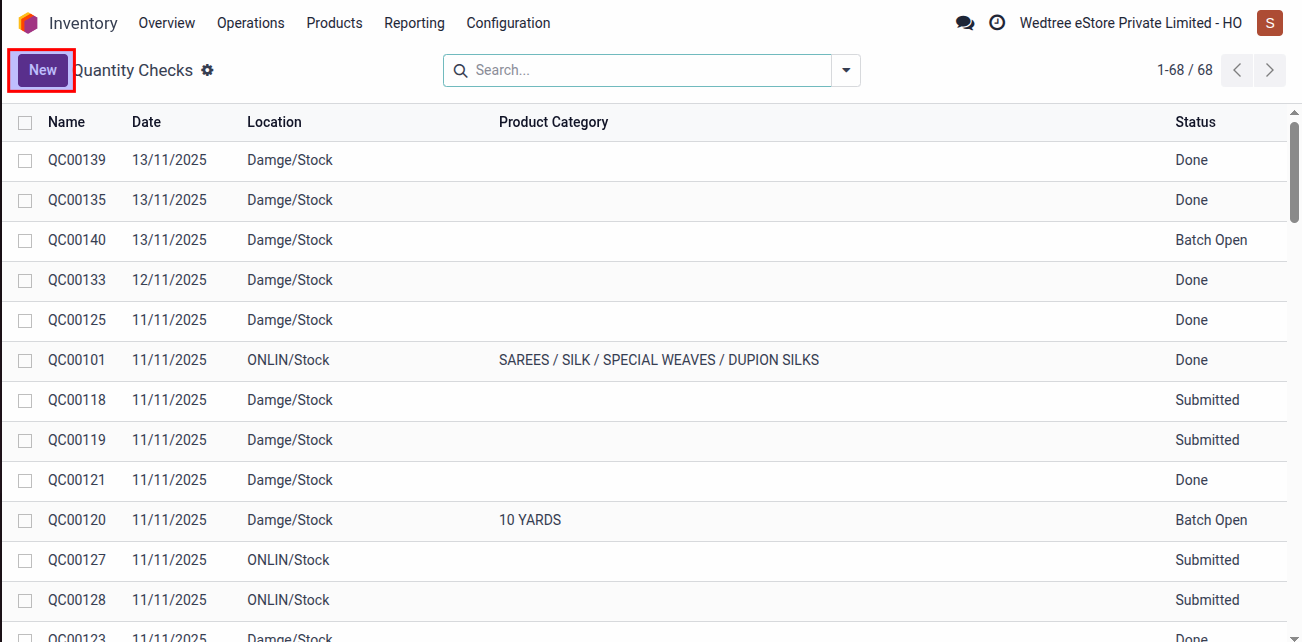
The Form View for creating a Quantity Checks will appear as shown below. Fill in all mandatory fields in the form view. Enter the Location detail, select the process type as In Batch then select the Batch QC and click Add a Line. Enter the Lot/Serial Number, then click the Save button.
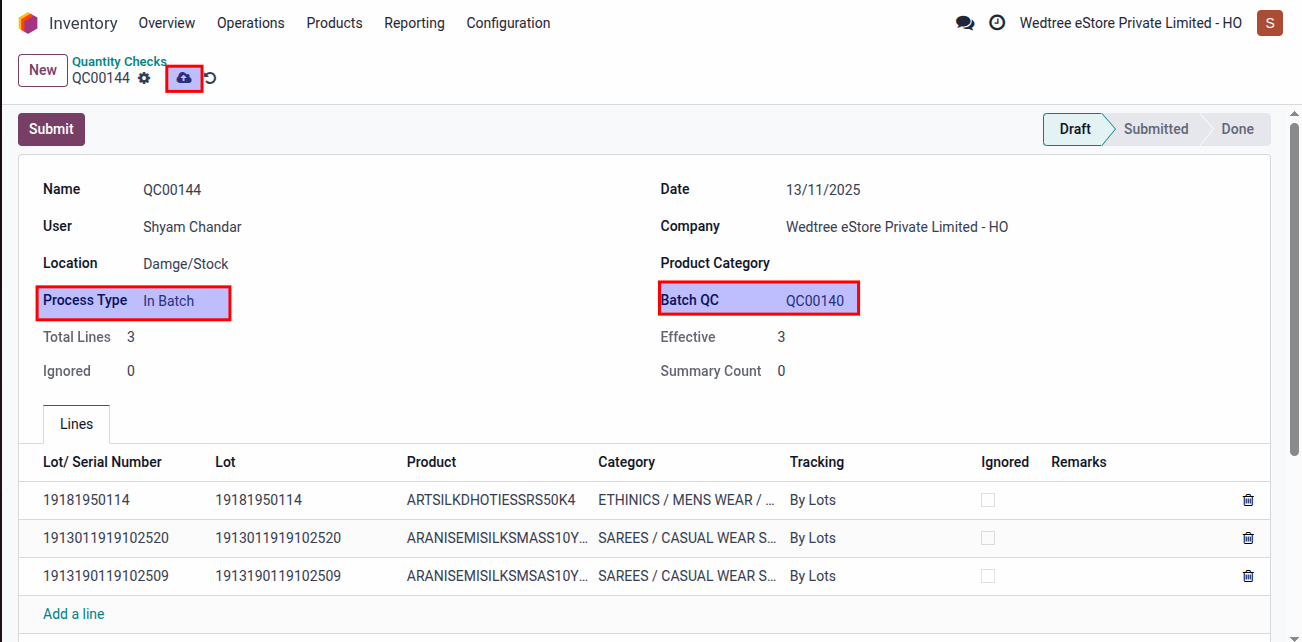
Click on Submit button.
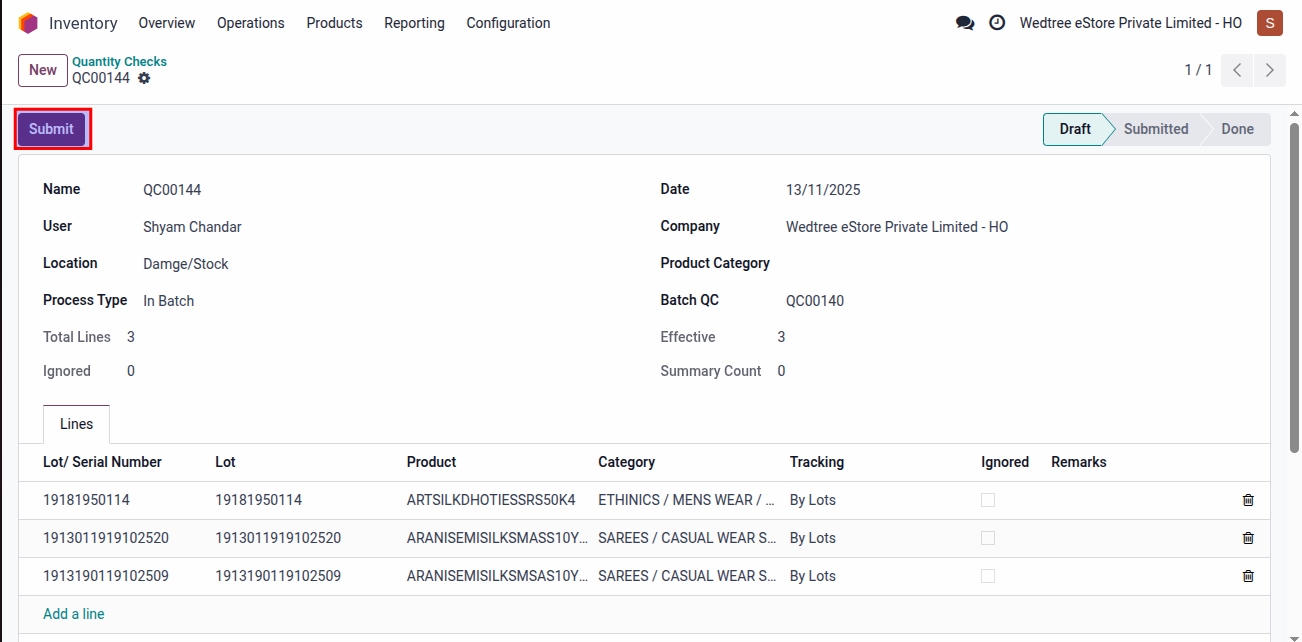
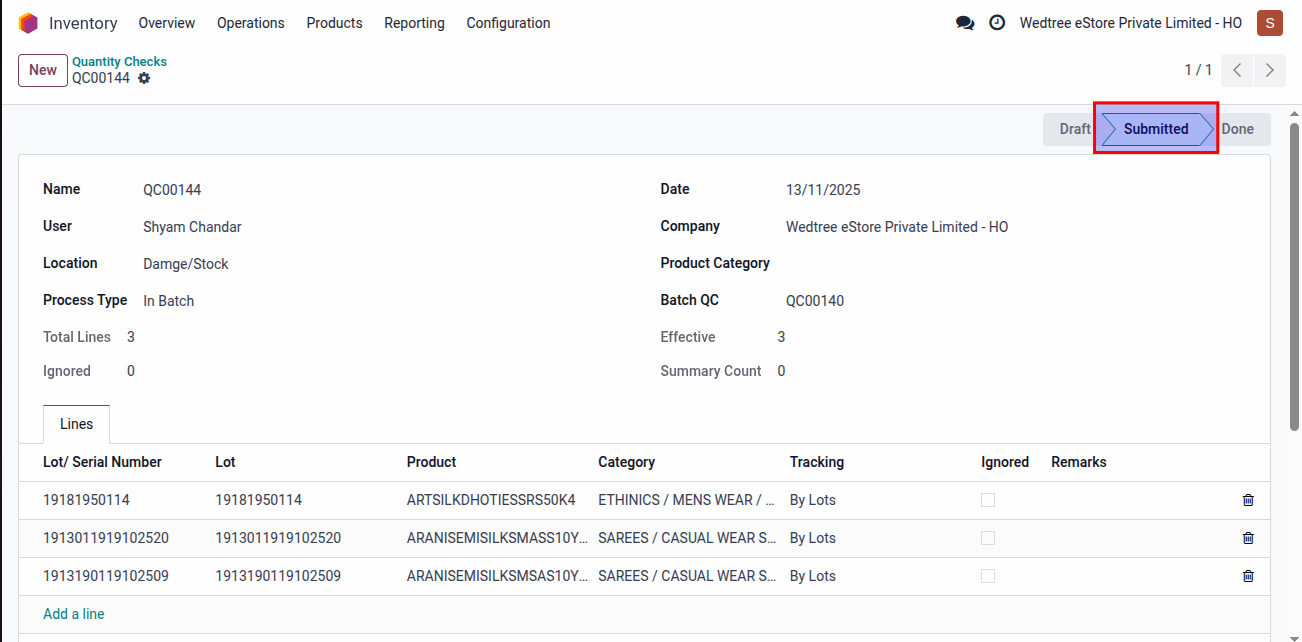
The status would change from Draft to Submitted.
After submitting the batch, log in as the Quantity Manager, rajiv@wedtree.com is used for demonstration, and open the relevant record.
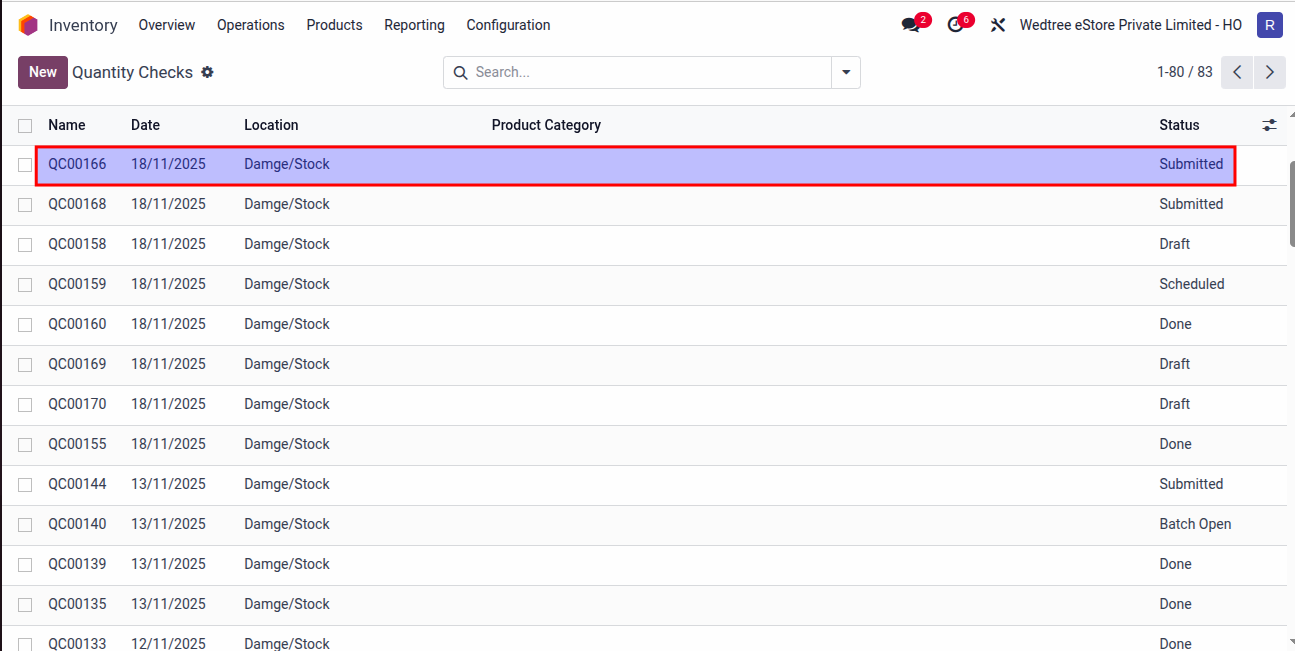
Click the Fetch Stock button.
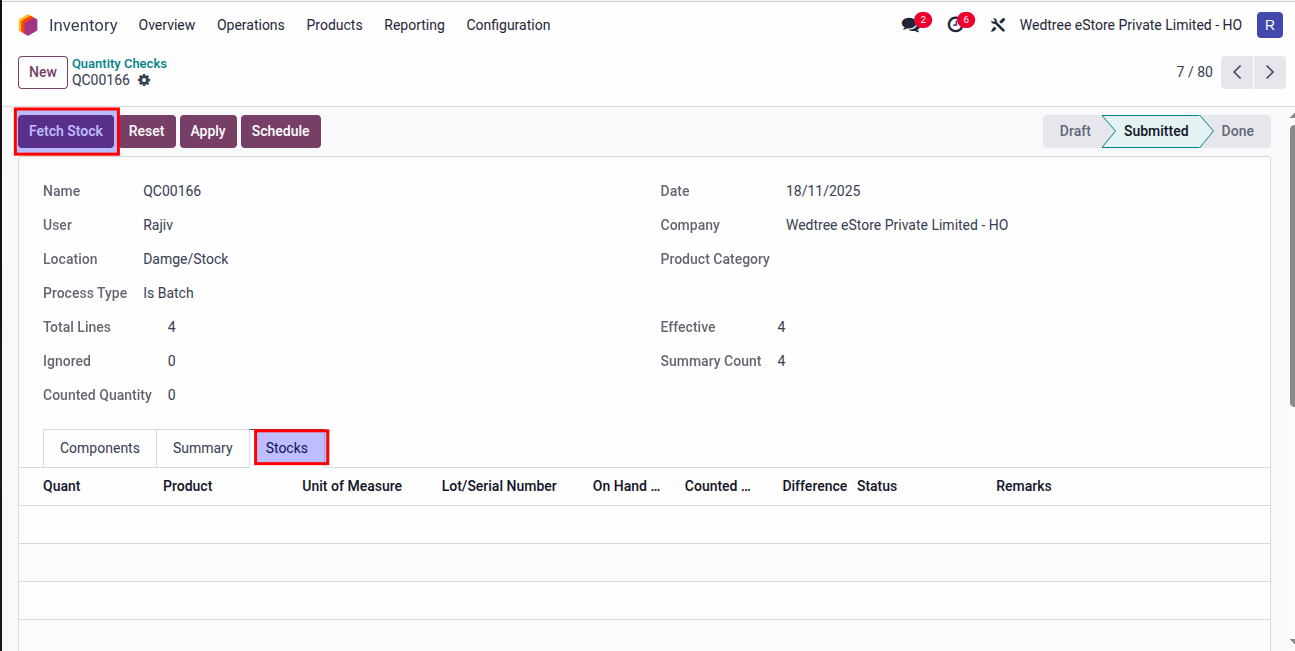
Once stock is fetched, the Counted Quantity will be updated on the Stocks page.
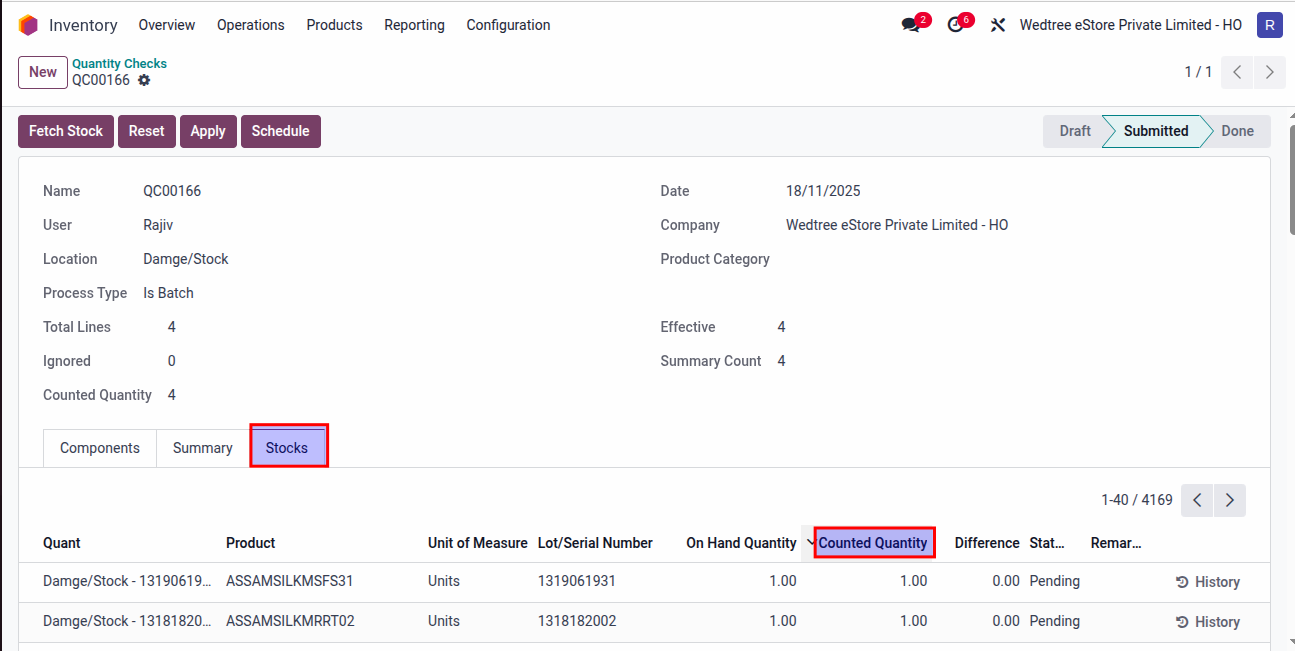
If the batch quantity is within the allowed limit, click the Apply button. After Apply it goes to Done state.
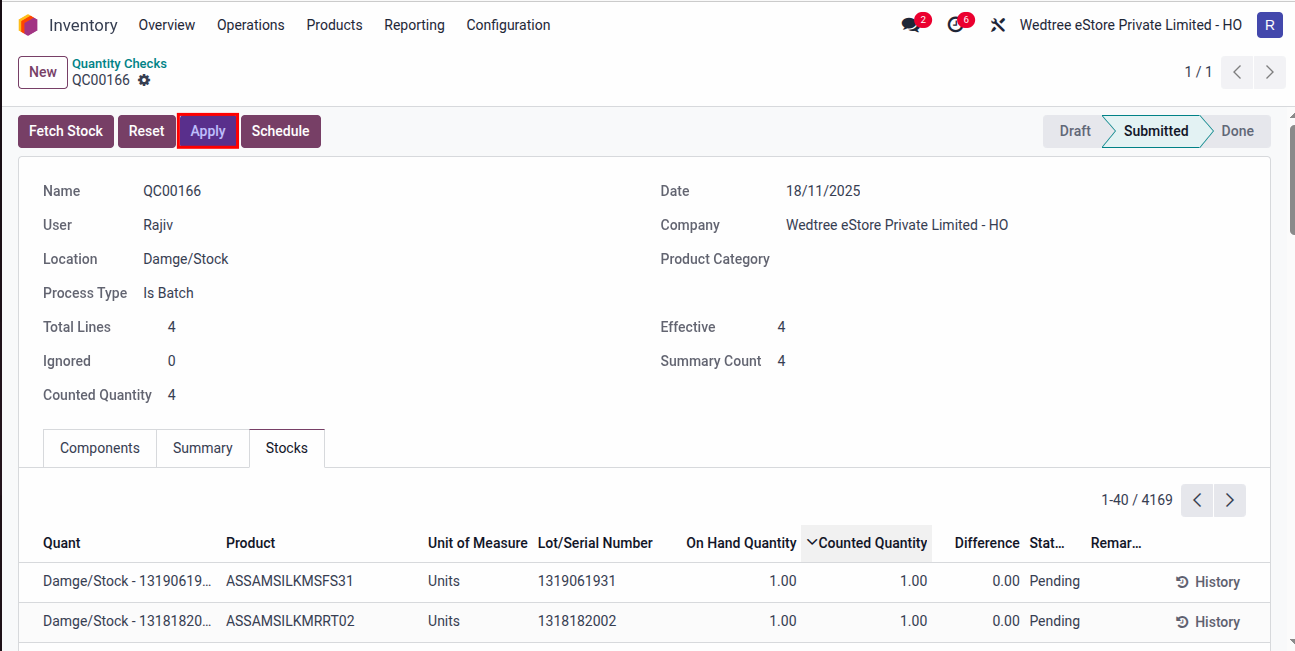
If the batch quantity exceeds the allowed limit, click the Schedule button.
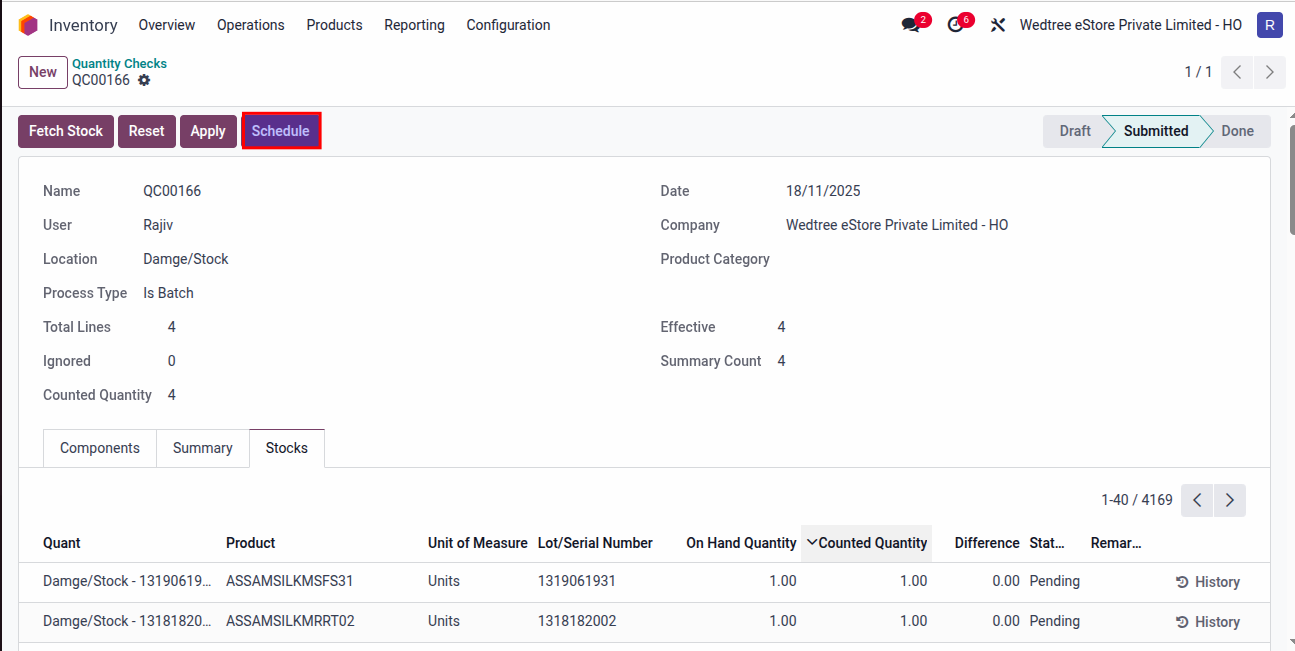
After scheduling, the batch status changed from Submitted to Scheduled.
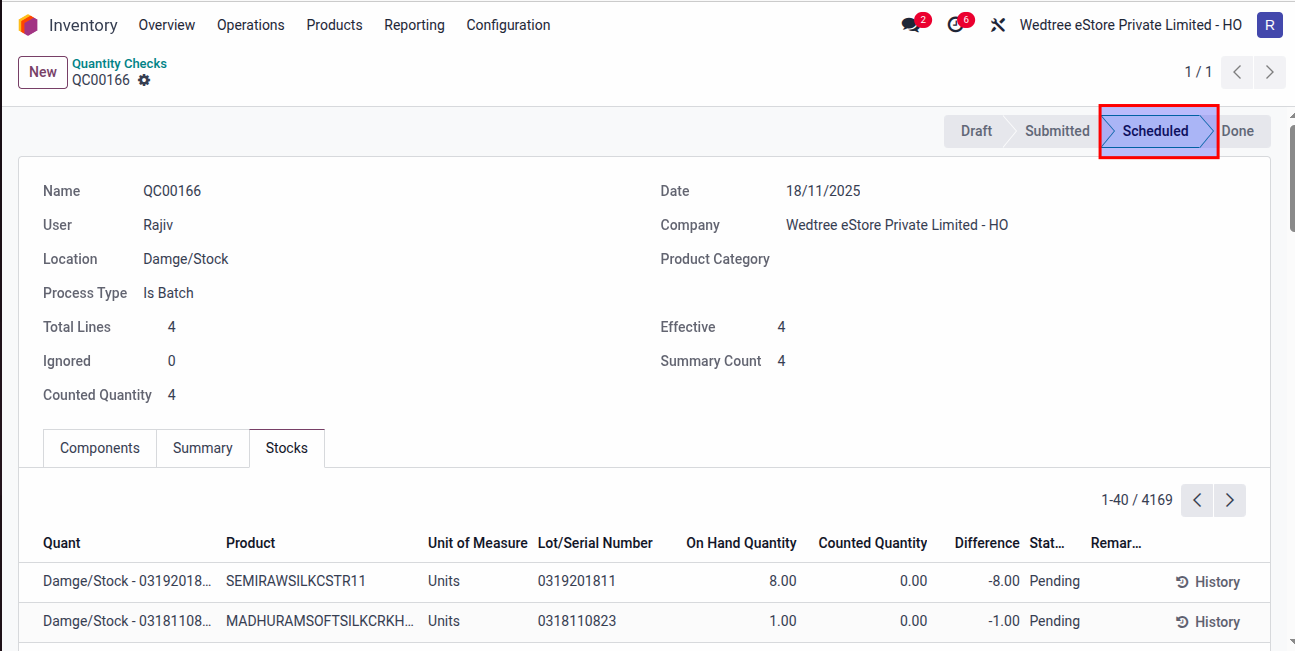
Demo Video for Batch Process
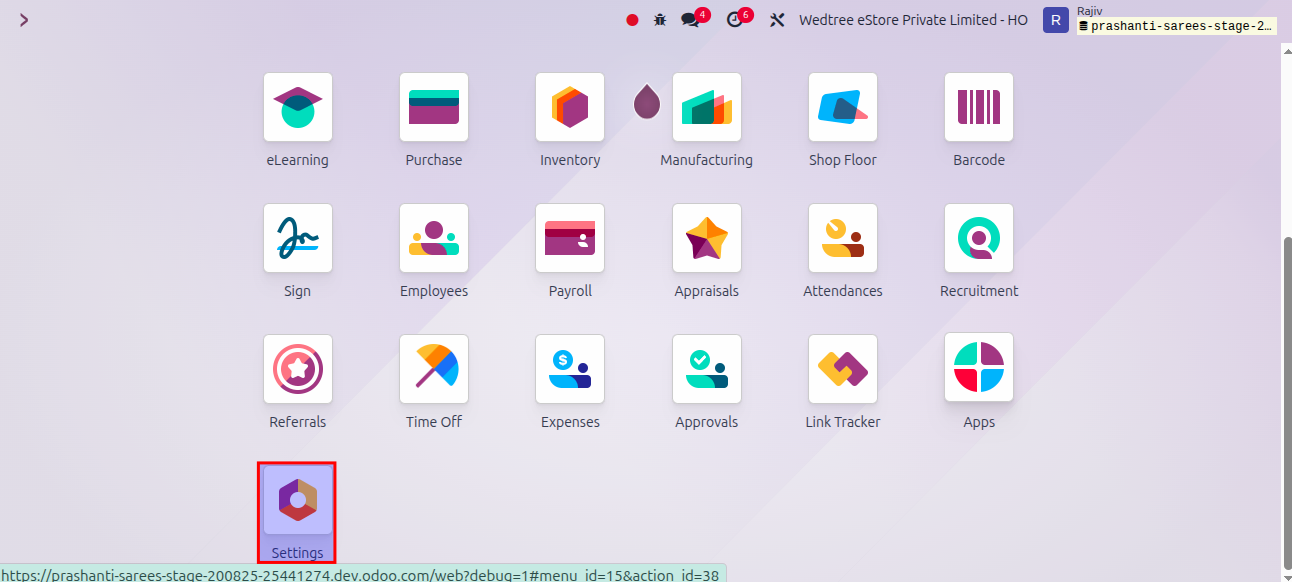
After clicking Schedule button, go to Settings in Developer Mode.
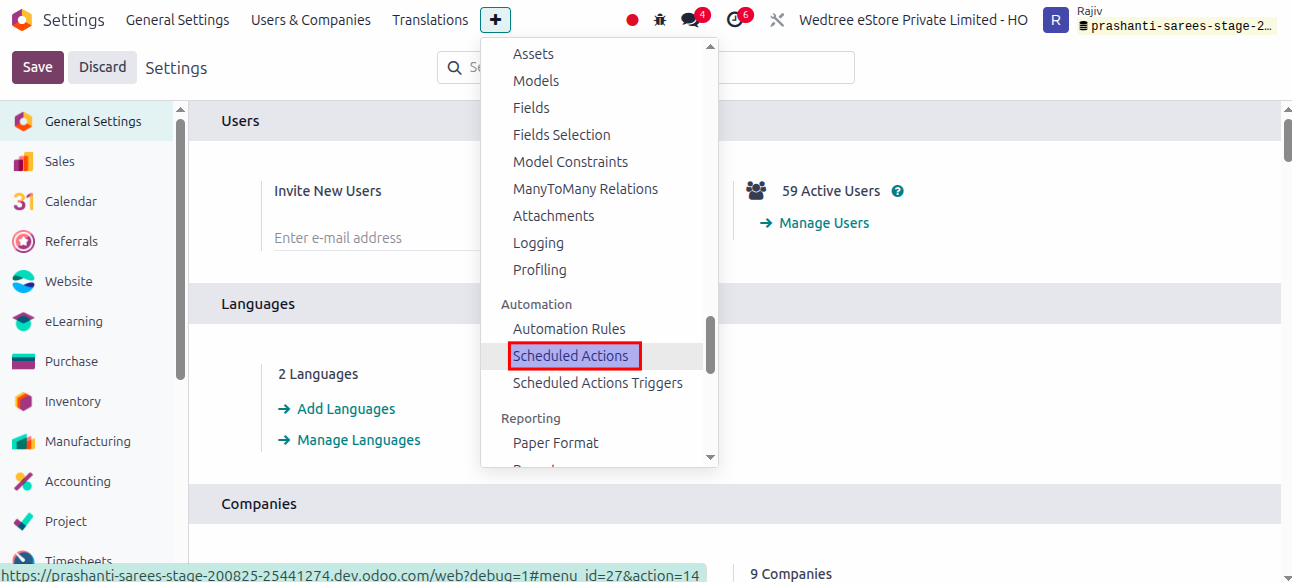
Go to Scheduled Action
Select Scheduled Action for Prashanti
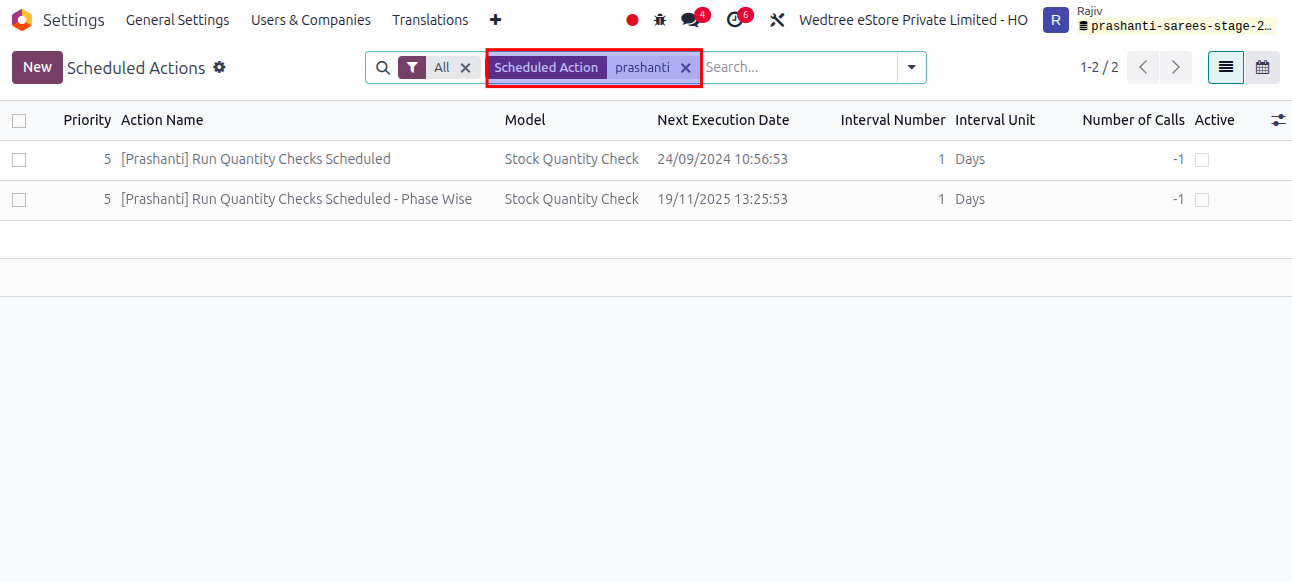
For lesser stock, select Run Quantity Checks Scheduled and for larger stocks select Run Quantity Checks Scheduled - Phase Wise
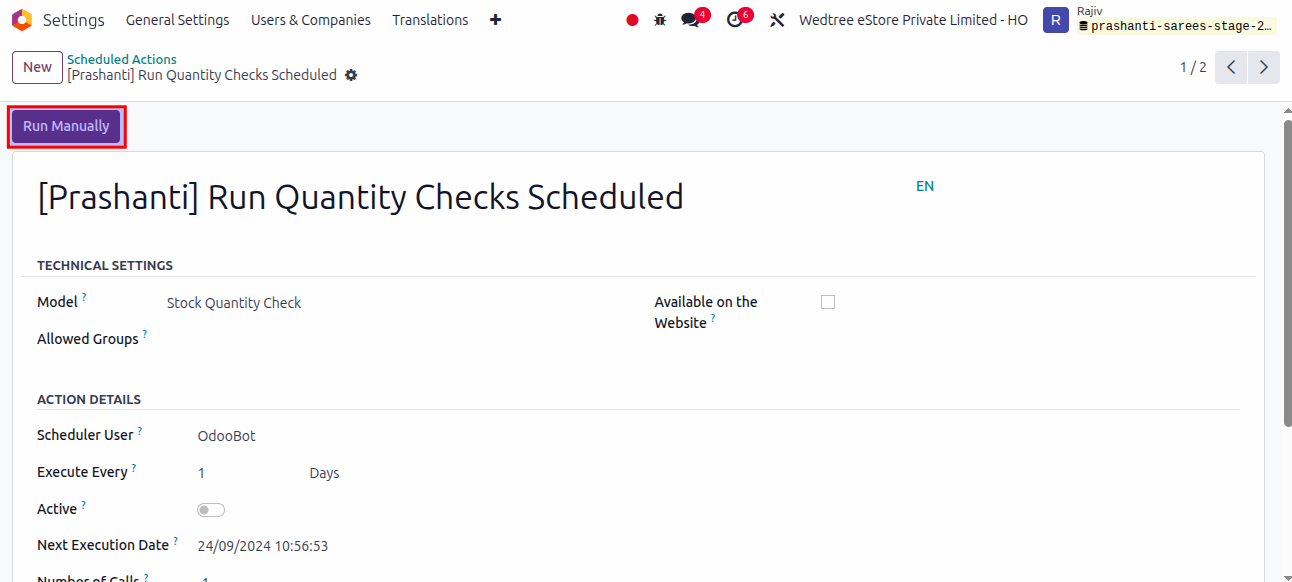
After this, QC goes to Done state.