Orders
About
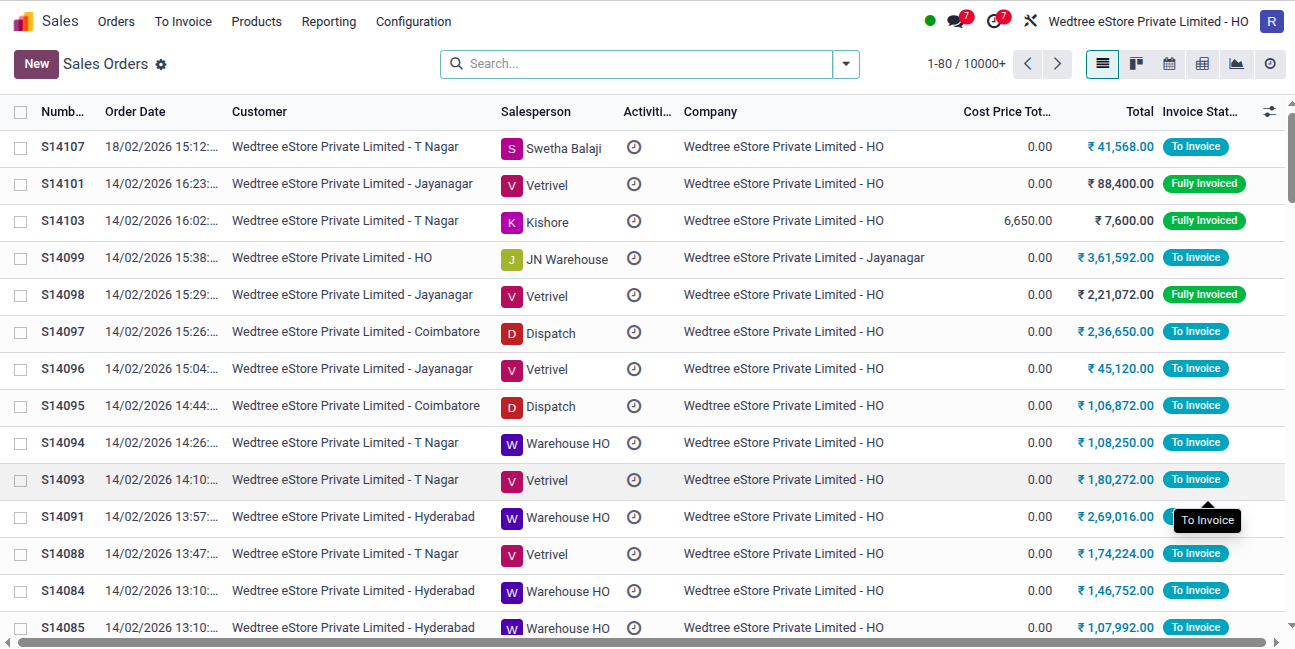
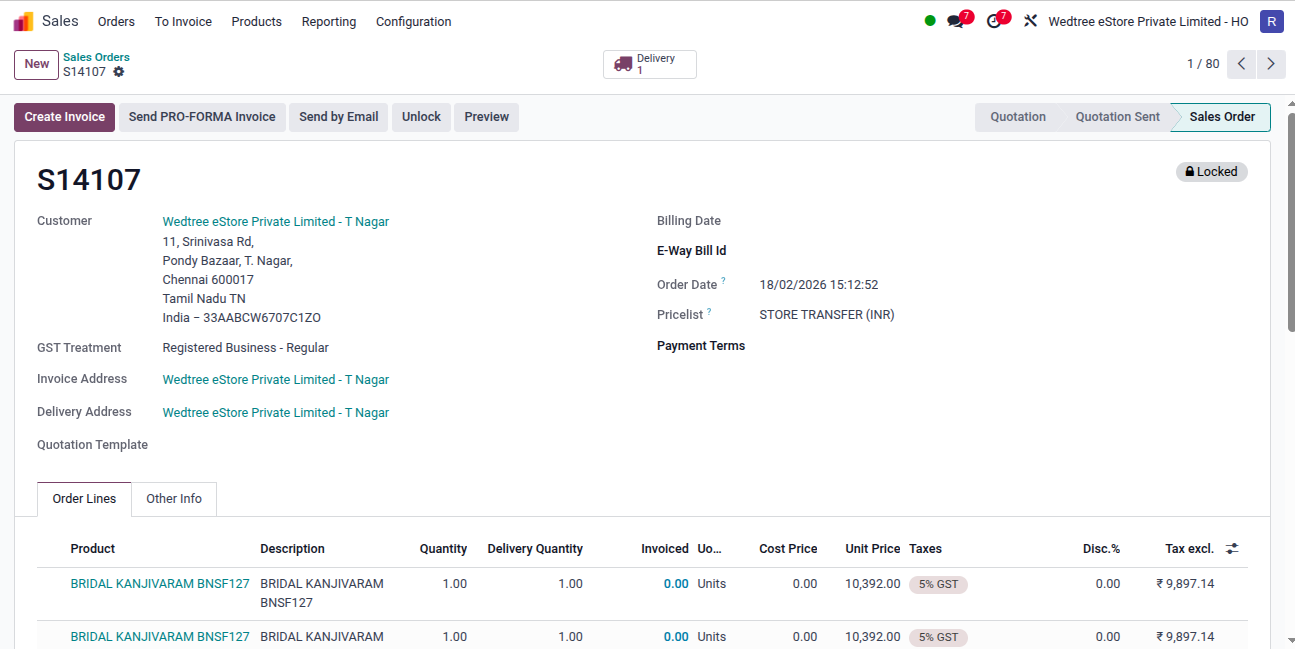
The Orders menu is used to manage all confirmed sales orders. It enables users to monitor order status, update order details, manage deliveries, generate invoices and maintain a seamless sales workflow from order confirmation to fulfillment.
List View
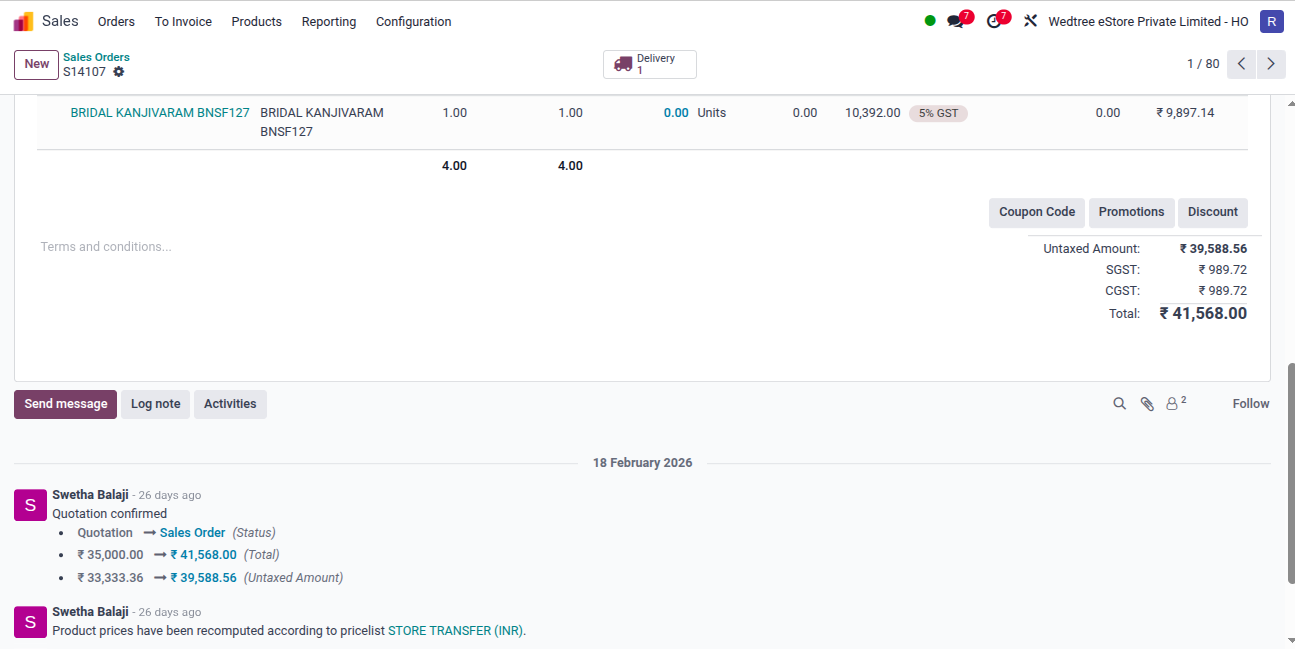
Form View
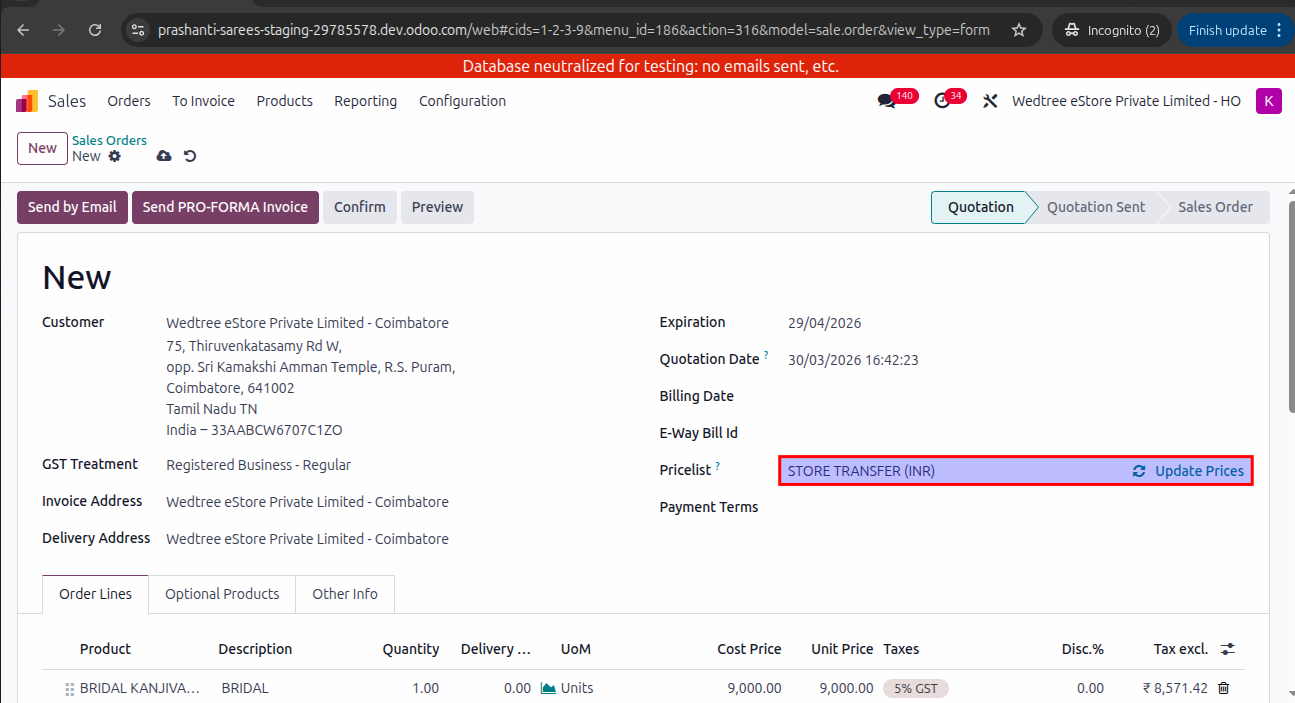
Selecting Pricelist in Sale Order:
After entering the customer name in SO, the default Pricelist comes. After scanning the products for transfer, if we want to change, we can change in the drop down menu and click on Update Prices.
Workflow of Creating Sale Order and Receiving the Product in Purchase Order
Go to
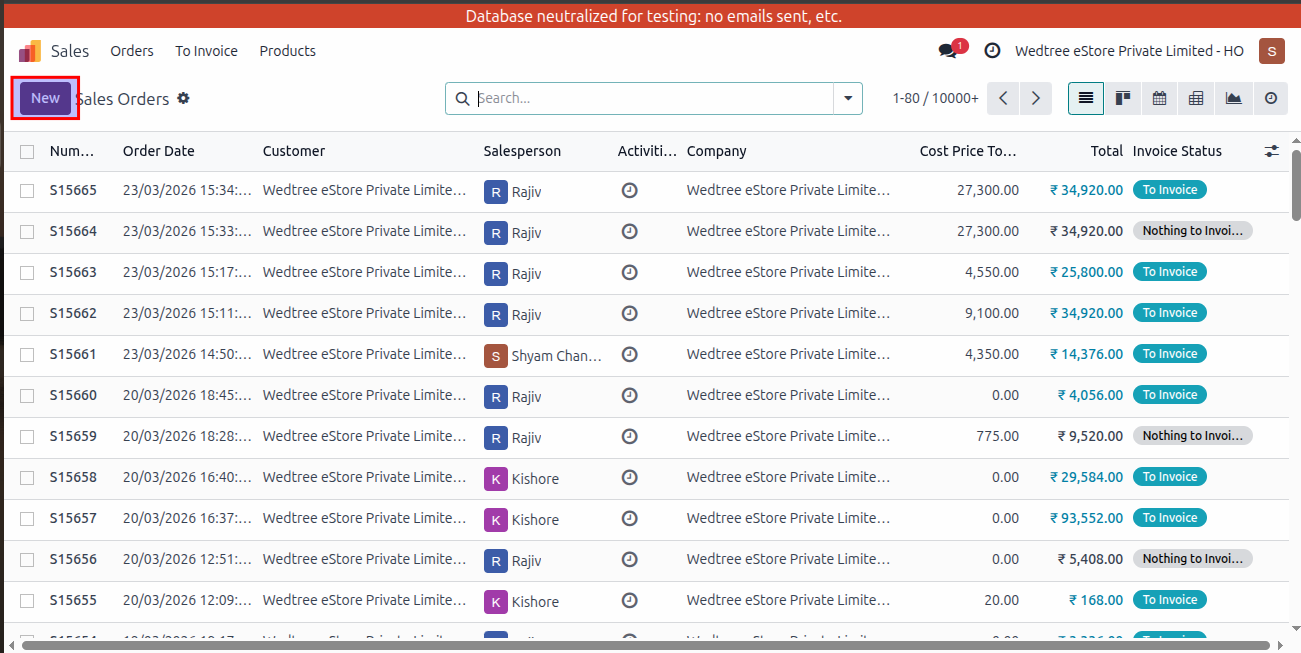
Click for new Sale Order
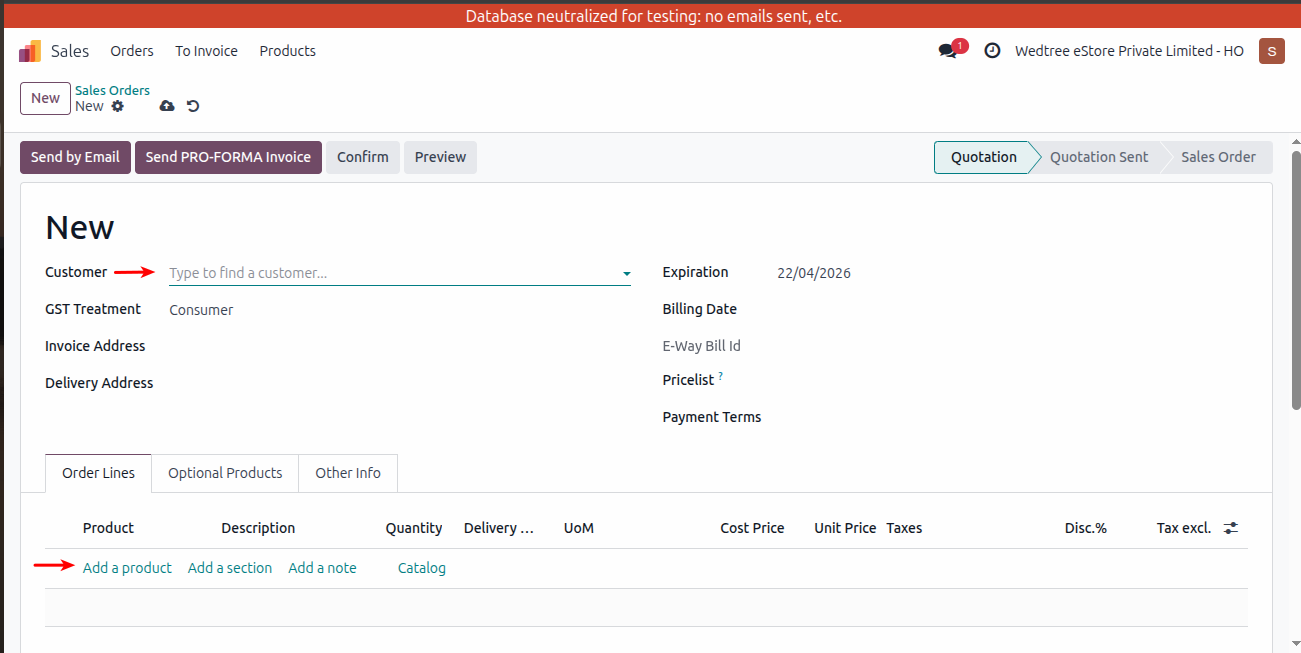
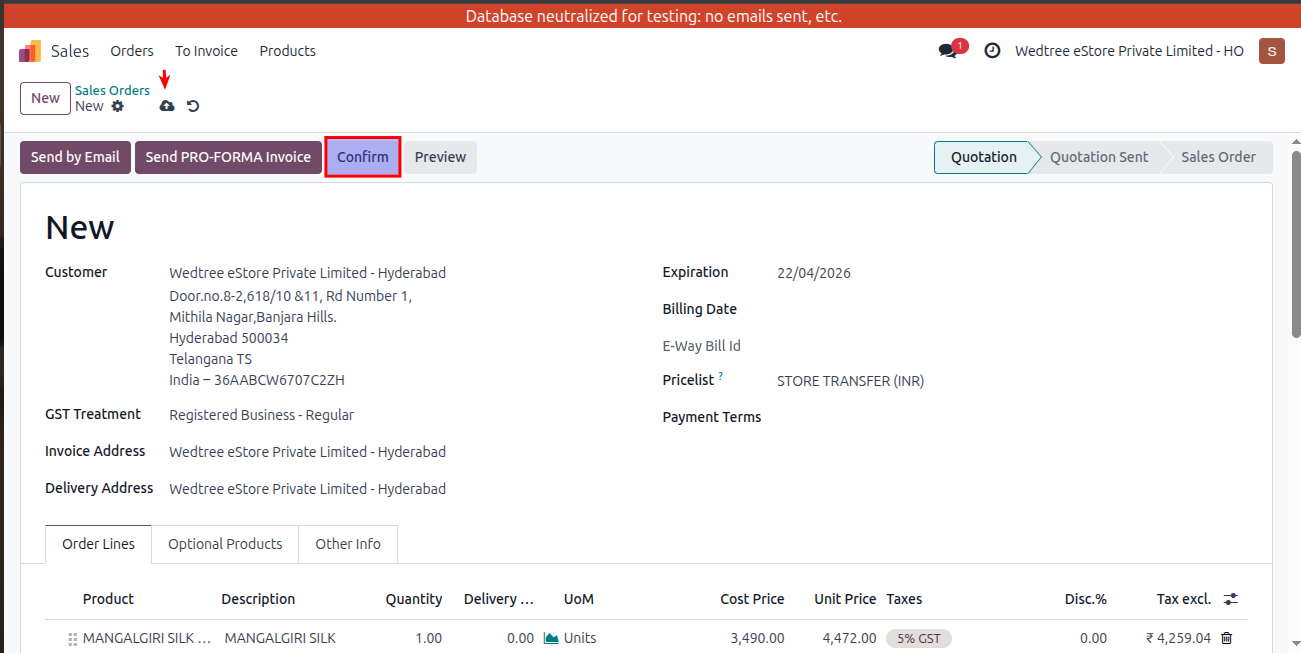
Create a sale order by giving customer location and add the Products.
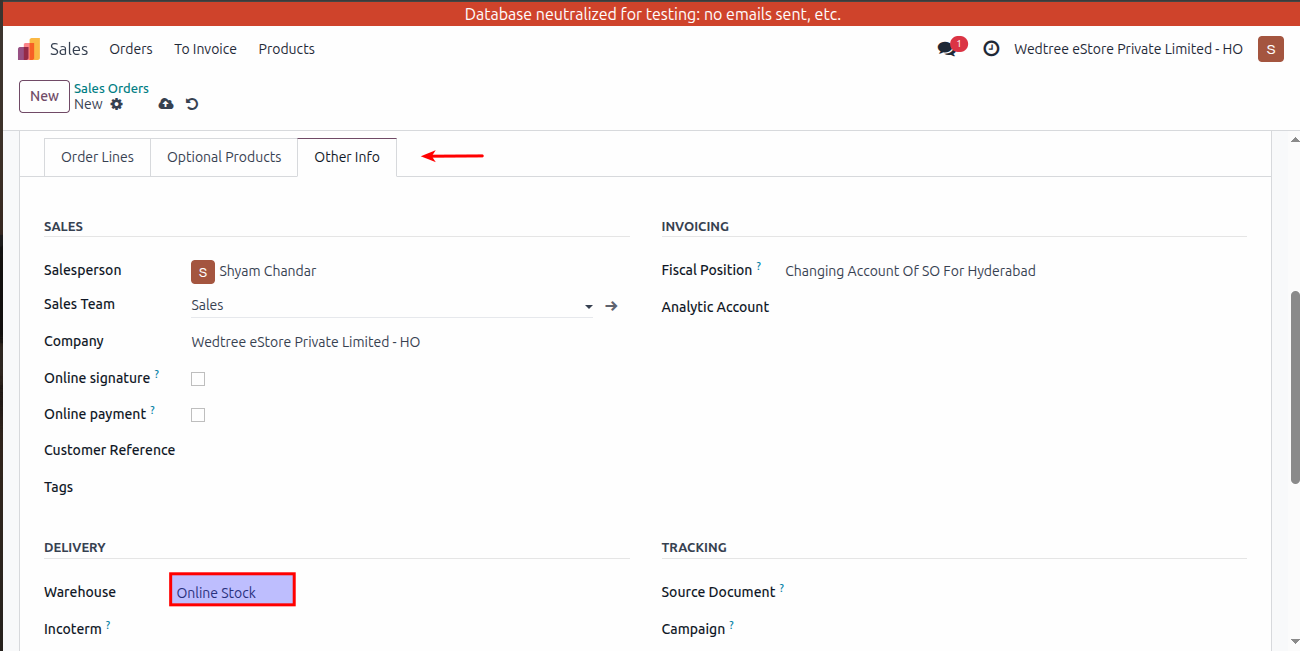
Then go to other info and give the location from which the stock is going.
After giving all the details Save the Order and Confirm.
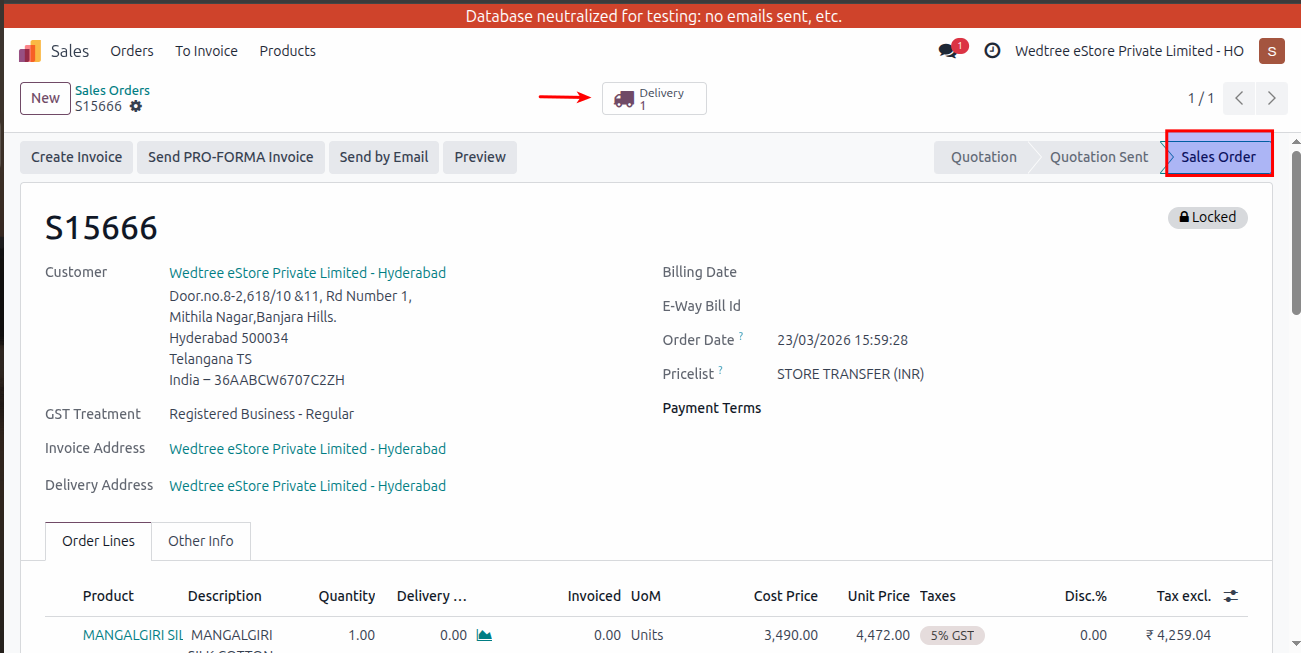
Now the sale orders locks and then click on delivery
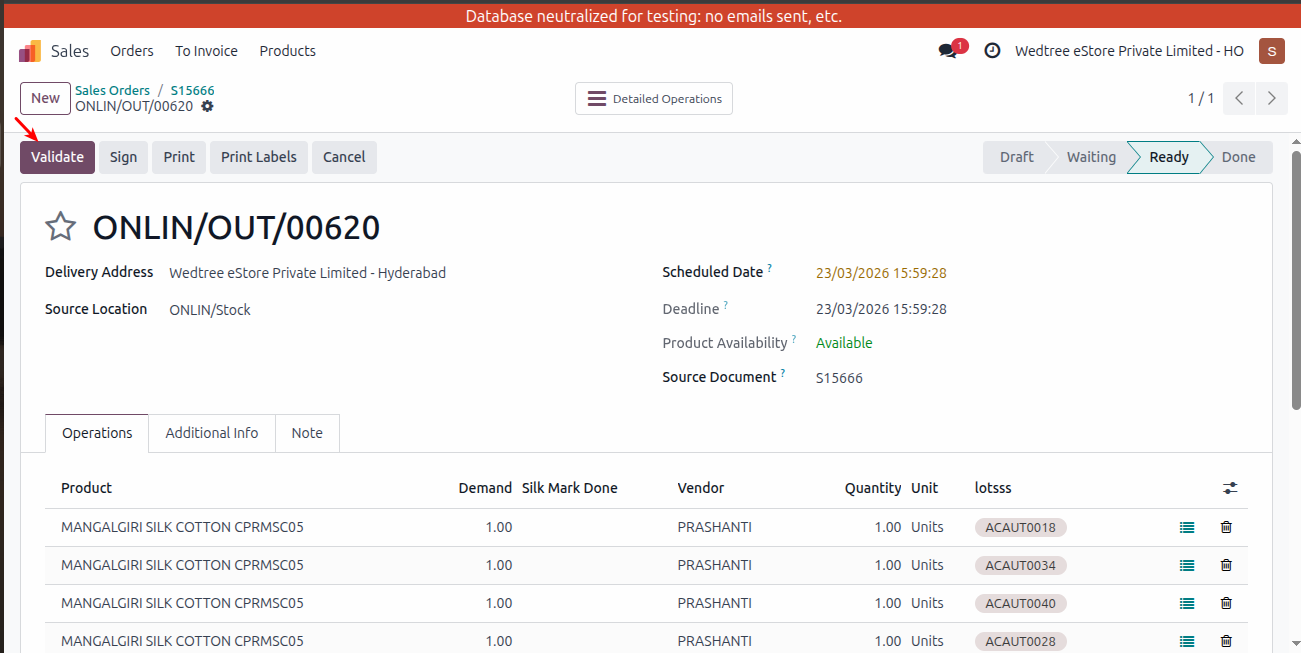
Then check the lot/serial numbers and validate the delivery.
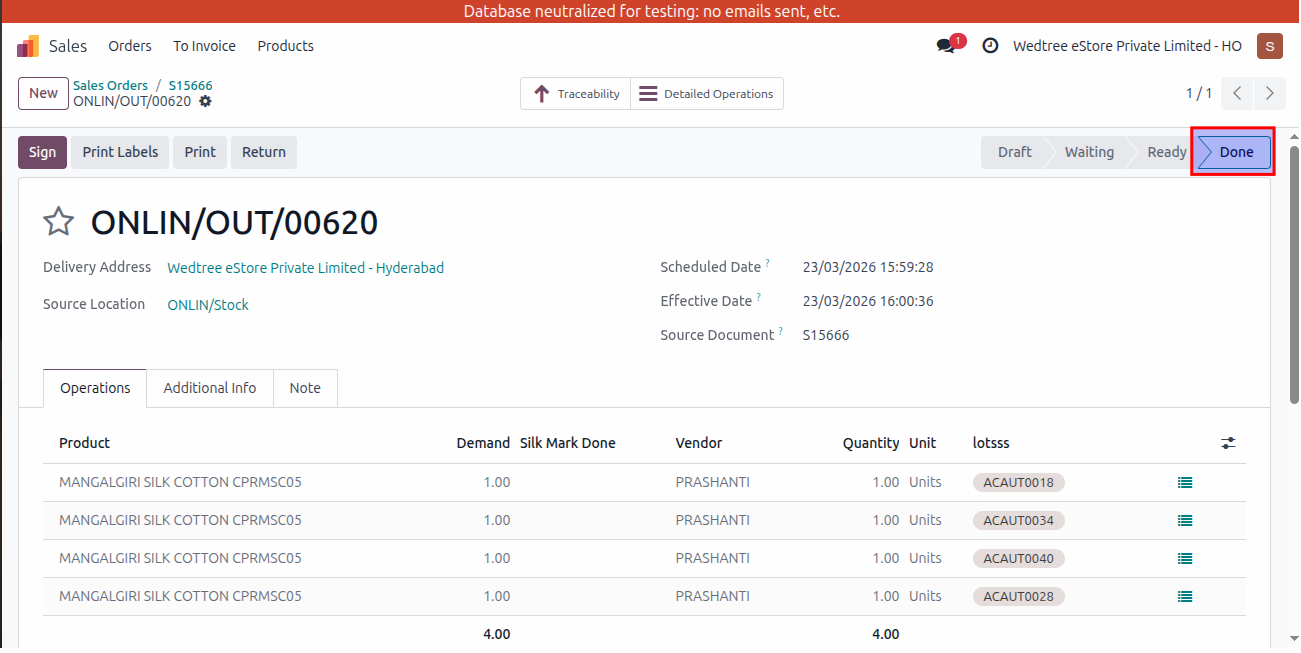
After validating the delivery, it goes to done state.
Then go to Purchase Order of destination location, login with that user.
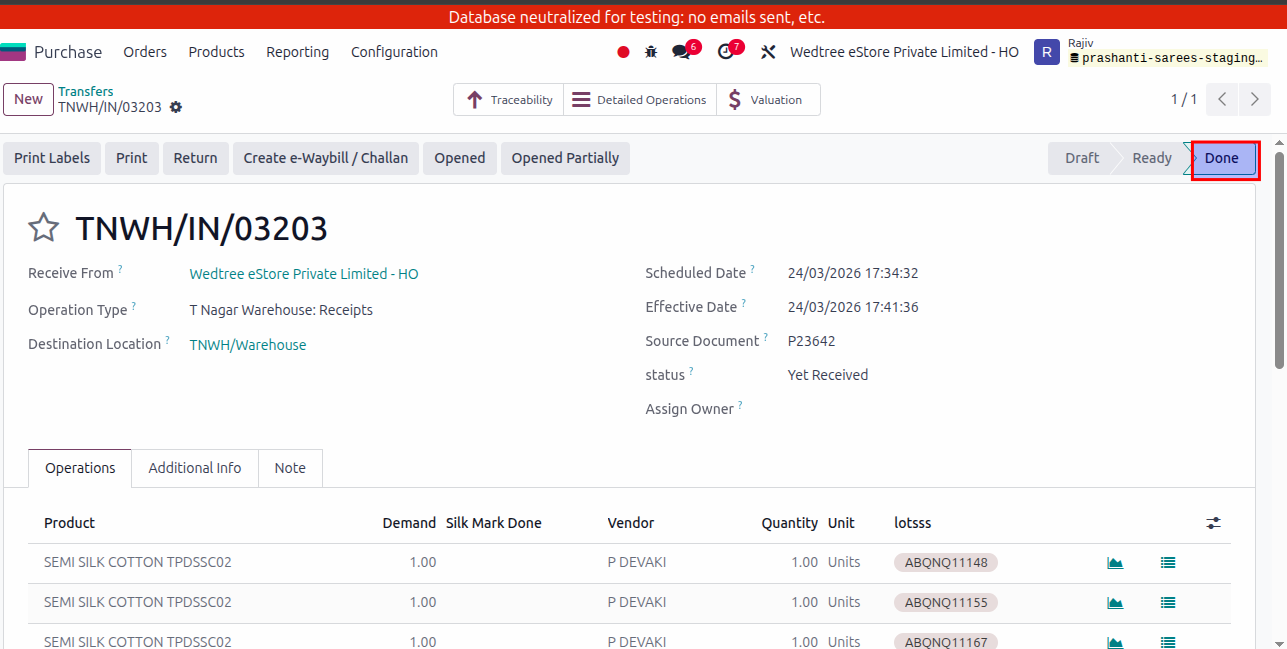
Then Open Purchase Order with that source document.
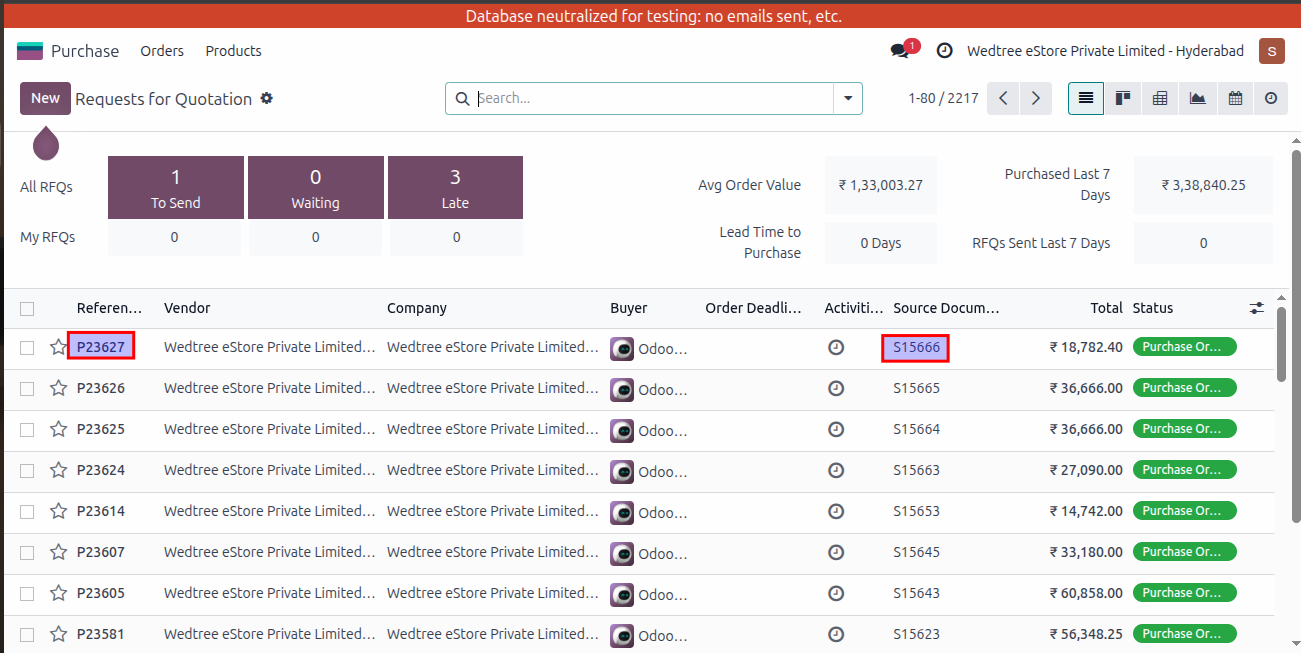
After that, give Approval Type and receive the Products. This is receiving the products by clicking the Receive Product button or we can directly go to Receipt button to receive the products.
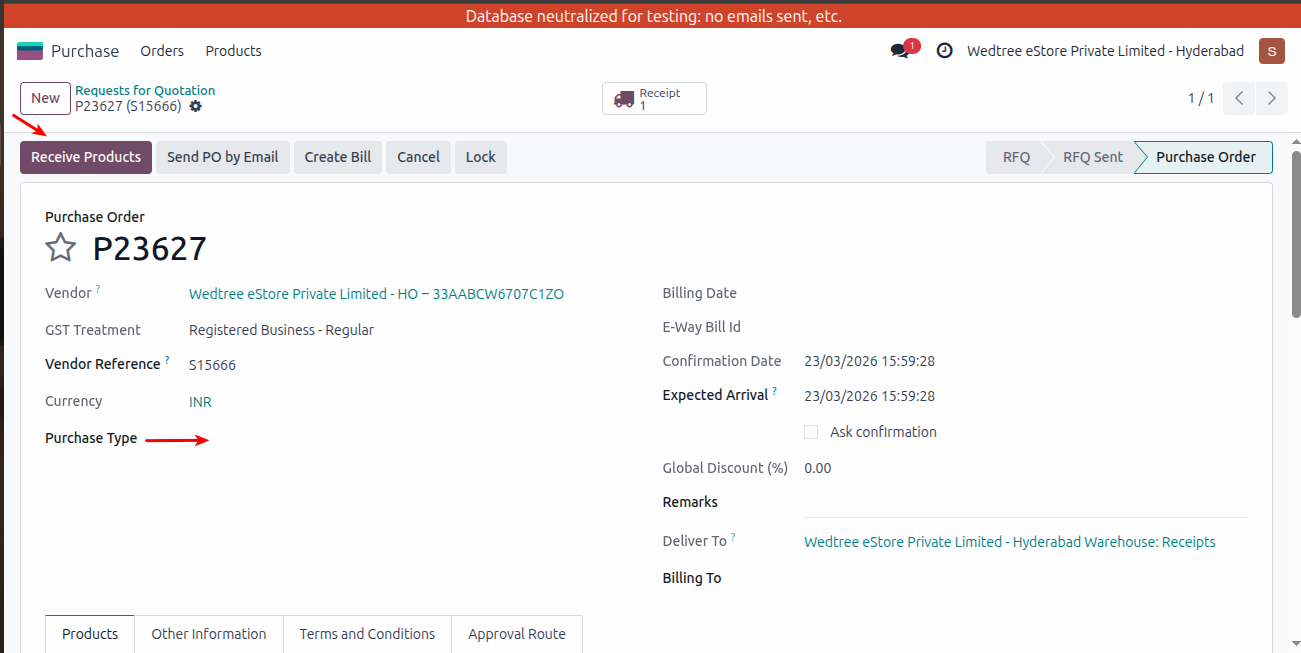
After receiving the products, click on receipt
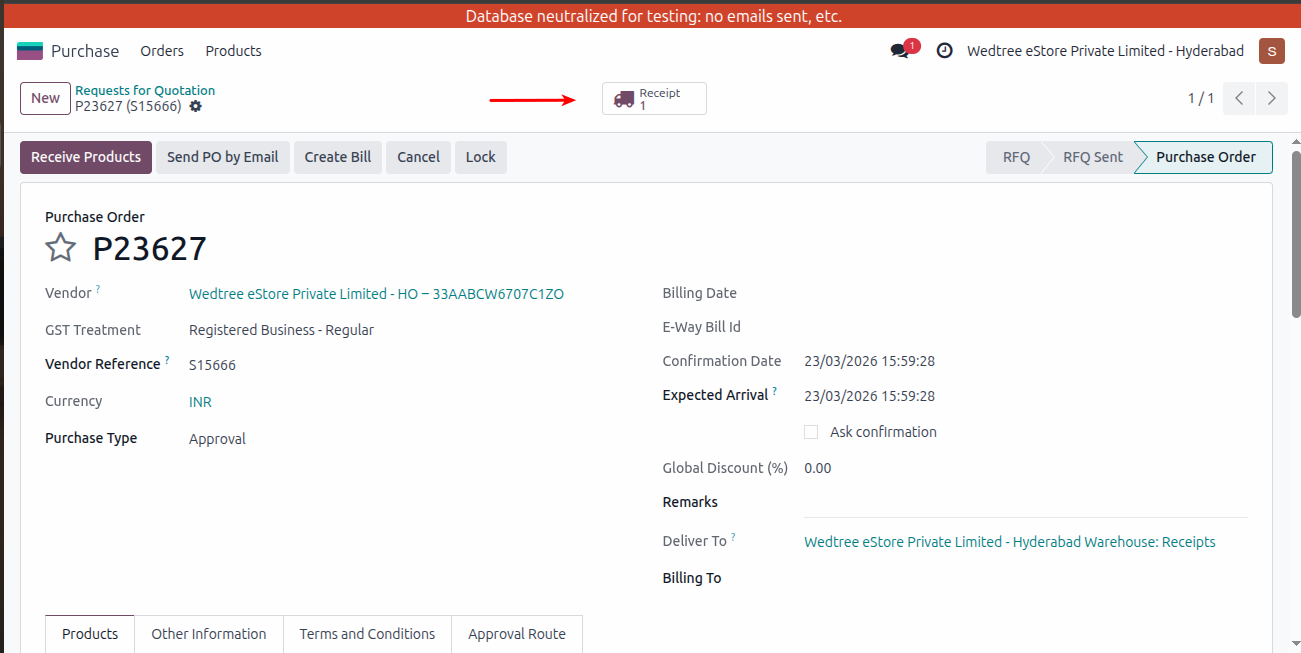
Then validate the receipt by clicking the validate button.
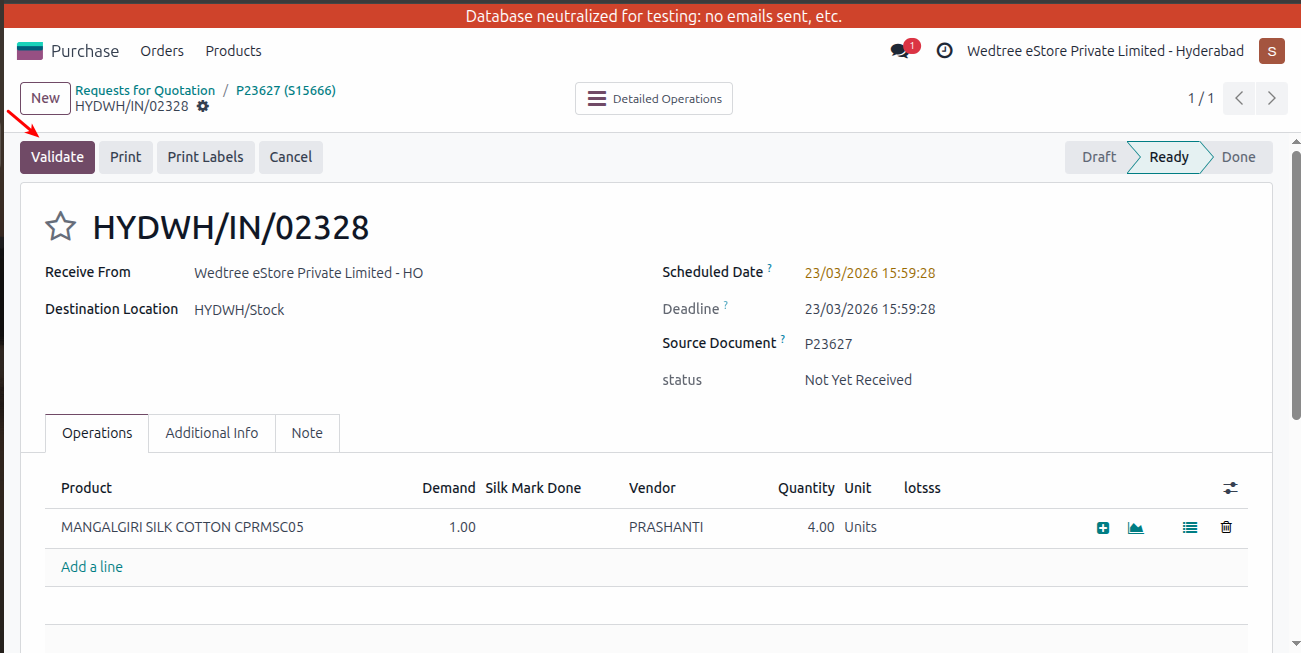
After validating the receipt, it goes to done state. The products are received in the destination location.
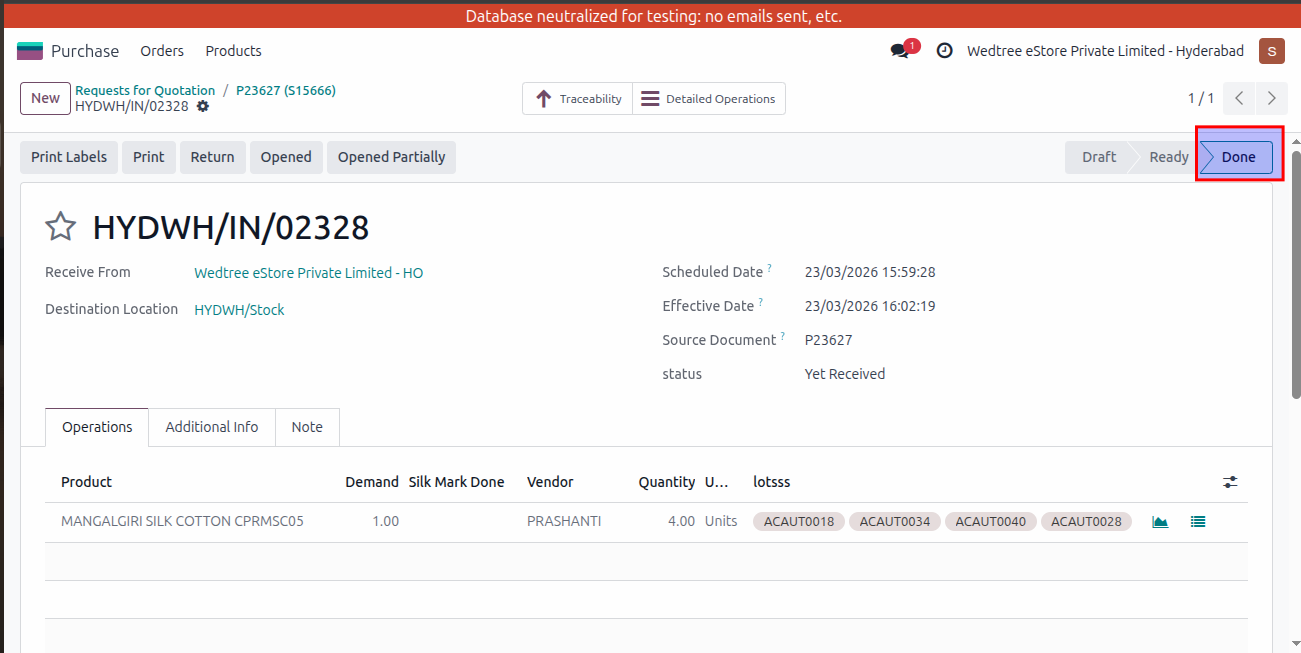
The above process of receiving the products by clicking Receive Product or Receipt is for demo purpose. Actually, the product is received by scanning each and every product in Barcode Module in destination location.
Demo Video for inter company transfer SO-PO
Workflow of receiving the products by scanning in Barcode module
For documentation, SO S15683 from HO to T.Nagar is taken and the PO generated is P23642.
Take the Receipt of PO generated and go to Barcode module.
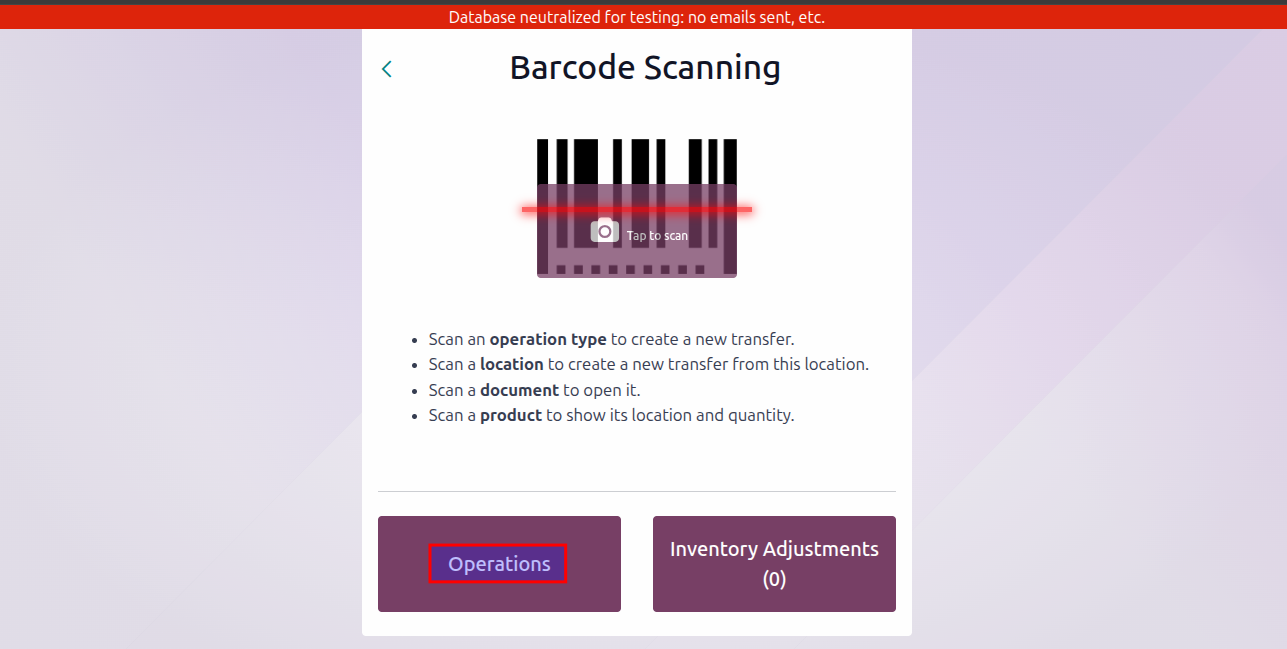
Click on Operations.
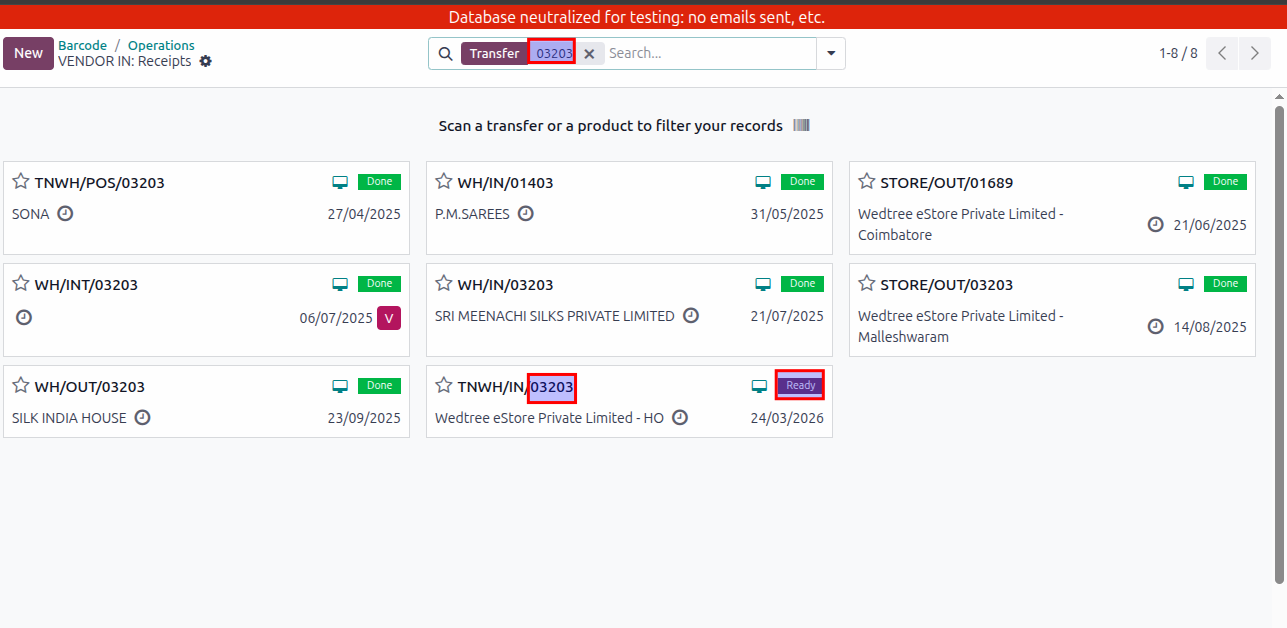
Search with the Receipt number from PO. It will be in Ready state and open that Receipt.
On opening that Receipt it shows all the products.
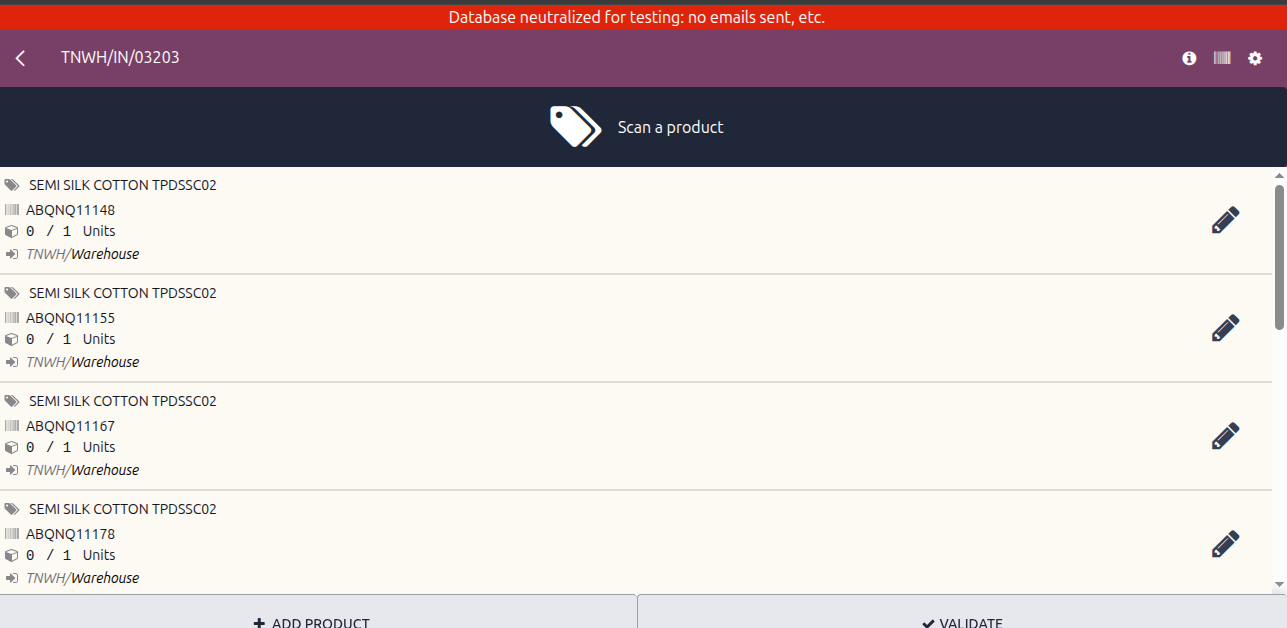
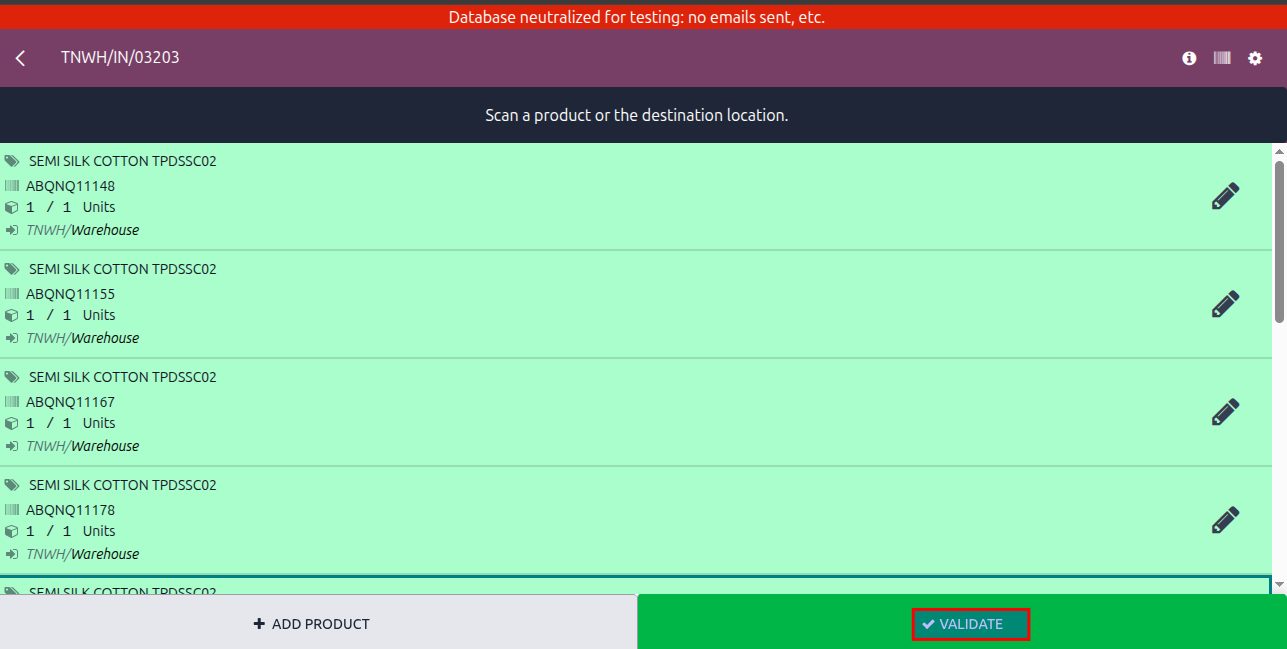
Start scanning the product one by one. After scanning each product, the line changes color to Green.
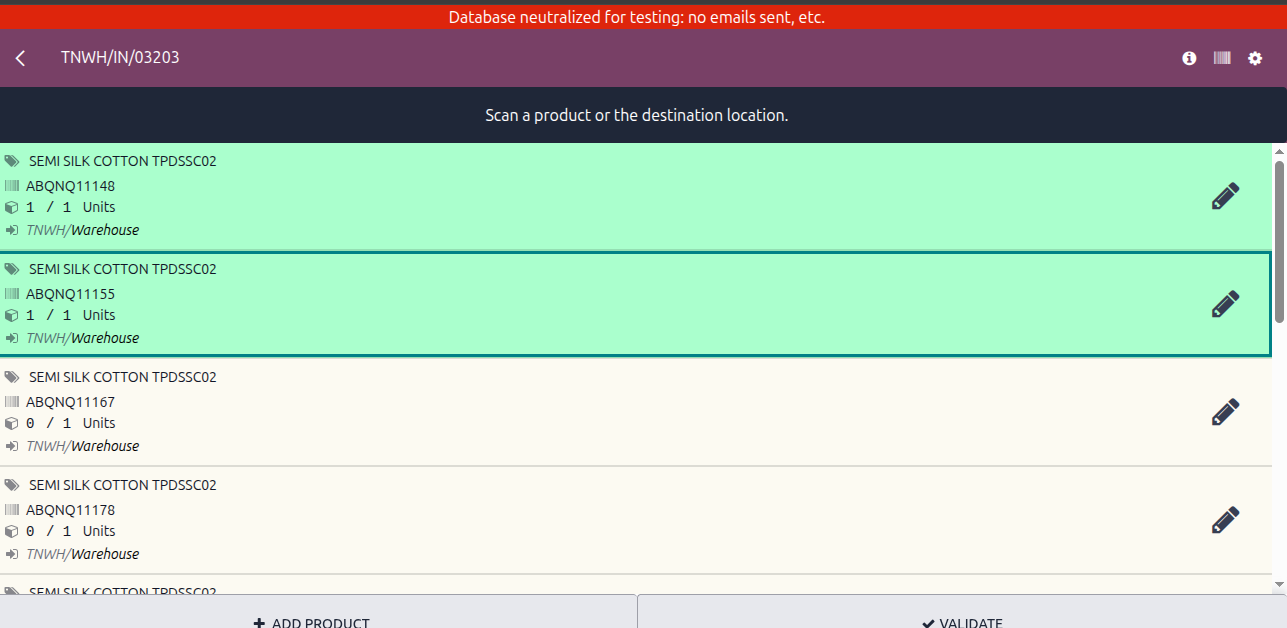
After all products are scanned, click on Validate button.
After validating, the receipt number shows Done state indicating the products are received in that location.
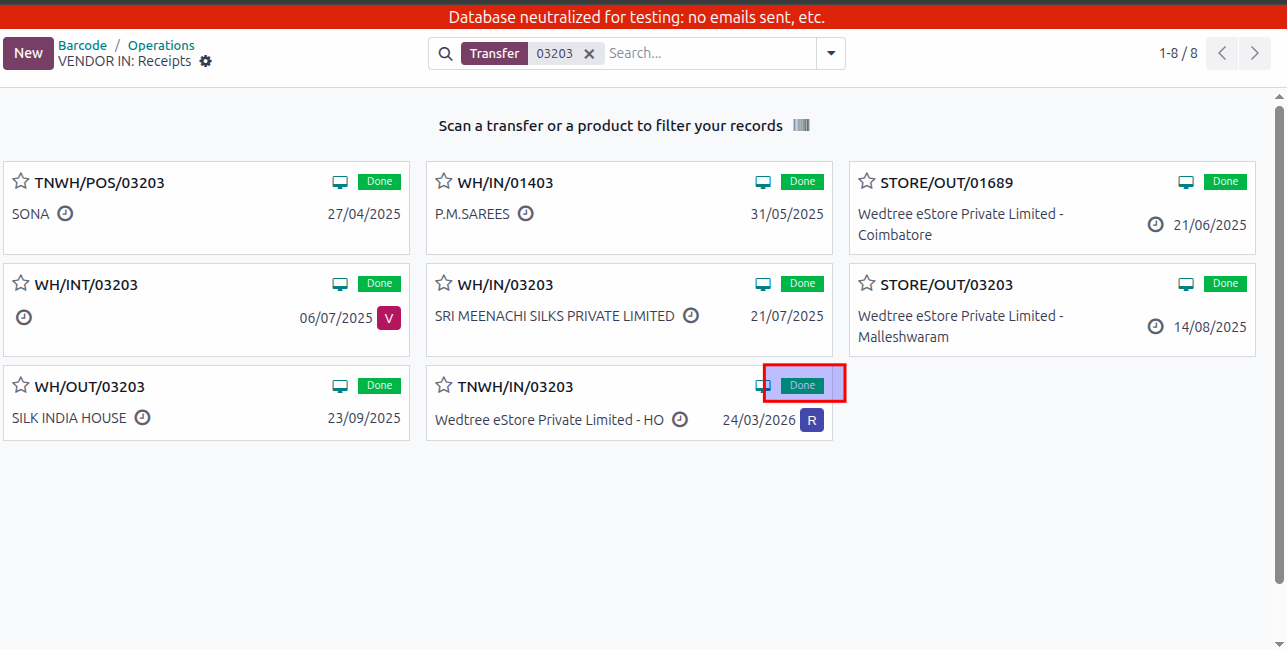
The Purchase Order also goes to Done state.