Lot Image Upload
Lot Image Upload for Existing Stock (Case 1)
Login as Inventory User`. The user shyamchandar@wedtree.com is used for demonstration purposes.
Go to .
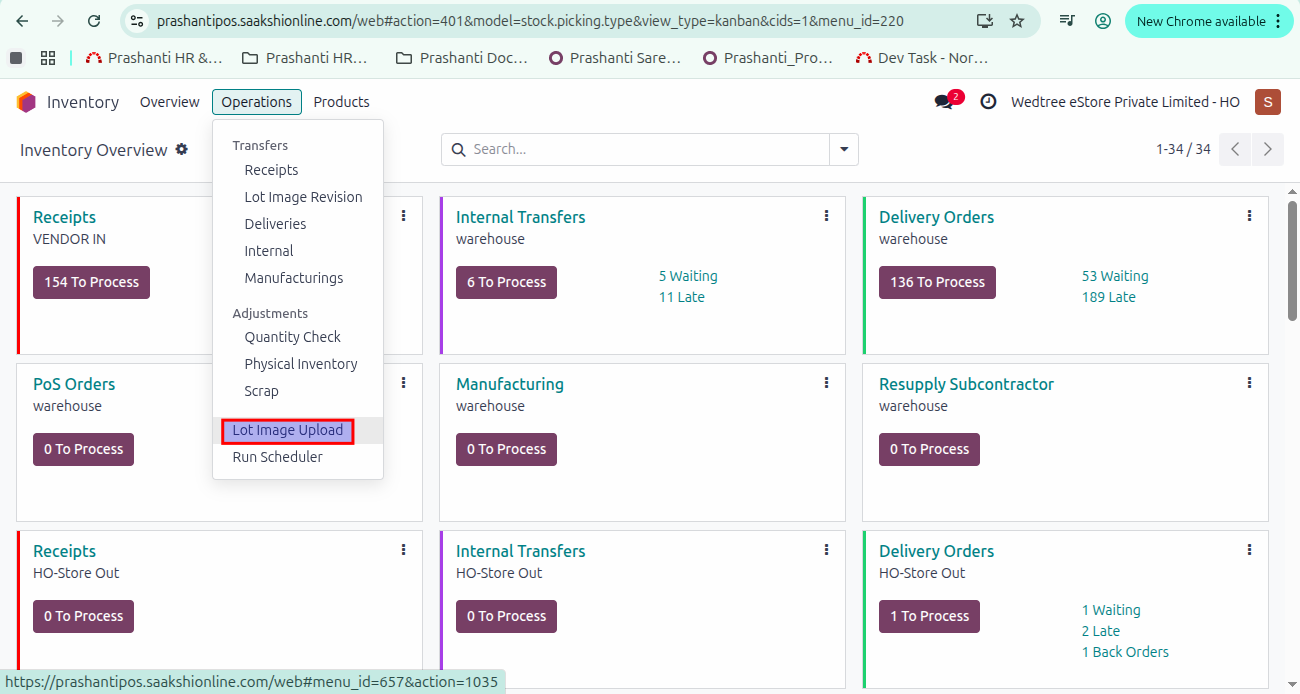
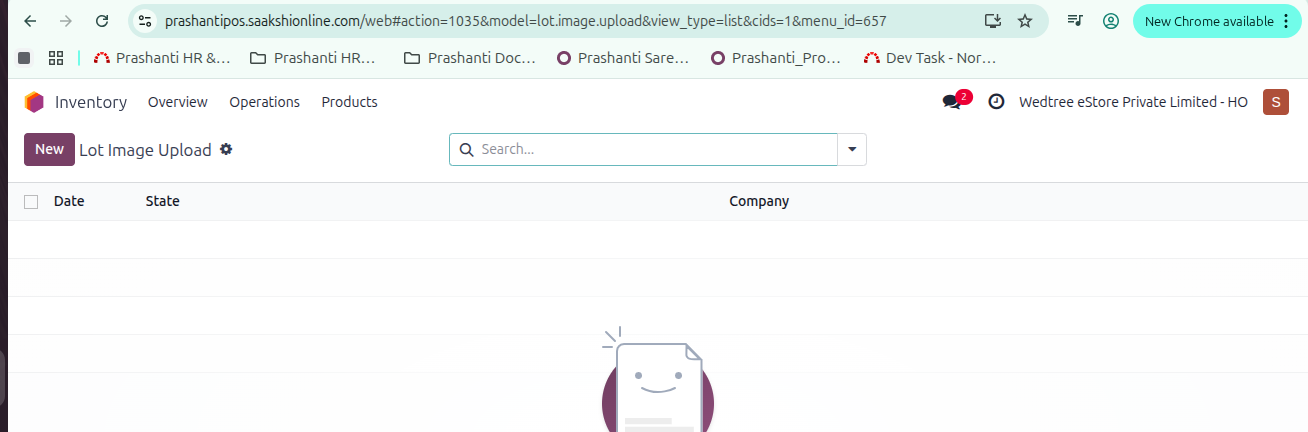
The Tree View of Lot Image Upload will open as shown below. Click on the New button.
The Form View for creating a Lot Image Upload will appear as shown below. Fill in all the mandatory fields in the Form View. A form filled with details is shown below and click on Add a line. The Lot Image Upload line will open. Fill in the value for Lot/Serial and click on Camera to capture the image.
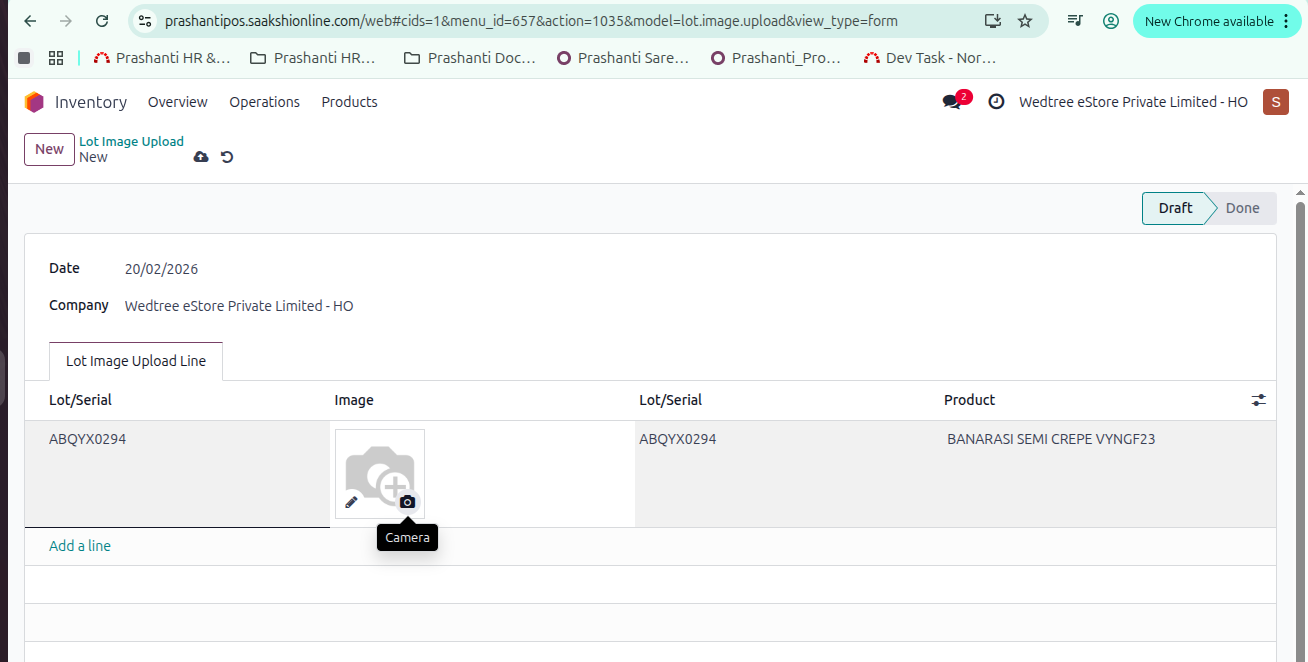
Confirm the picture.
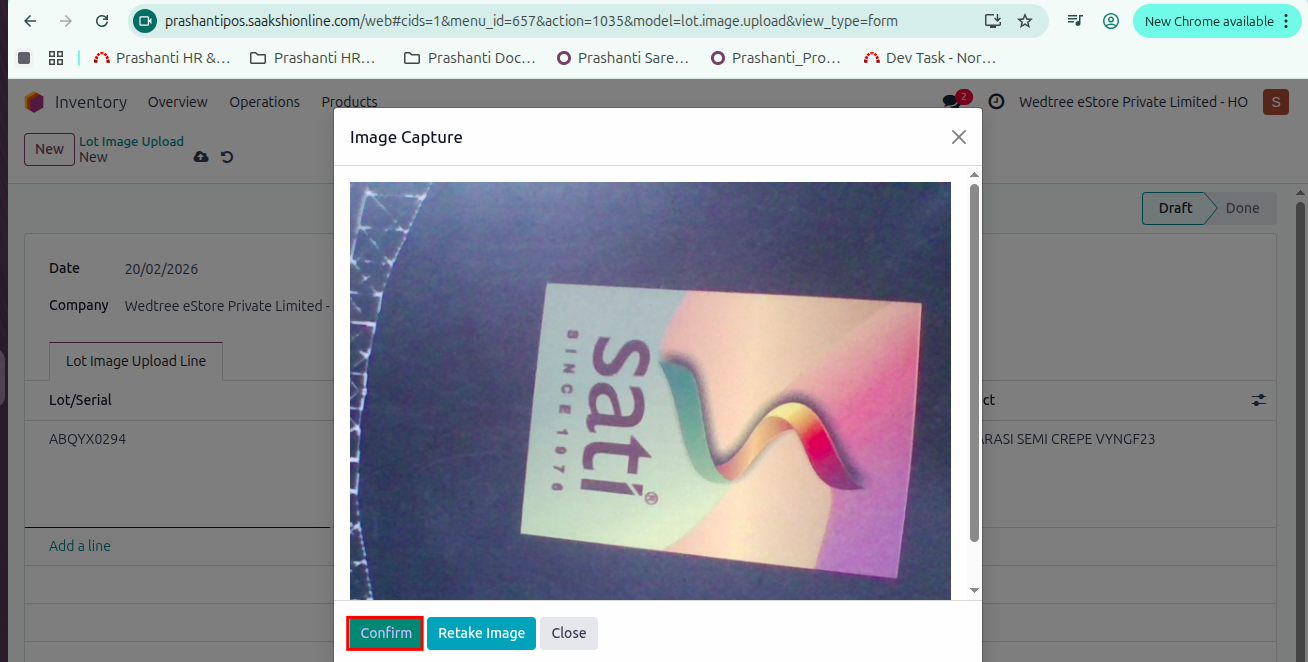
Then, Save. The form goes to Draft state.
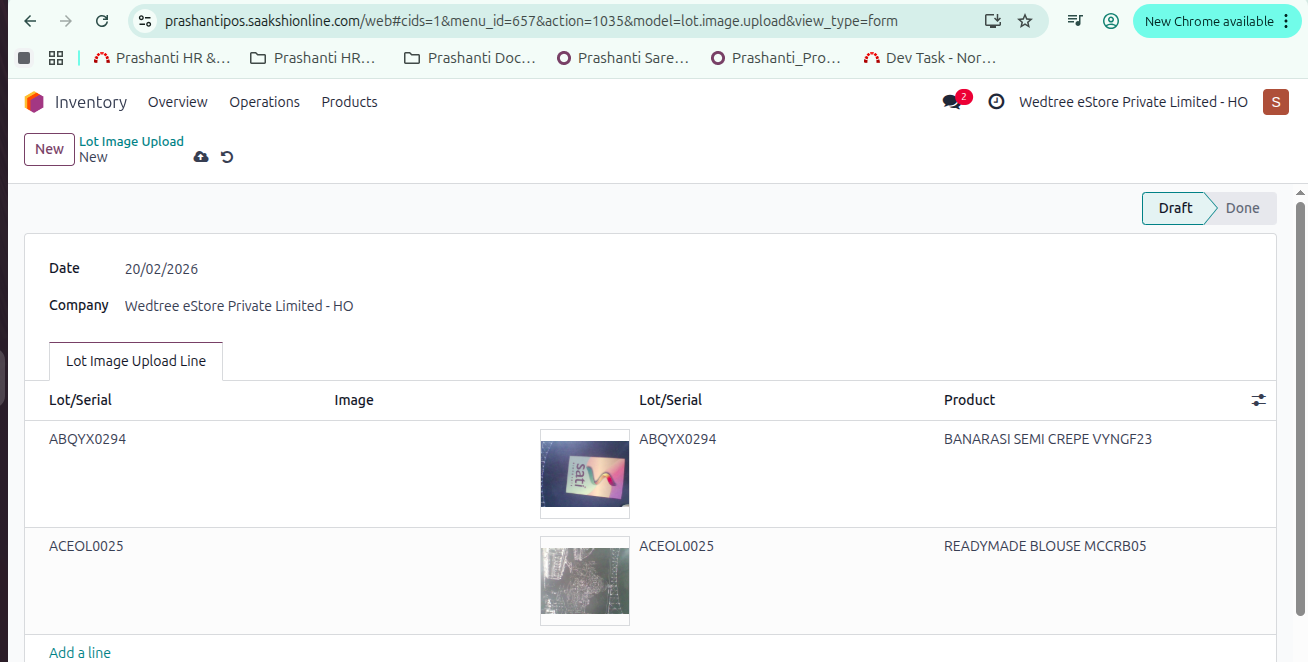
Approval of Lot Image Upload
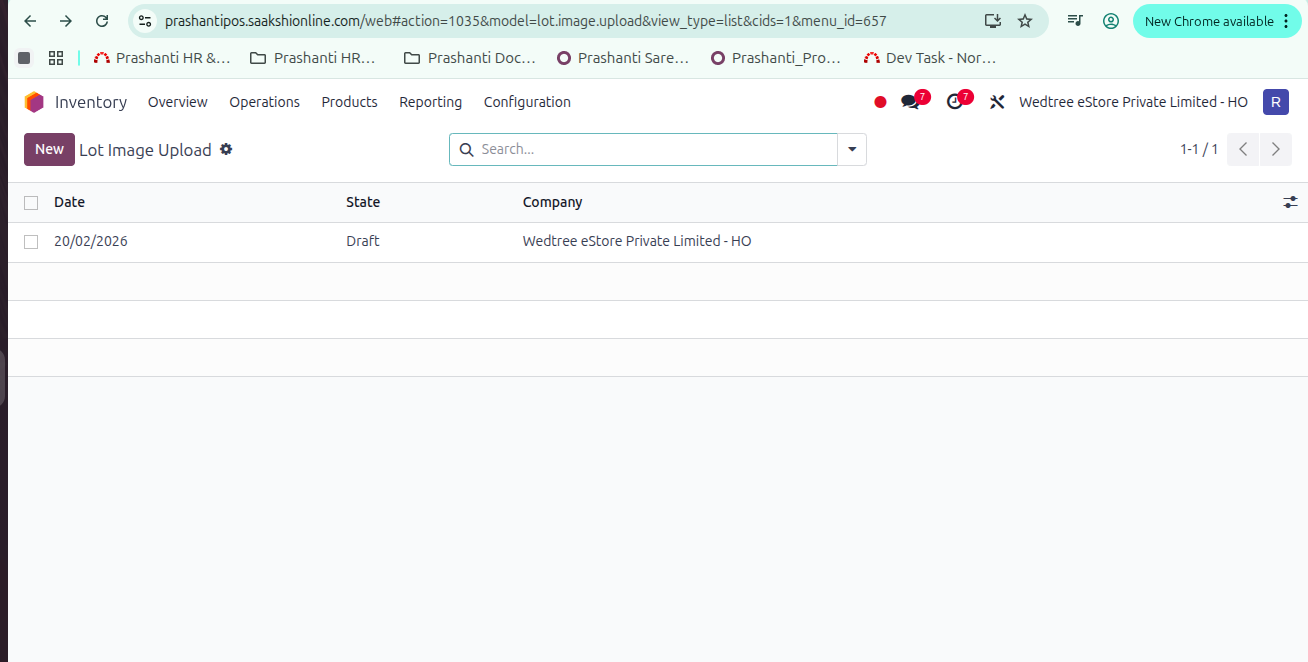
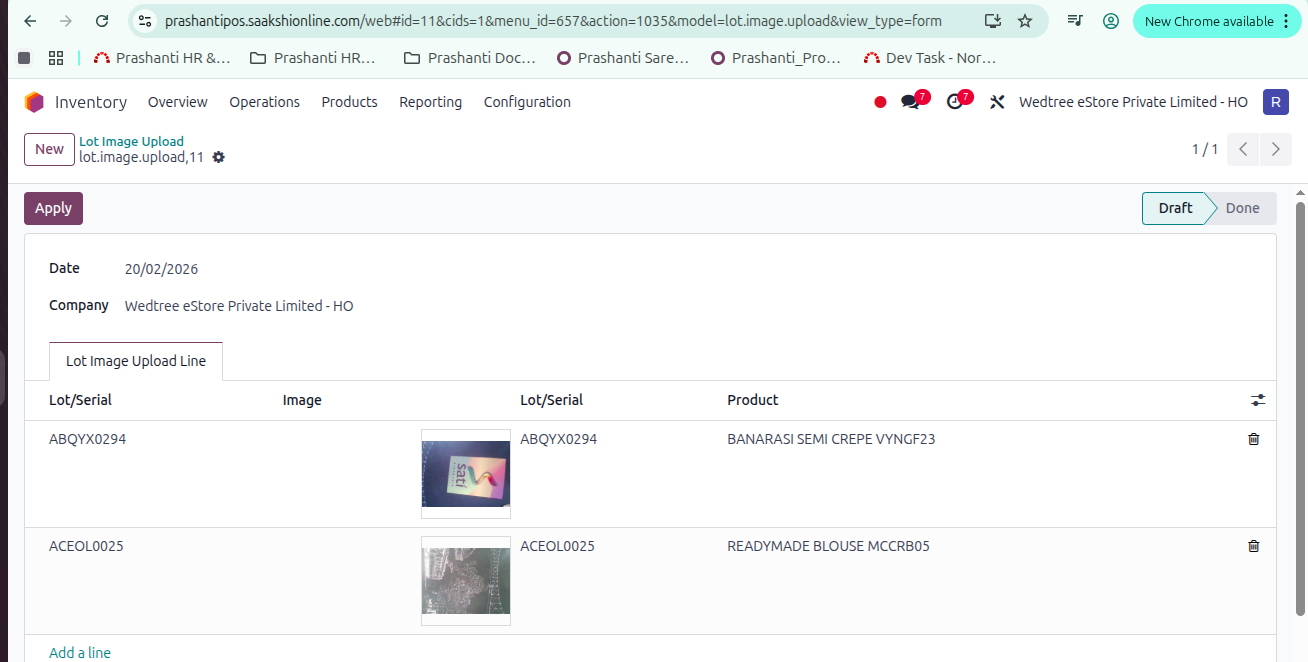
Log in as the Inventory Manager. The user Rajiv@wedtree.com is used for demonstration purposes. Go to . The Tree View of Lot Image Upload will open as shown below. Click on the relevant Lot Image Upload.
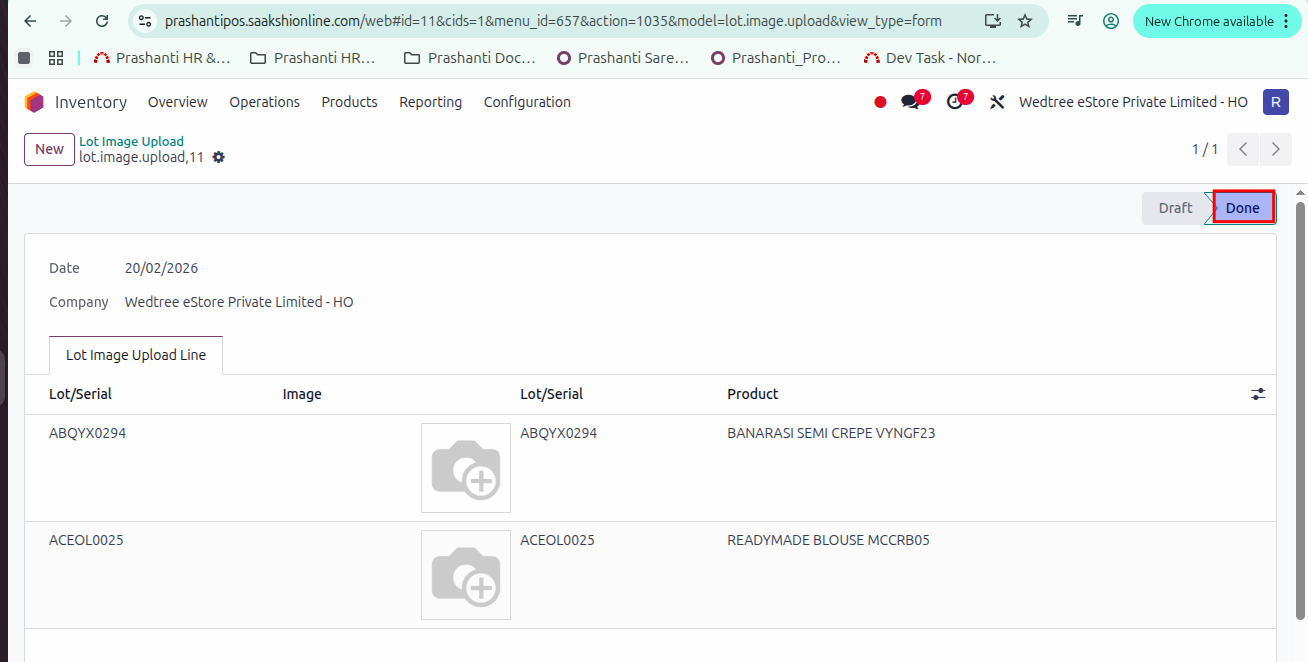
The Lot Image Upload will open in Form View. Click on Apply button. The status would change from Draft to Done.
Verification Lot Image Upload
After the image is captured, go to .
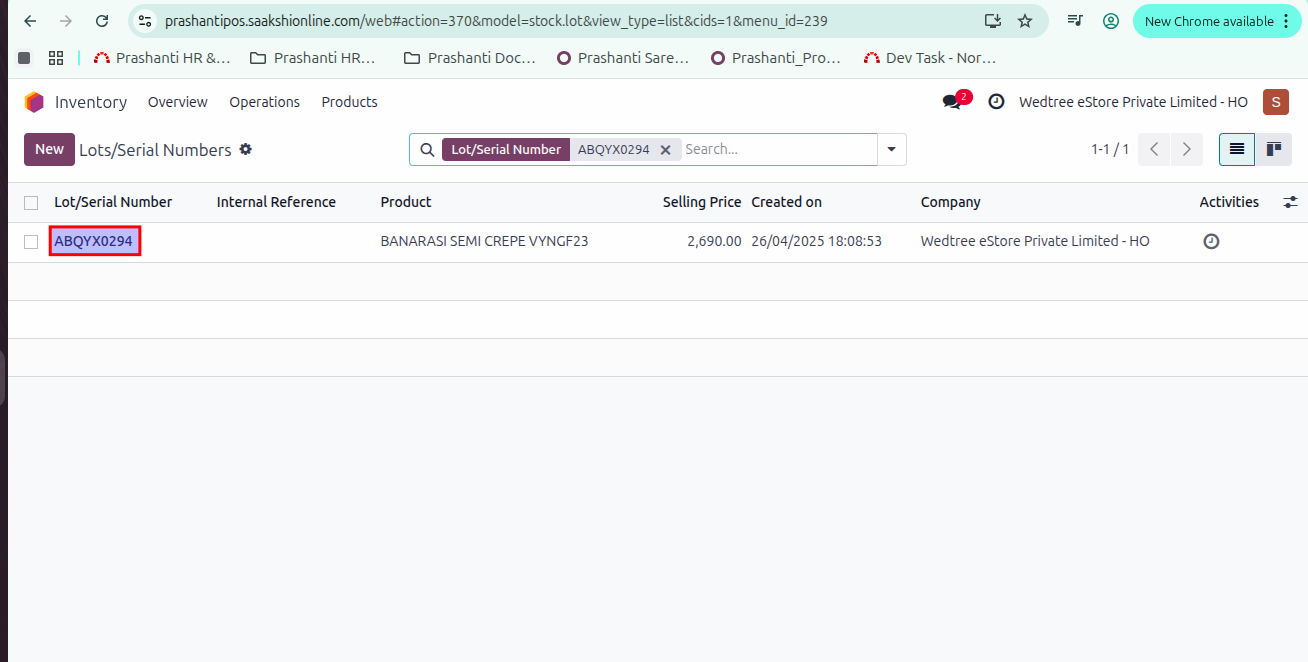
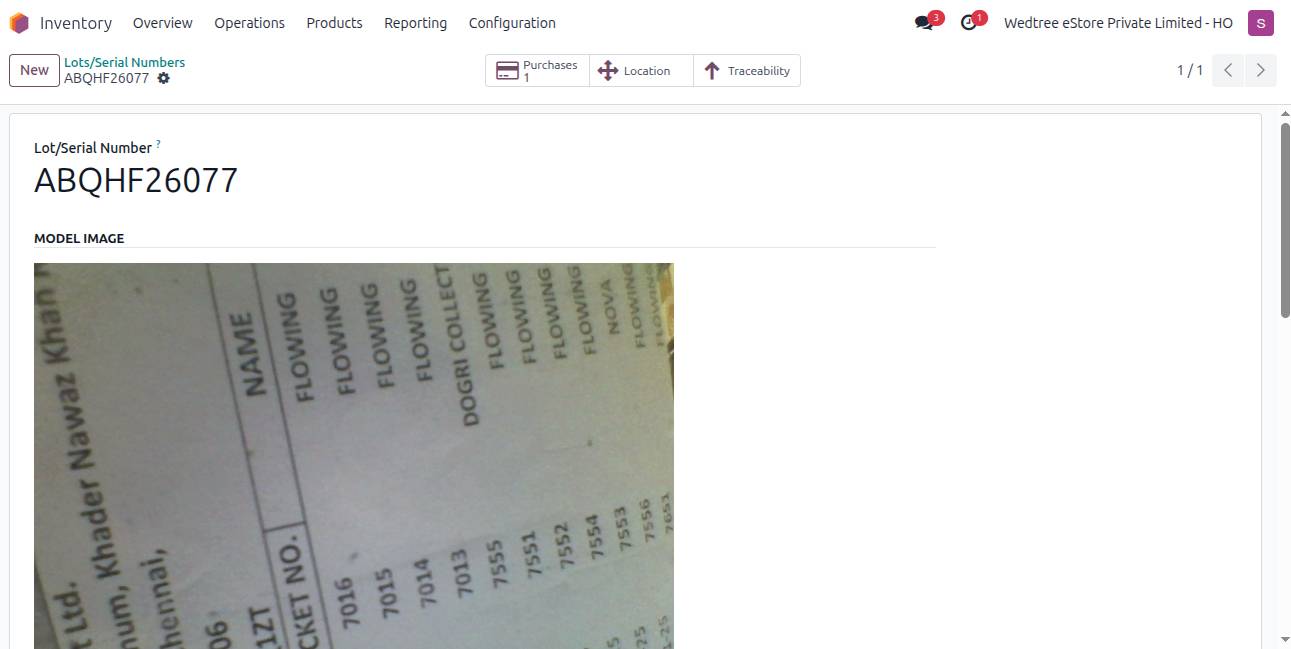
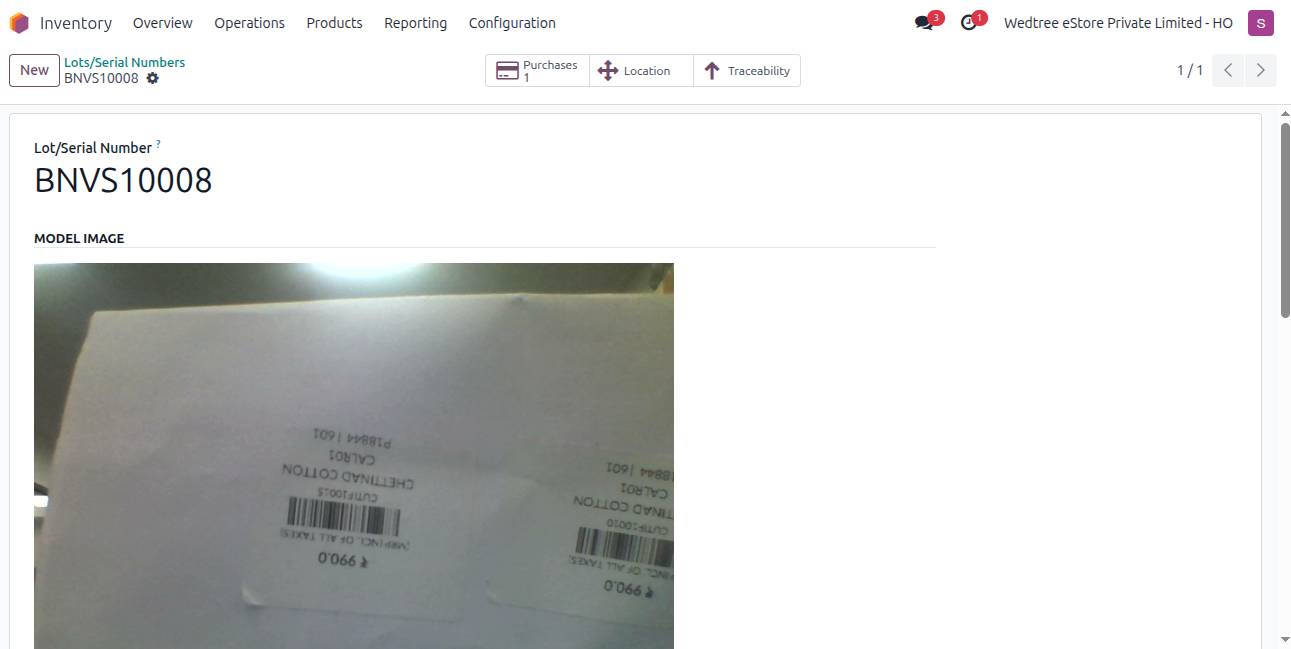
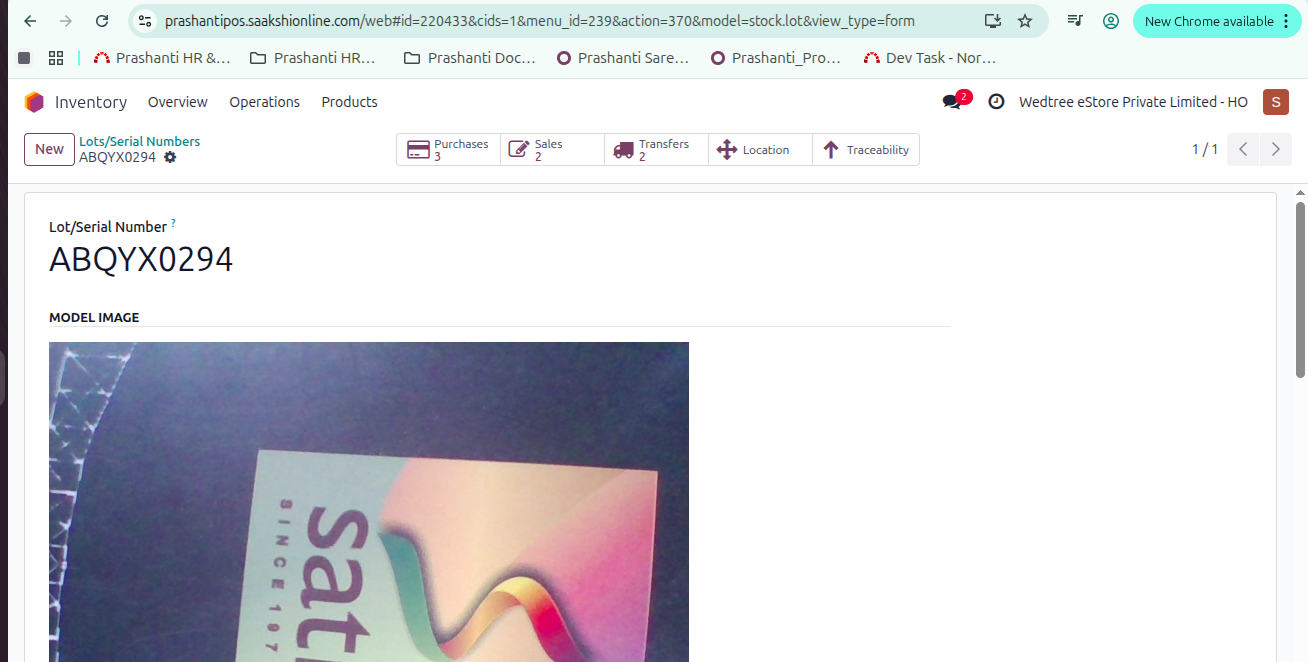
The Tree View of the Lot/Serial Number opens, as shown below. Search for the required lot/serial number. The captured image is then reflected in the Lot/Serial Number menu, as shown below.
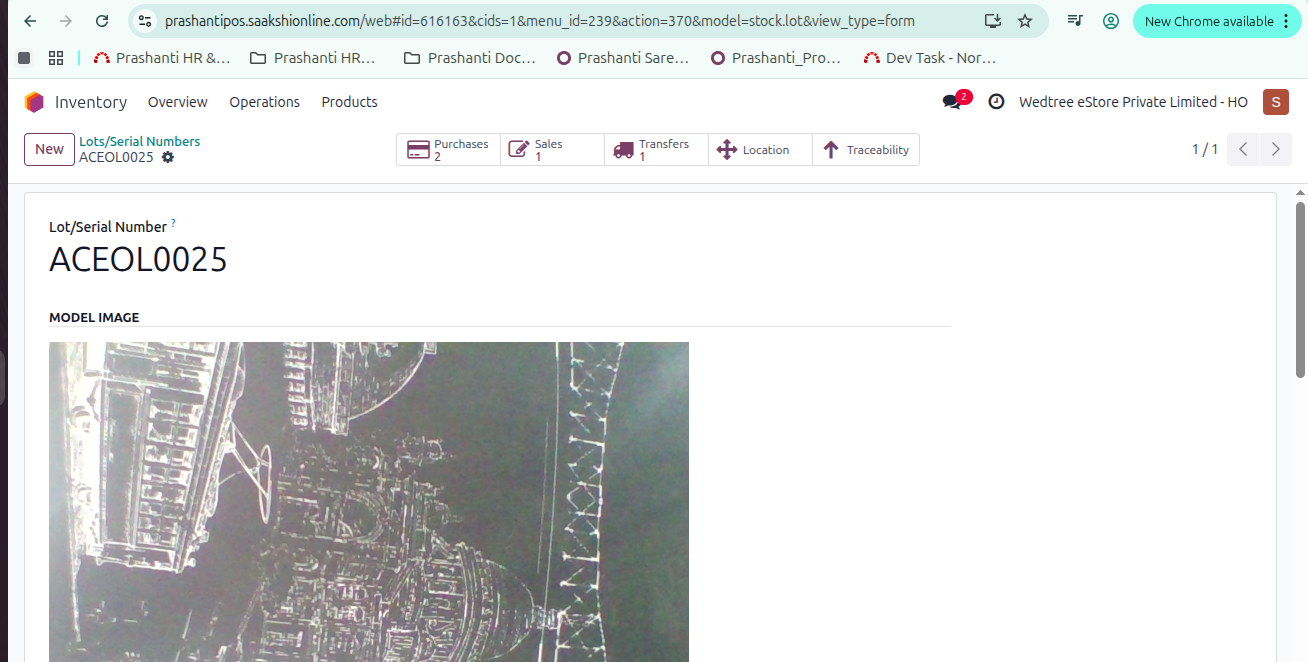
Demo Video for Lot Image for Existing Stock
Uploading Single Image for bulk similar Products in Purchase Receipt (Case 2):
The user creates RFQ for one product and Confirm Order. The status goes to To Approve.
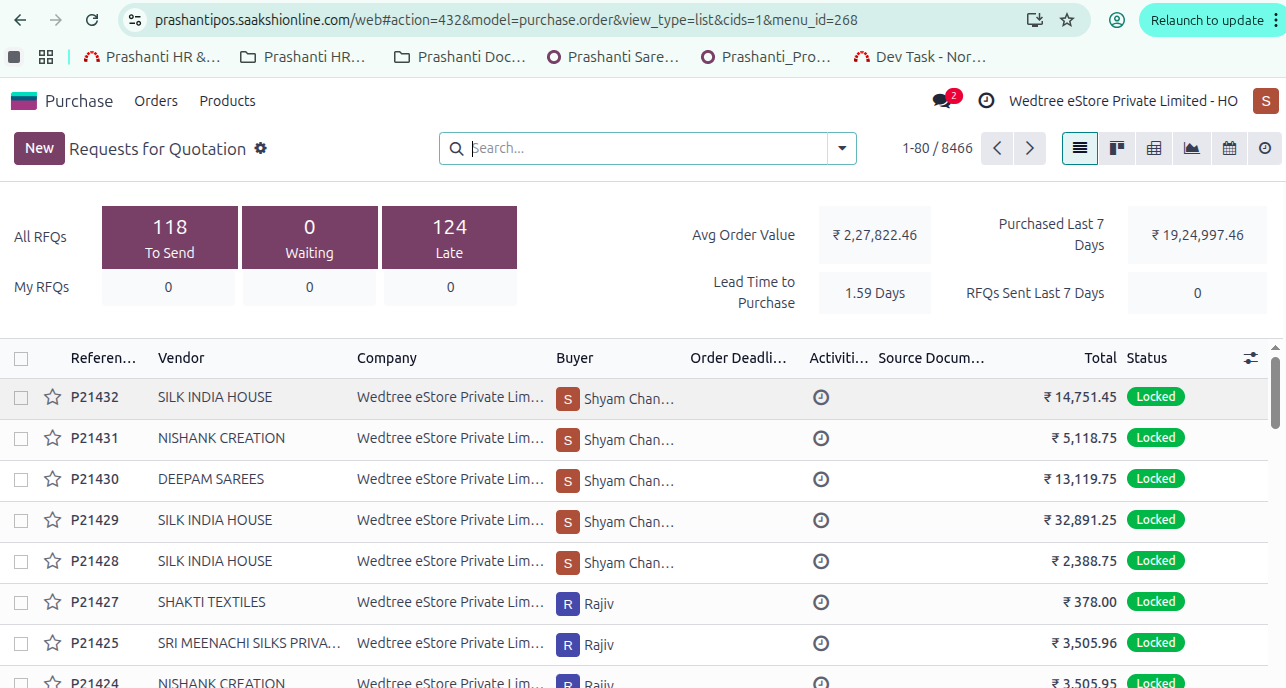
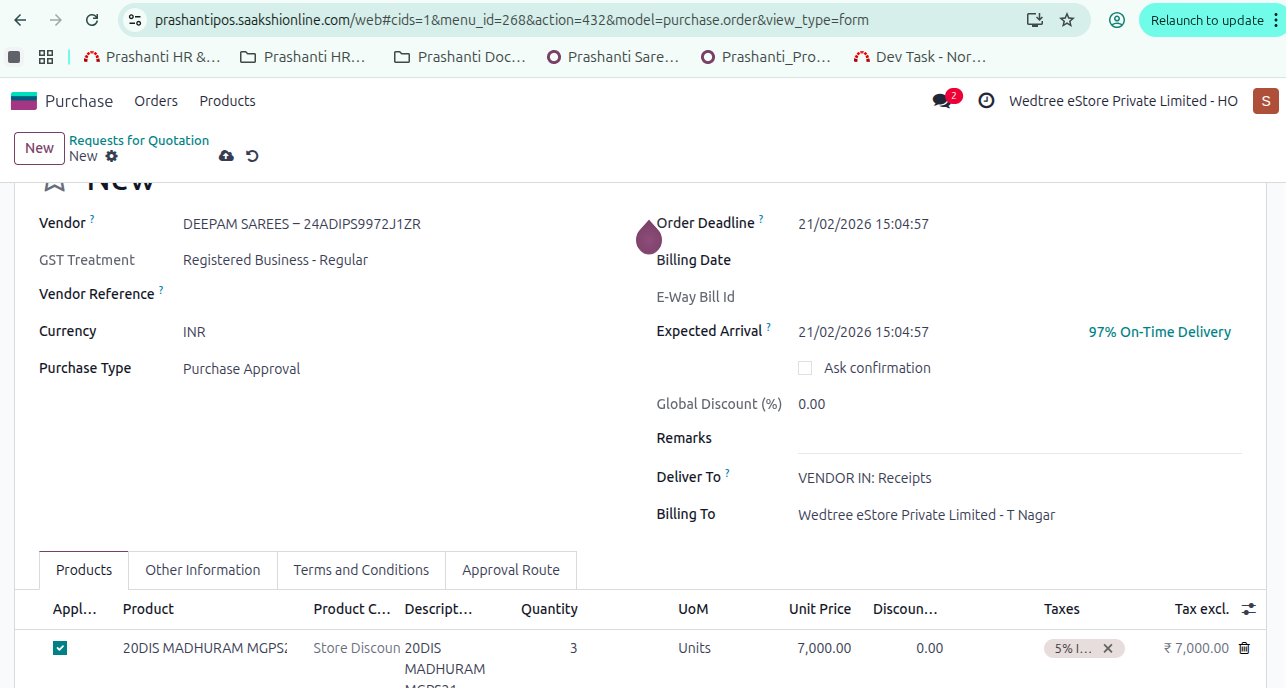
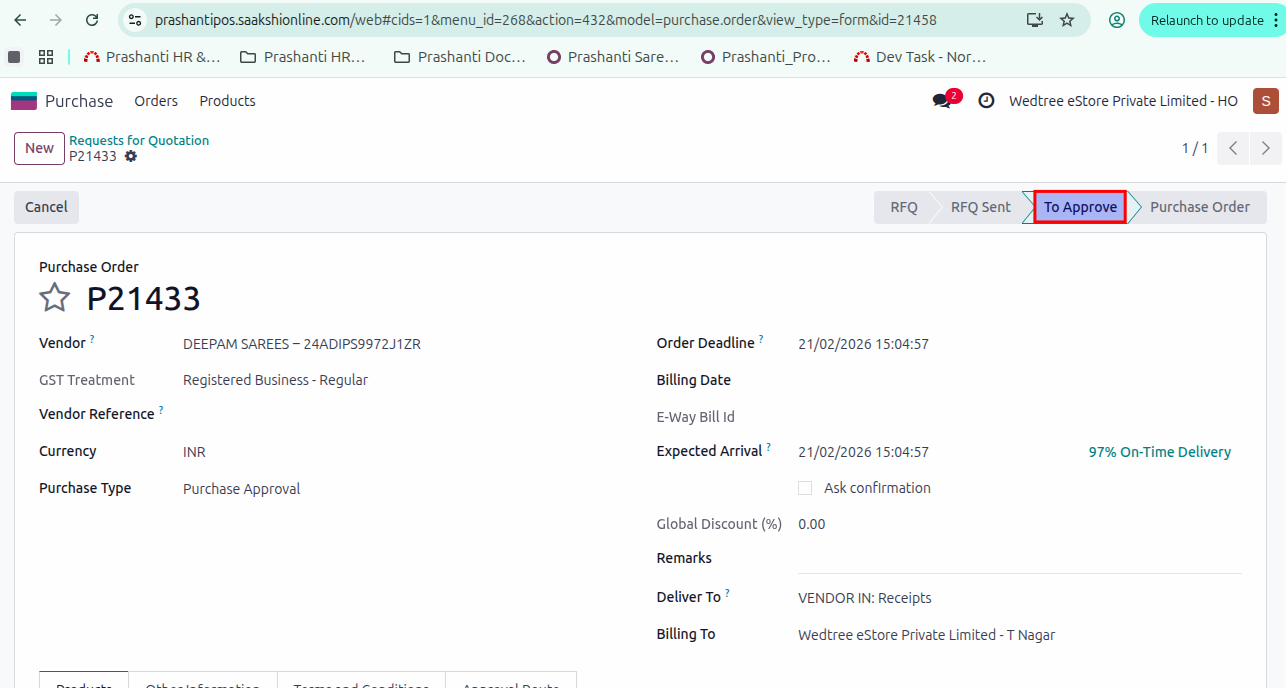
The Purchase Manager selects the RFQ in To Approve state.
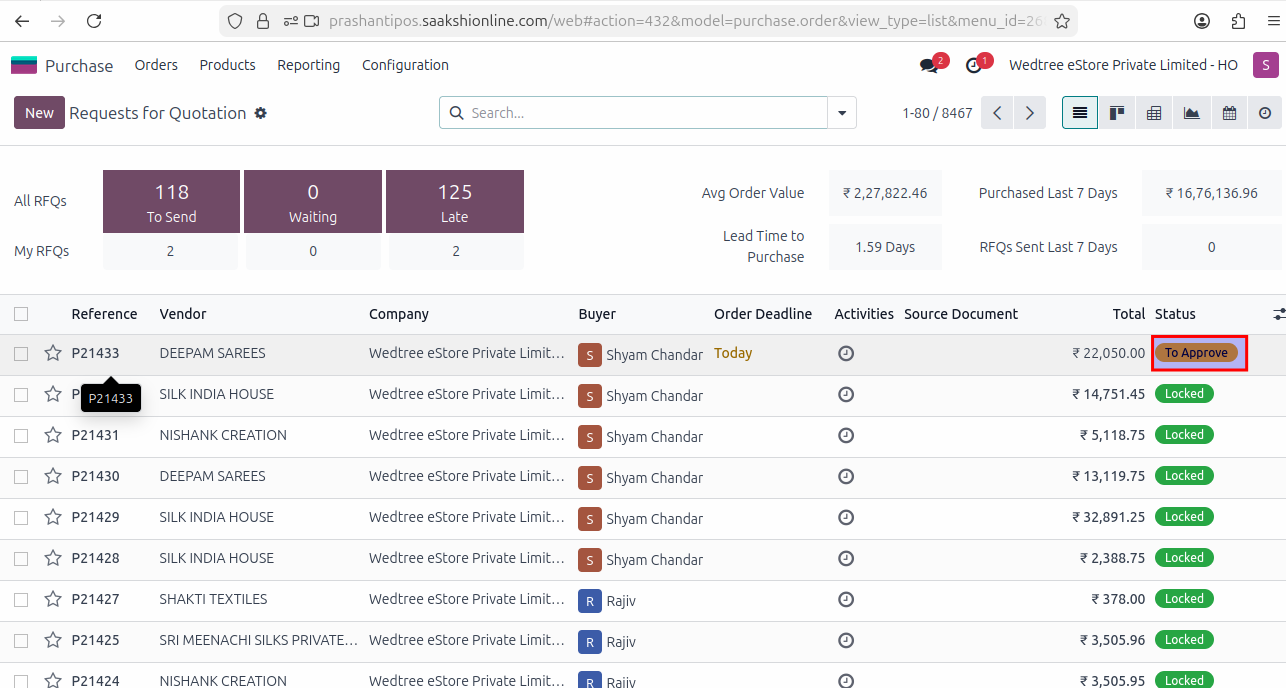
The Purchase Manager approves the RFQ. The status goes to Locked.
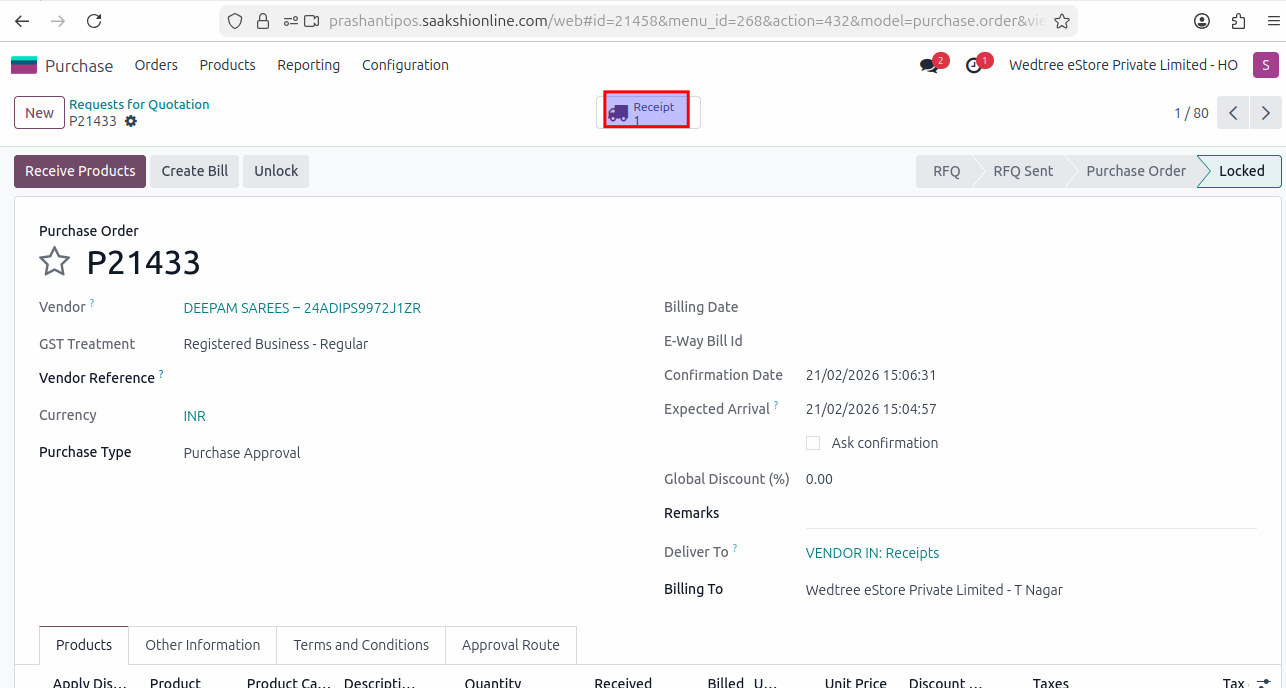
Go to Receipts and click Moves Lines.
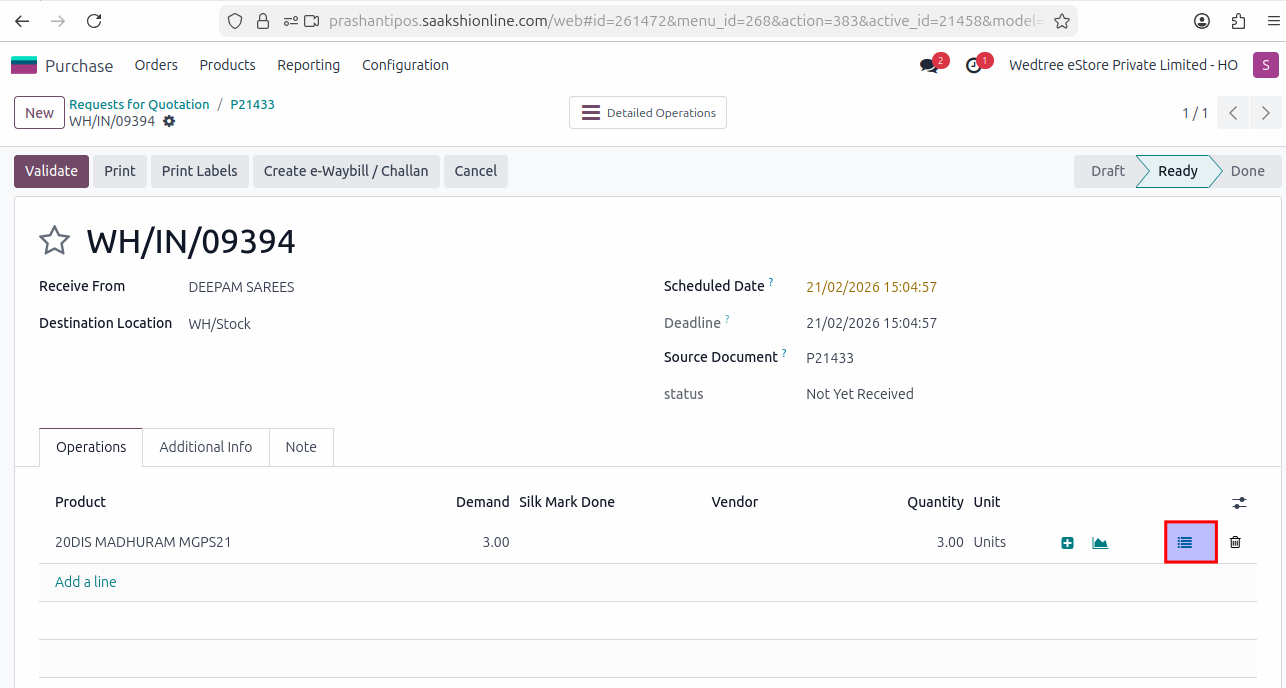
Click on Stock Move.
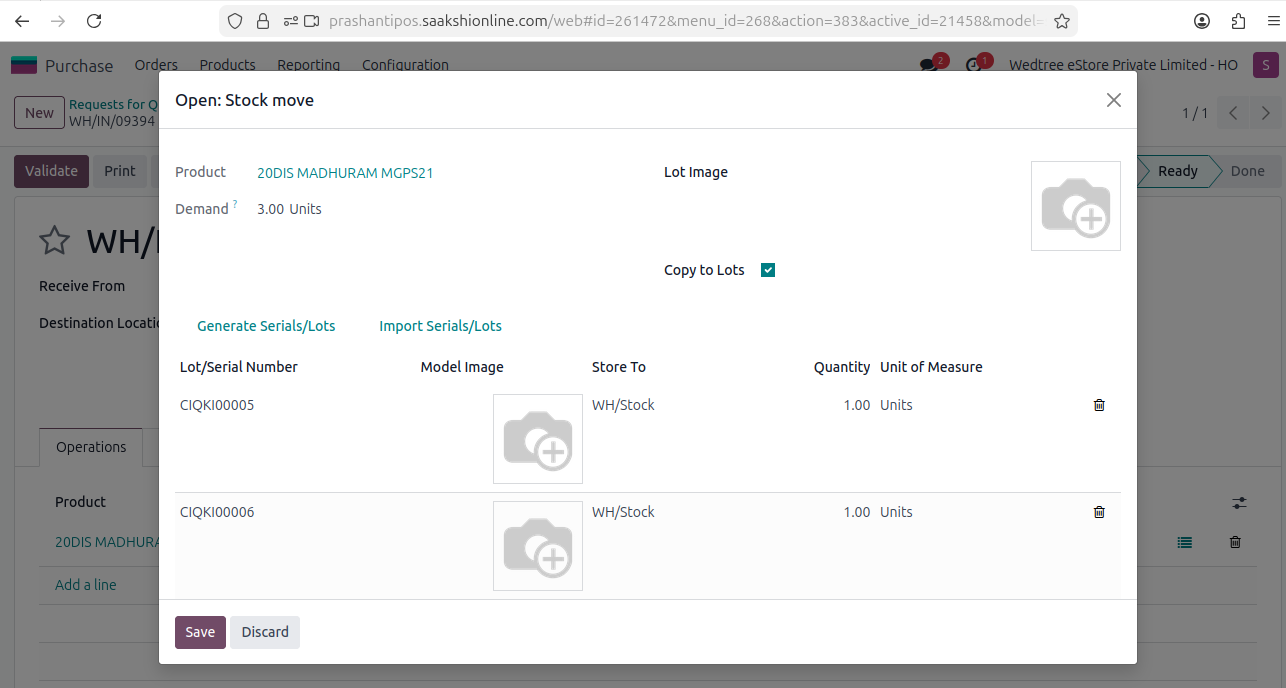
Click on Model Image to capture image. The Copy to Lots button should be ticked to upload image for all products.
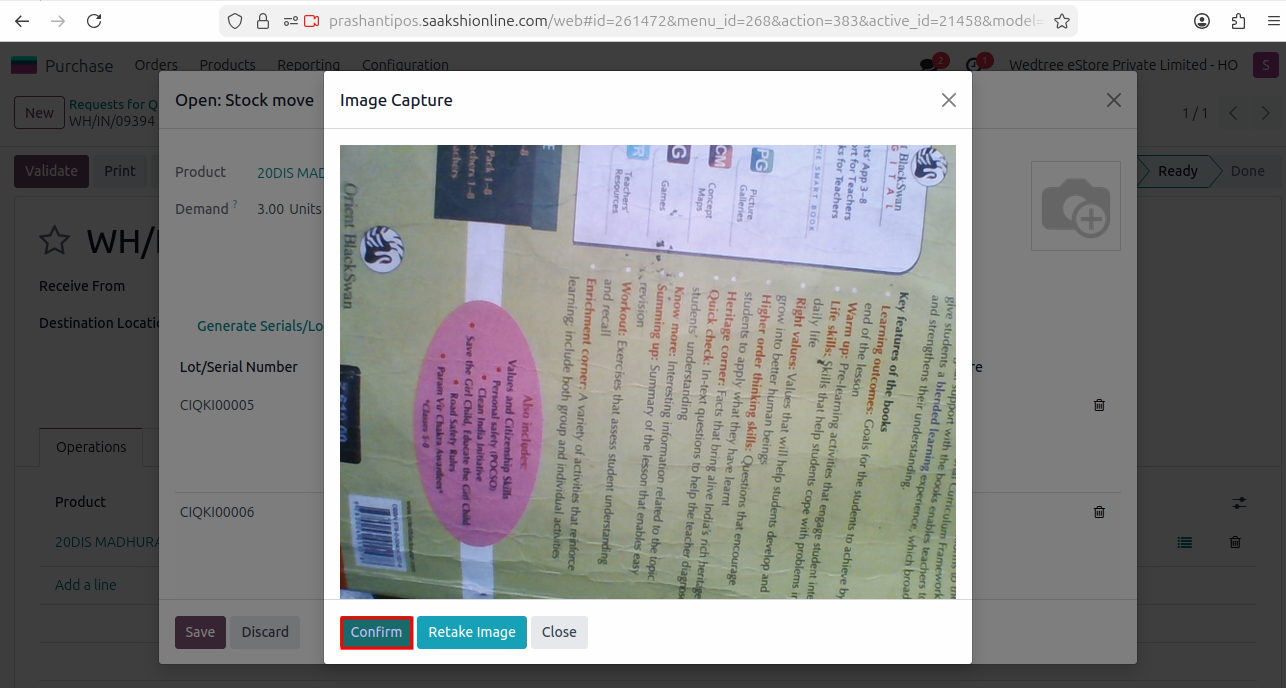
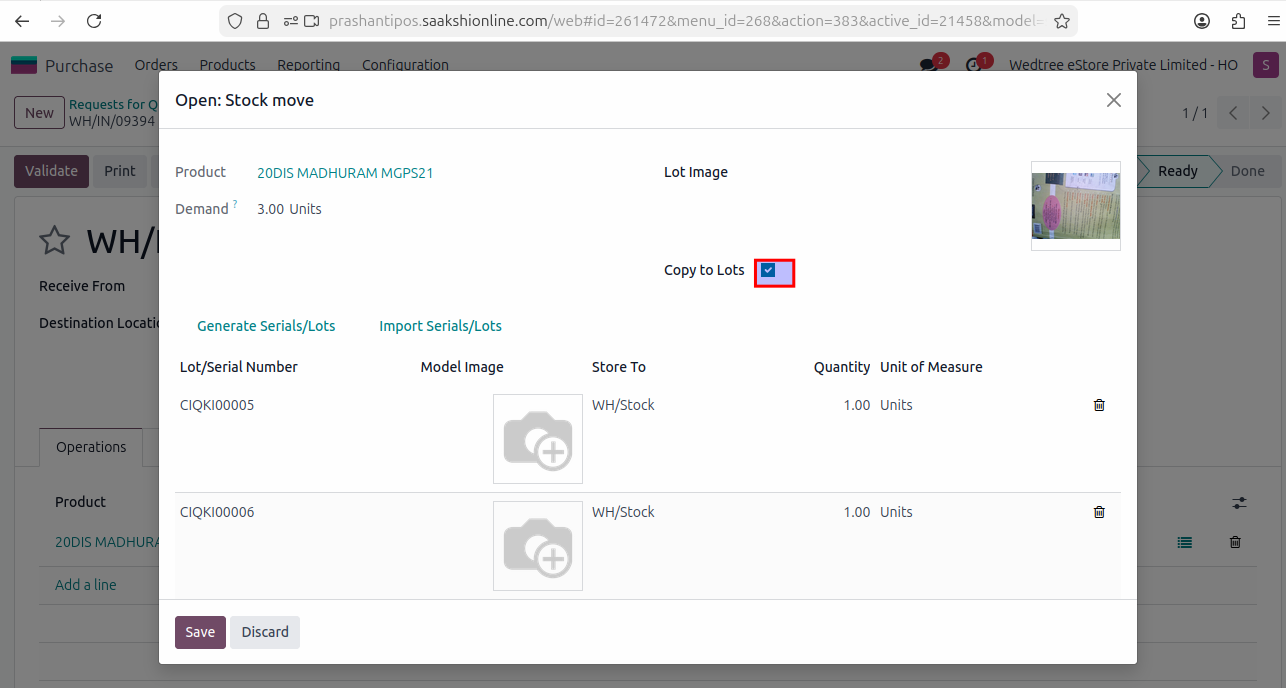
After confirming the image, Save and Validate. The Receipt goes to Done state.
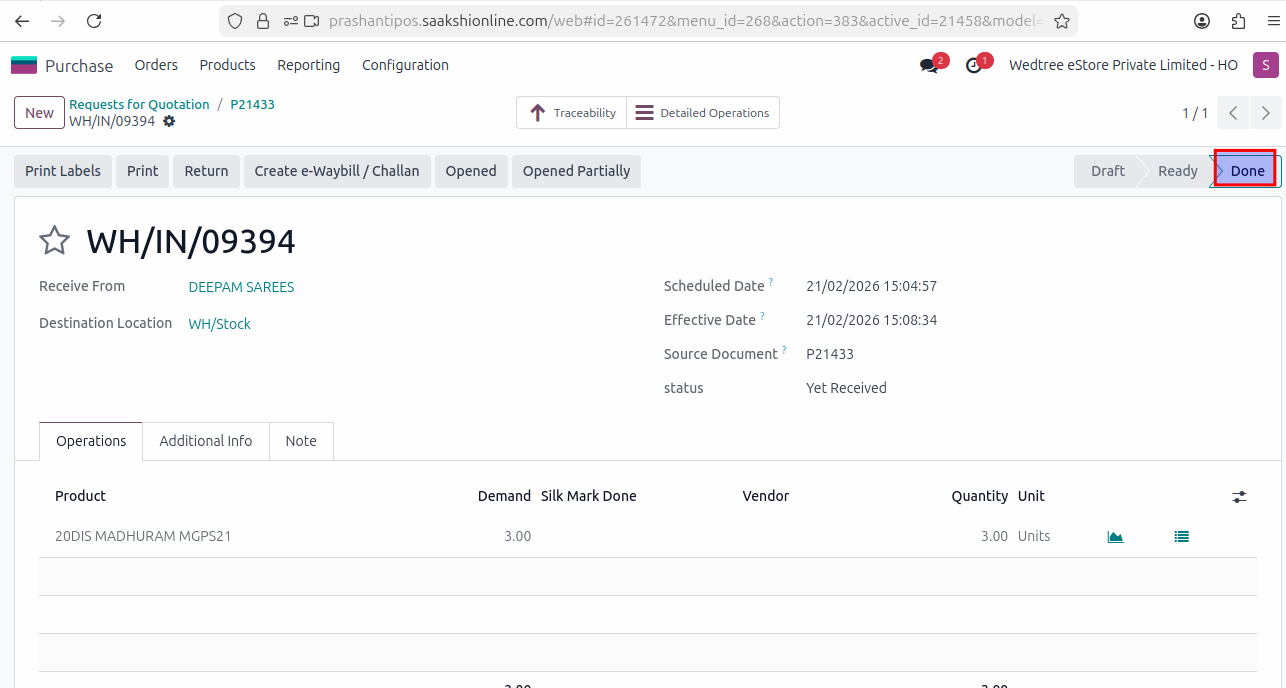
To verify the image:
To check for image uploaded, go to Inventory –> Products –> Lots/Serial Numbers and check with lots/serial number.
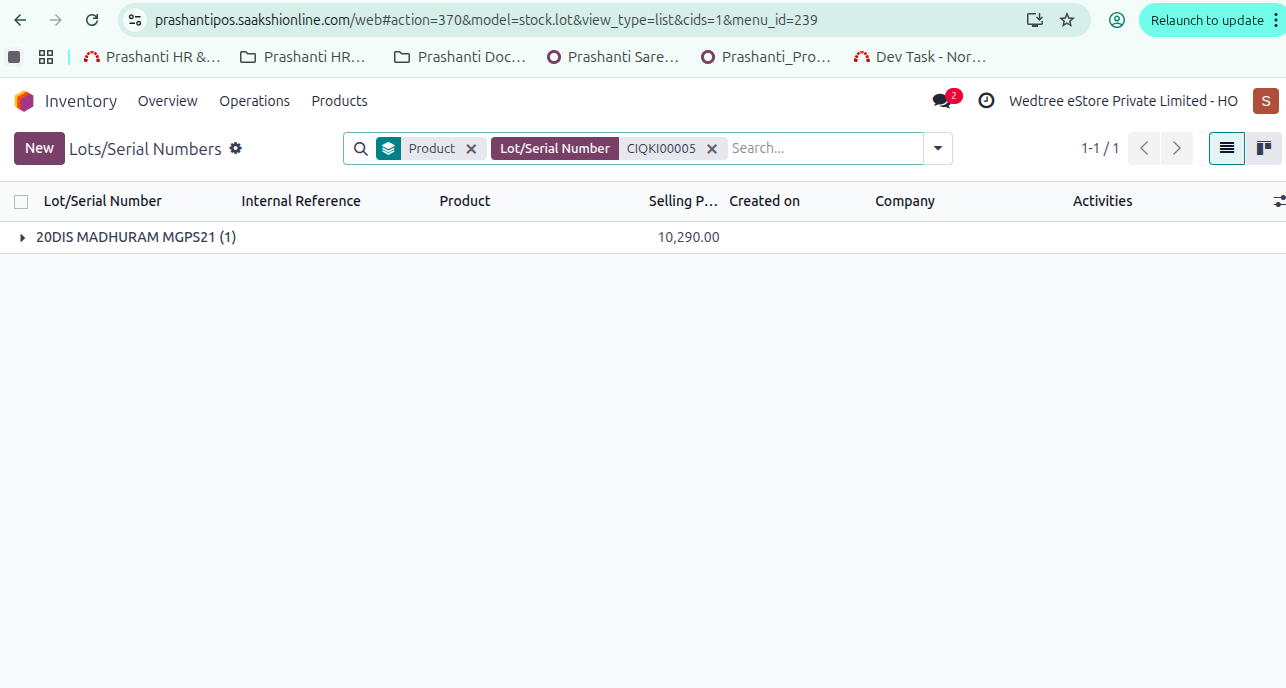
The image is shown here. Thus, we can upload in bulk with single image upload for same products.
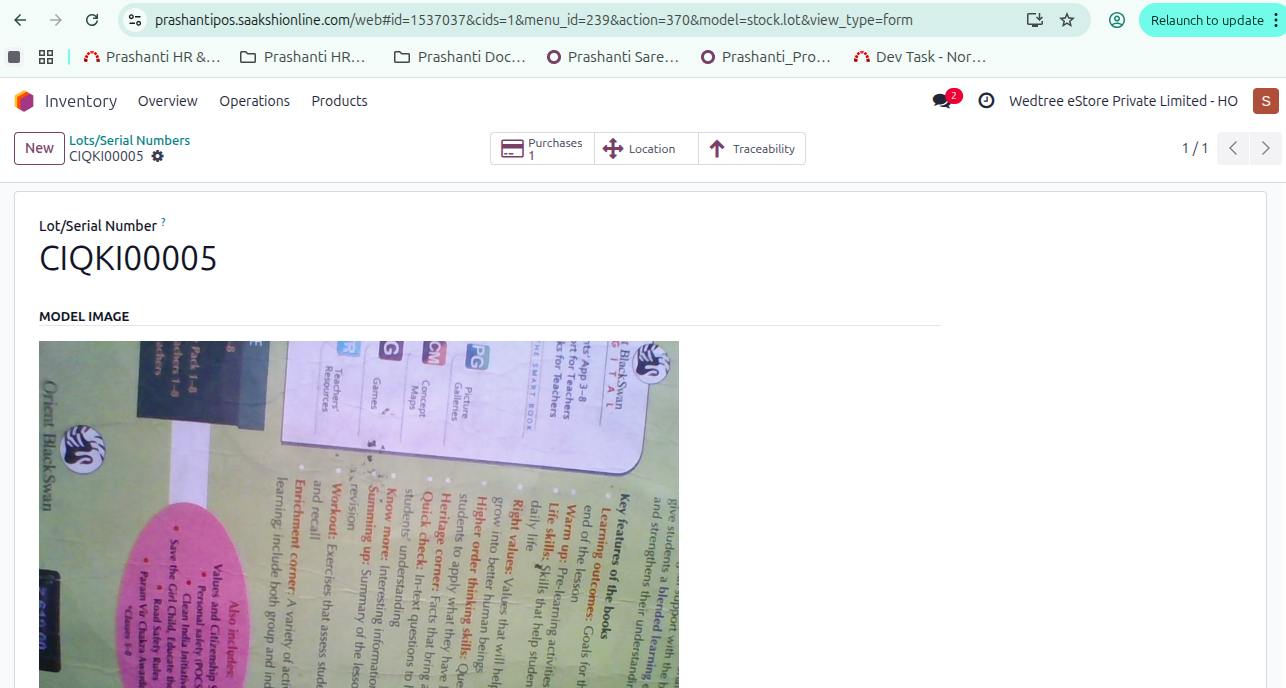
Checking for another product.
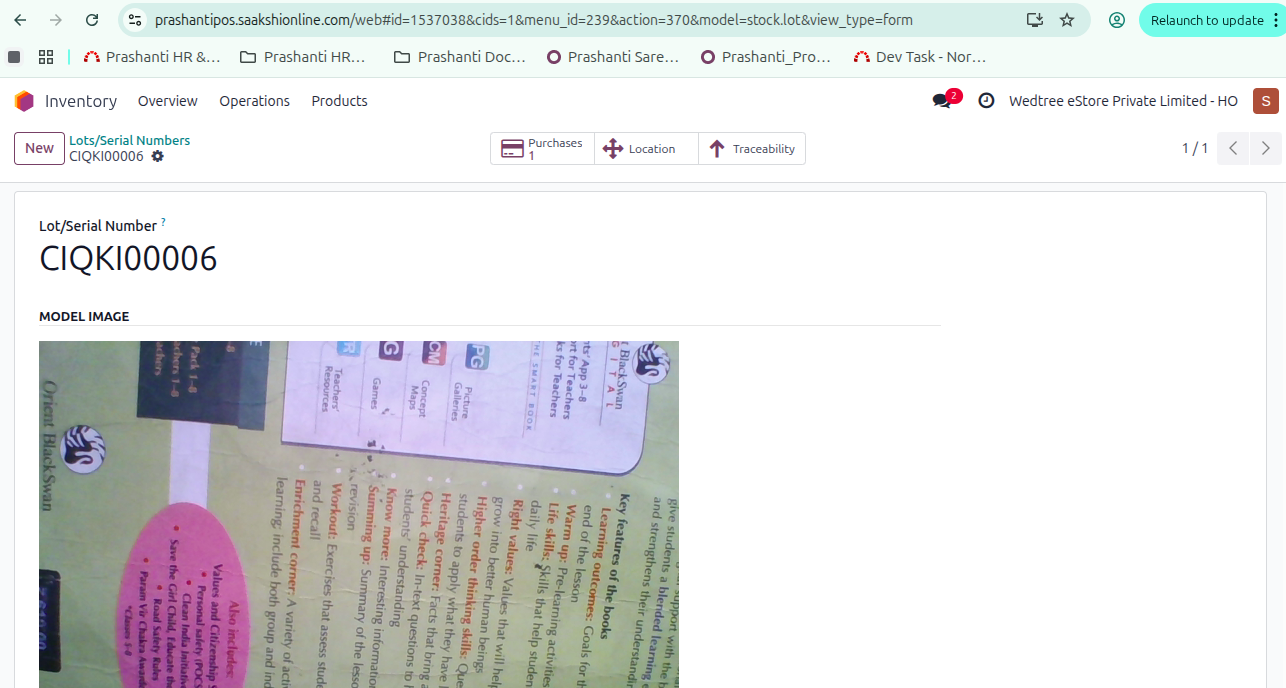
Demo Video for Single Image for Multiple Lots
Capturing Lot Image in Stock Move Line of Receipt and then Validating (Case 3):
Go to .
The user creates RFQ for one product and Confirm Order. The status goes to To Approve.
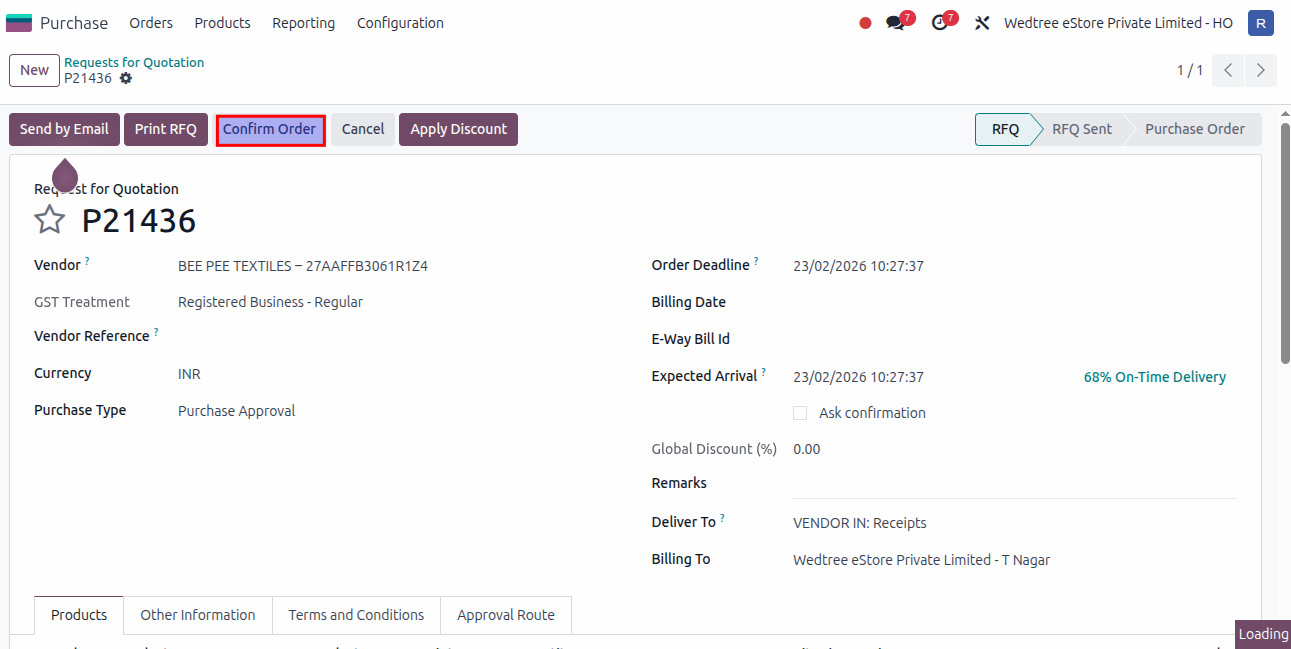
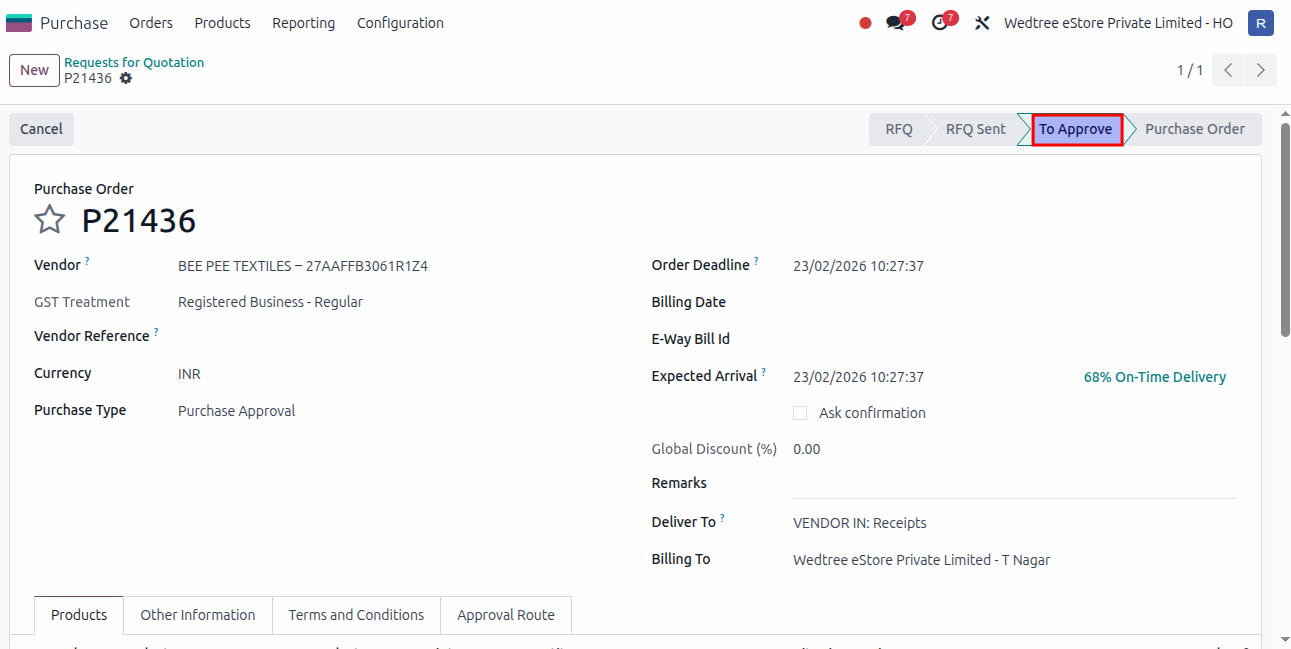
The Purchase Manager selects the RFQ in To Approve state.
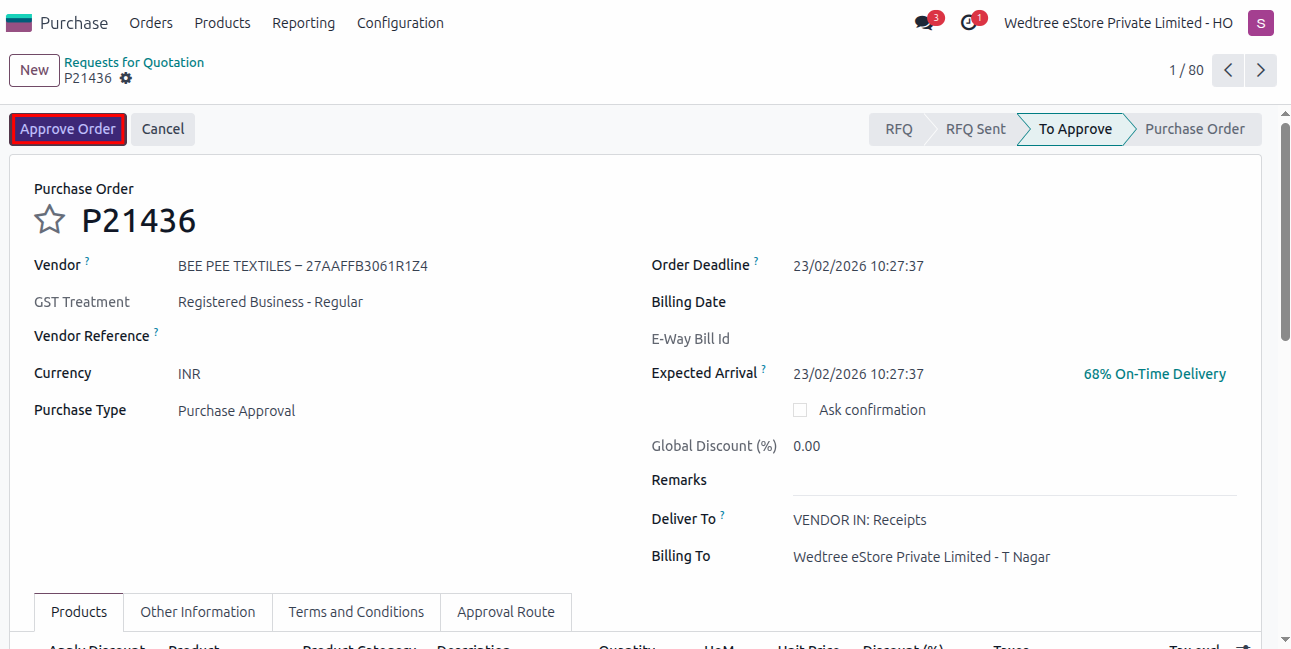
The Purchase Manager Approve Order and status goes to Locked state and the Receipt is generated.
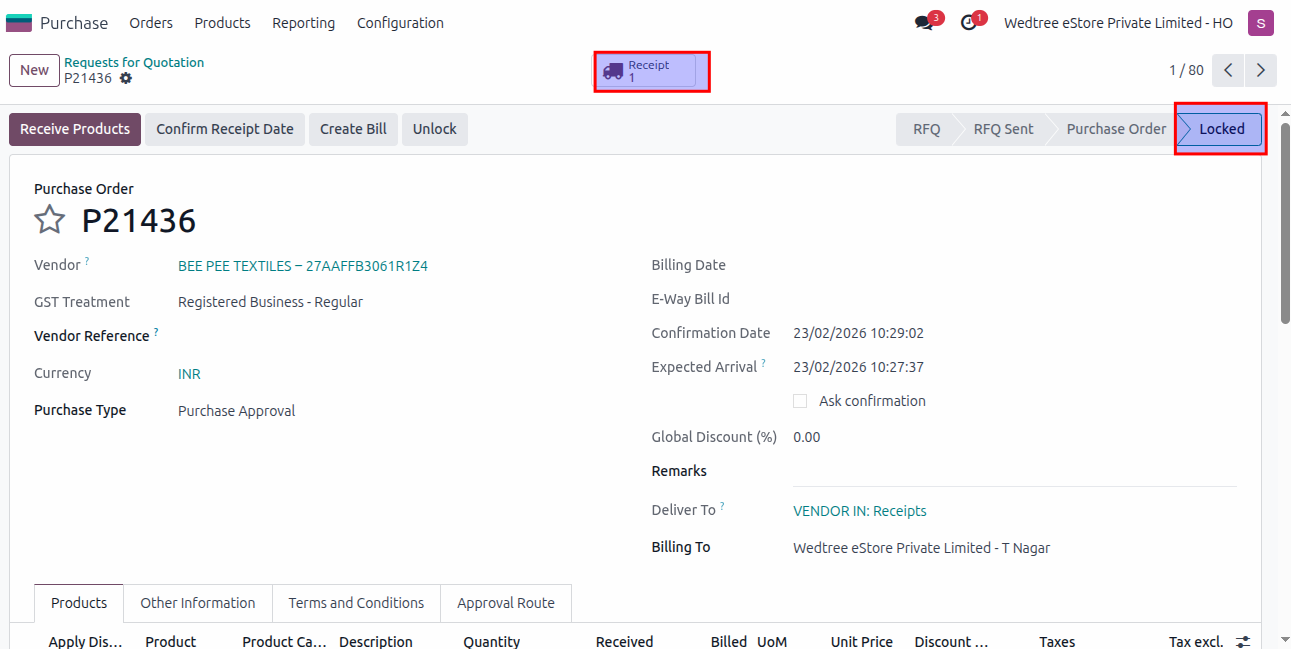
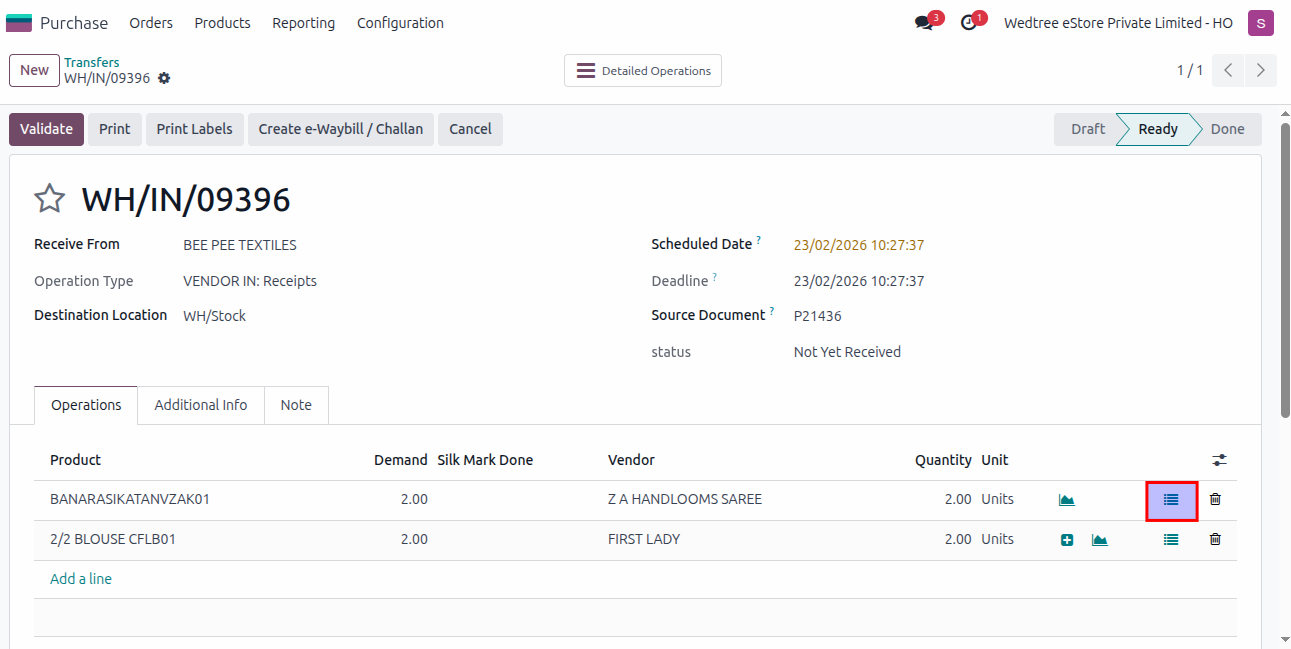
Click on Receipt generated and click Stock Move Lines.
Untick the Copy to Lots button and Enter Lots/Serial Number of the product and click on camera on the Model Image. Confirm the image.
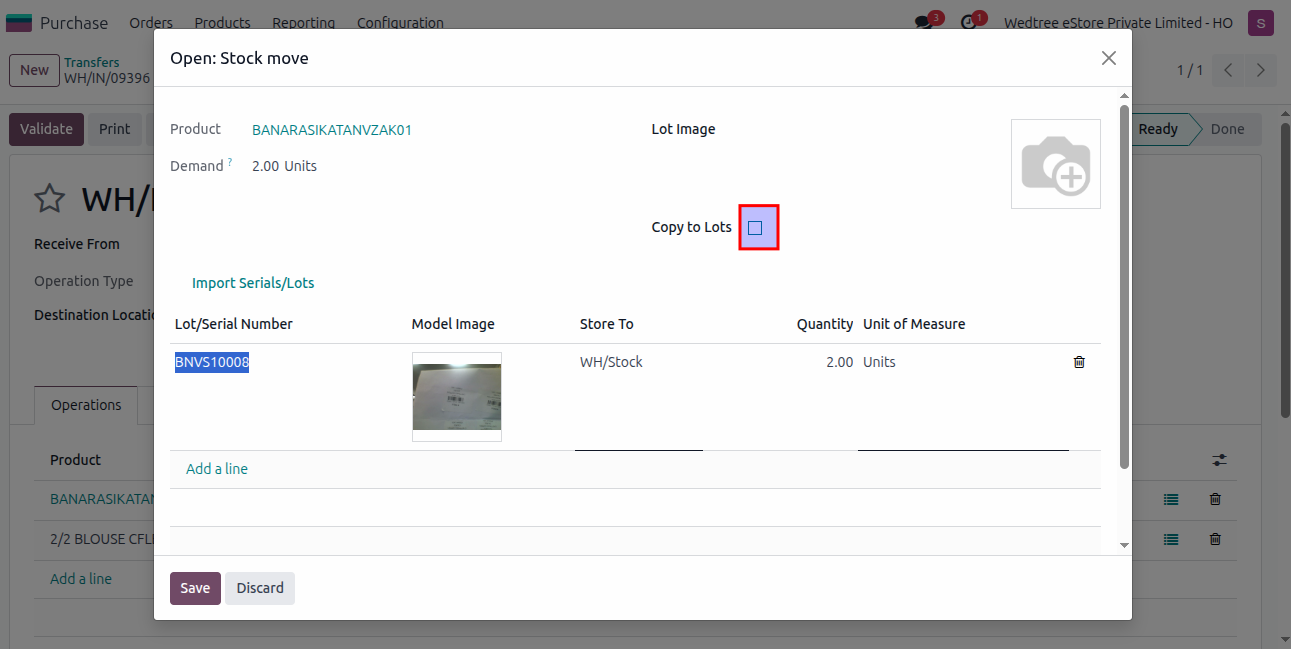
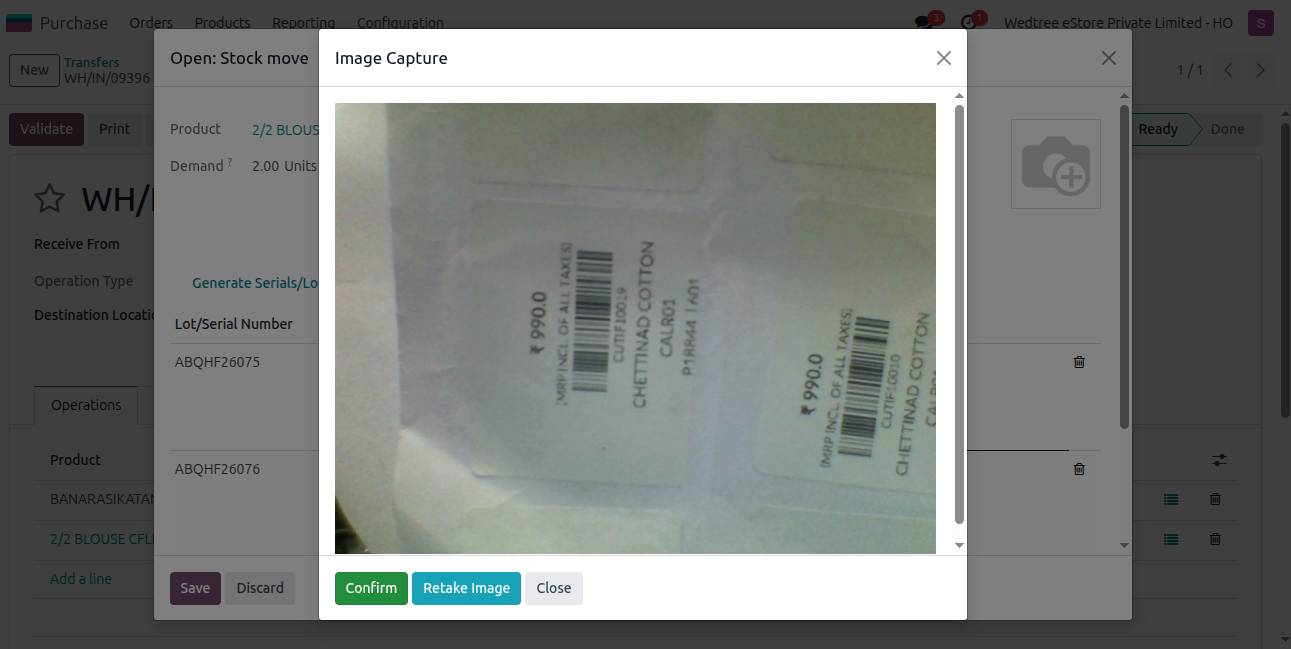
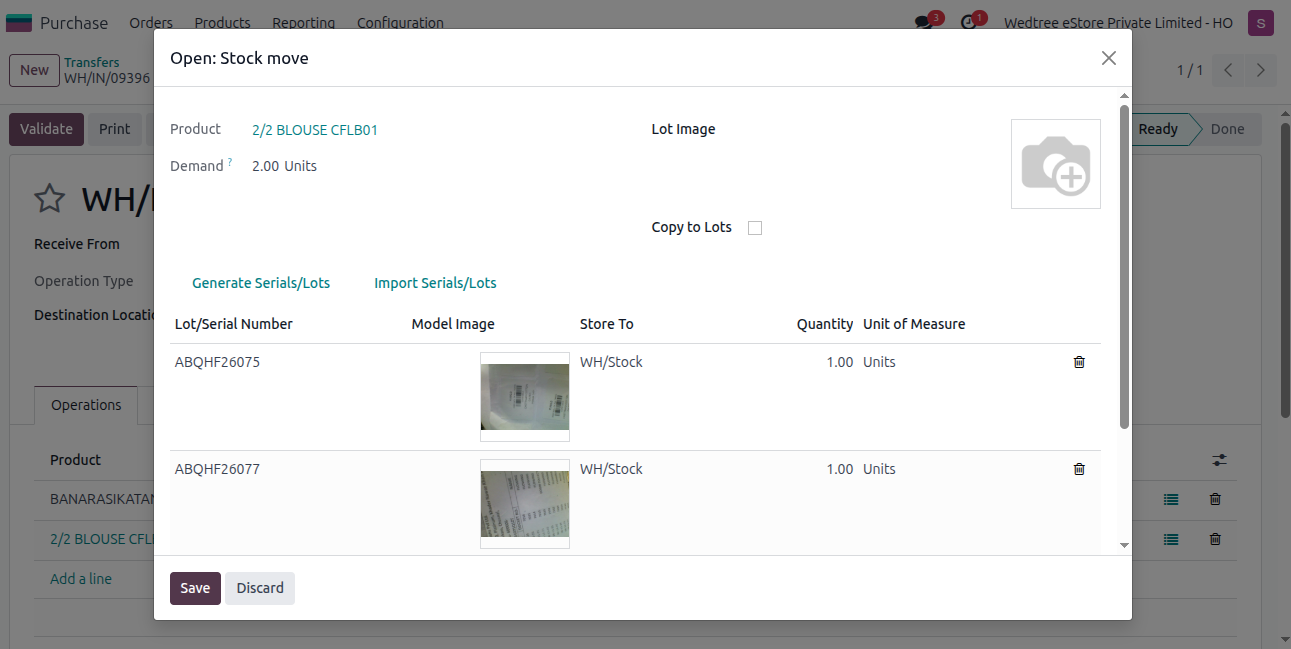
After capturing image save it and Validate the Receipt and it goes to Done state.
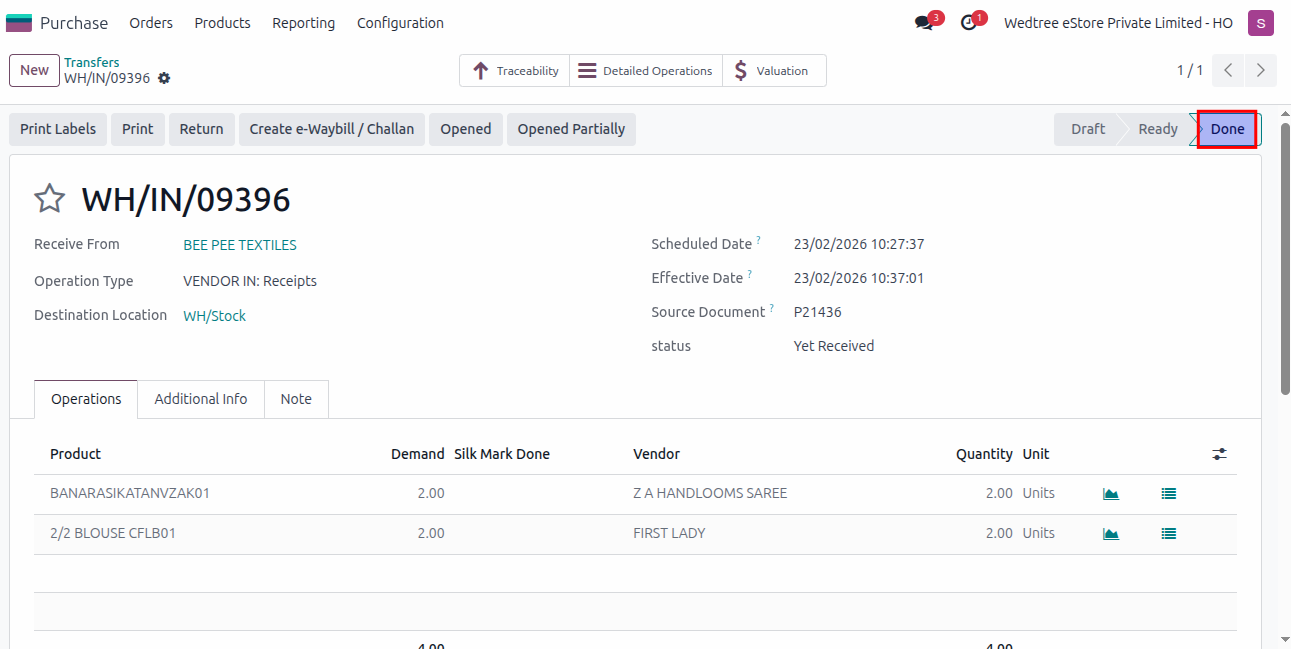
Verify the Image in Lots/Serial Numbers:
By searching with lots/serial number, we can see the captured image.