Resignation
About
Resignation is the formal process by which an employee voluntarily notifies their organization of their intent to leave their job position.
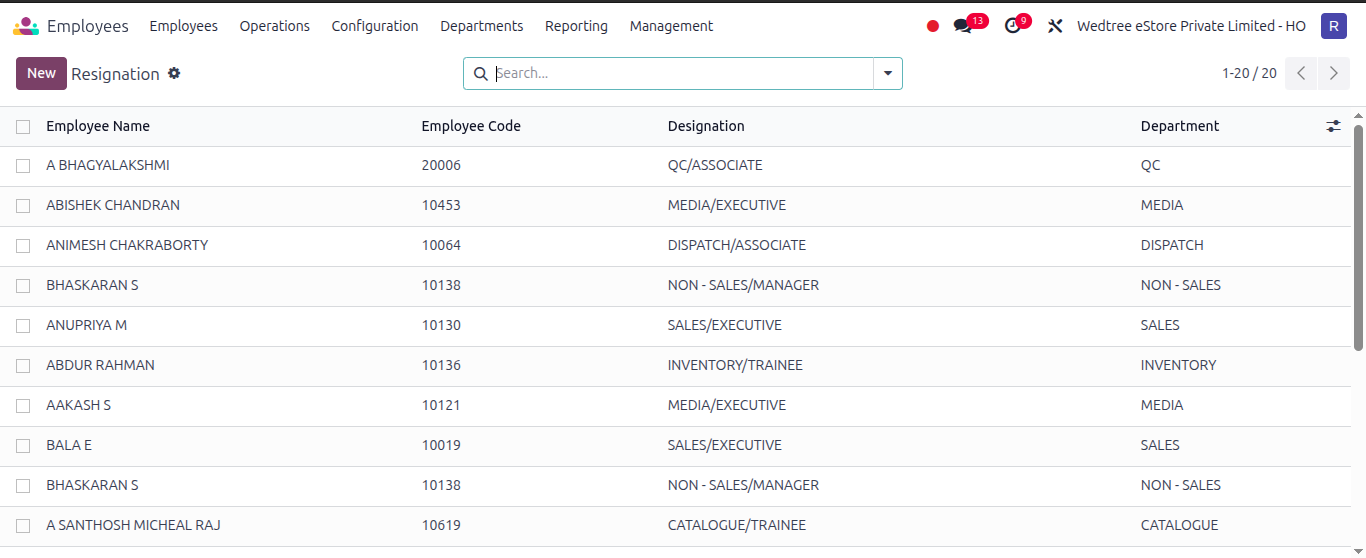
List View
Form View
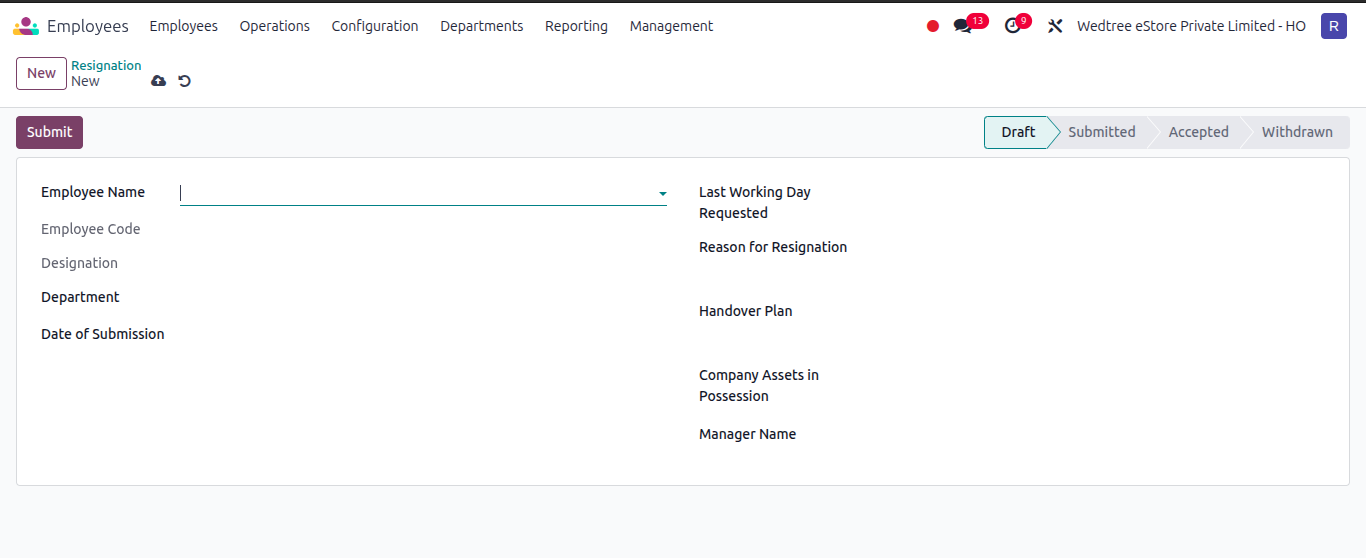
Process of creating Resignation:
Click the New button at the top left of the screen.
Fill in the employee details, reasons for leaving, and the requested last working day.
Click Save.
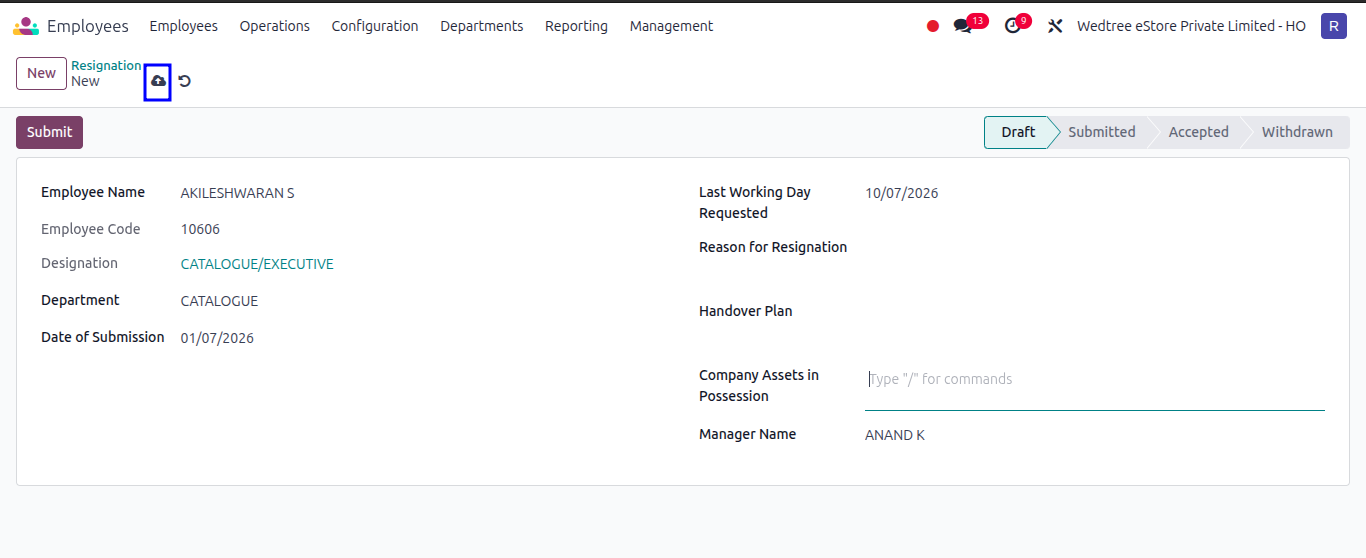
The resignation will now be in Draft state.
Note
Store Managers can only Create, Edit, or Delete resignation records while they are in the Draft state for their own company, whereas HR Managers can Create, Edit, or Delete records globally across all companies while in this state.
Click Submit to move the state to Submitted.
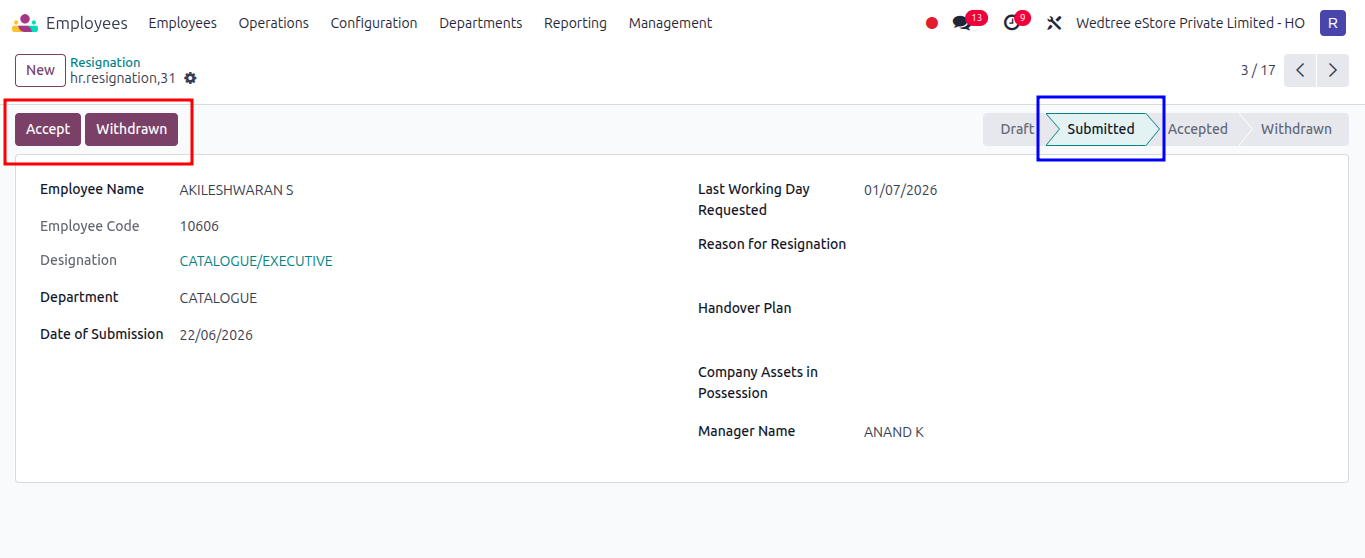
- After Submit, both the Accept and Withdrawn buttons become visible in the header for the HR Manager.
Accept button to officially approve the resignation.
Withdrawn button if the employee changes their mind and decides to stay.
Note
The form fields become completely read-only for Store Managers, whereas HR Managers can still edit the fields in both Draft and Submitted states. However, records cannot be deleted once they leave the Draft state.
Click Accept button.
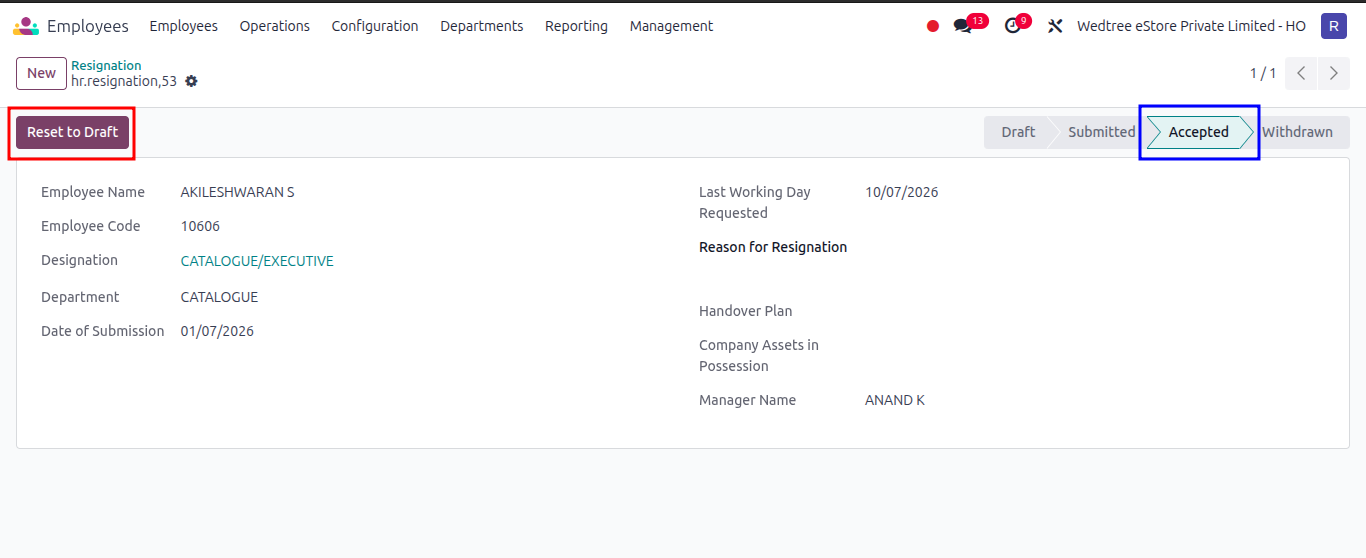
The resignation will now be in Accepted state.
Note
HR Managers cannot edit form fields or delete the record, but they can click the Withdrawn button if needed.
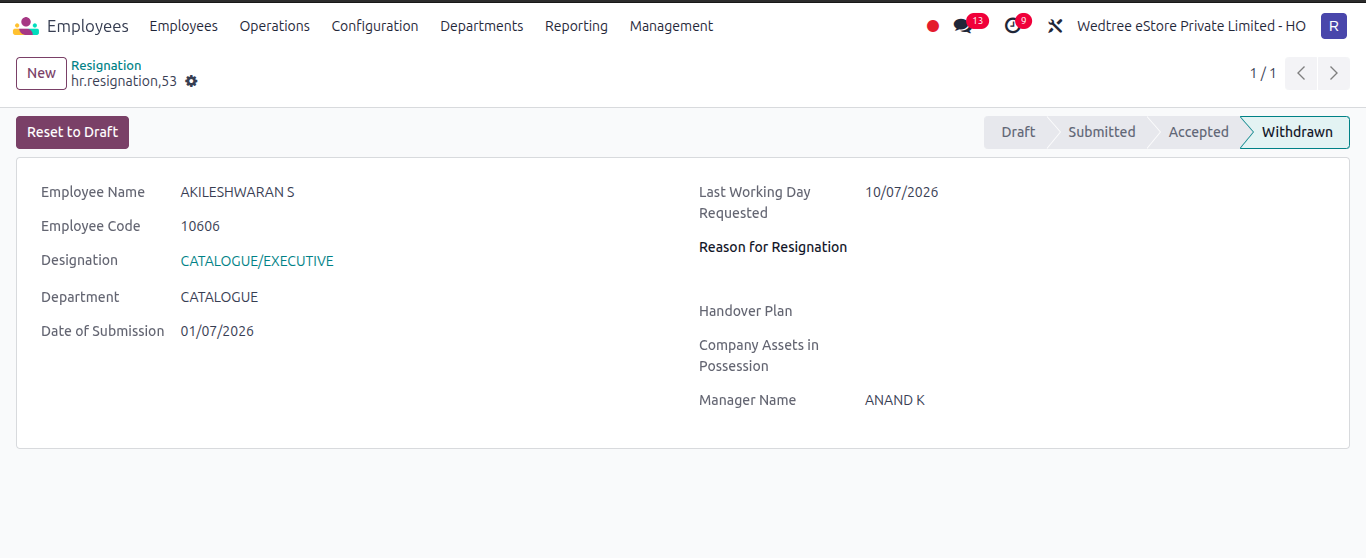
The resignation will now be in Withdrawn state.
HR Managers cannot edit form fields or delete the record.
They can click the Reset button to bring the record back to the Draft state.
All fields will unlock for editing again.
Demo video for Employee Resignation Form
After the cron job executes
For employees associated with an accepted resignation record:
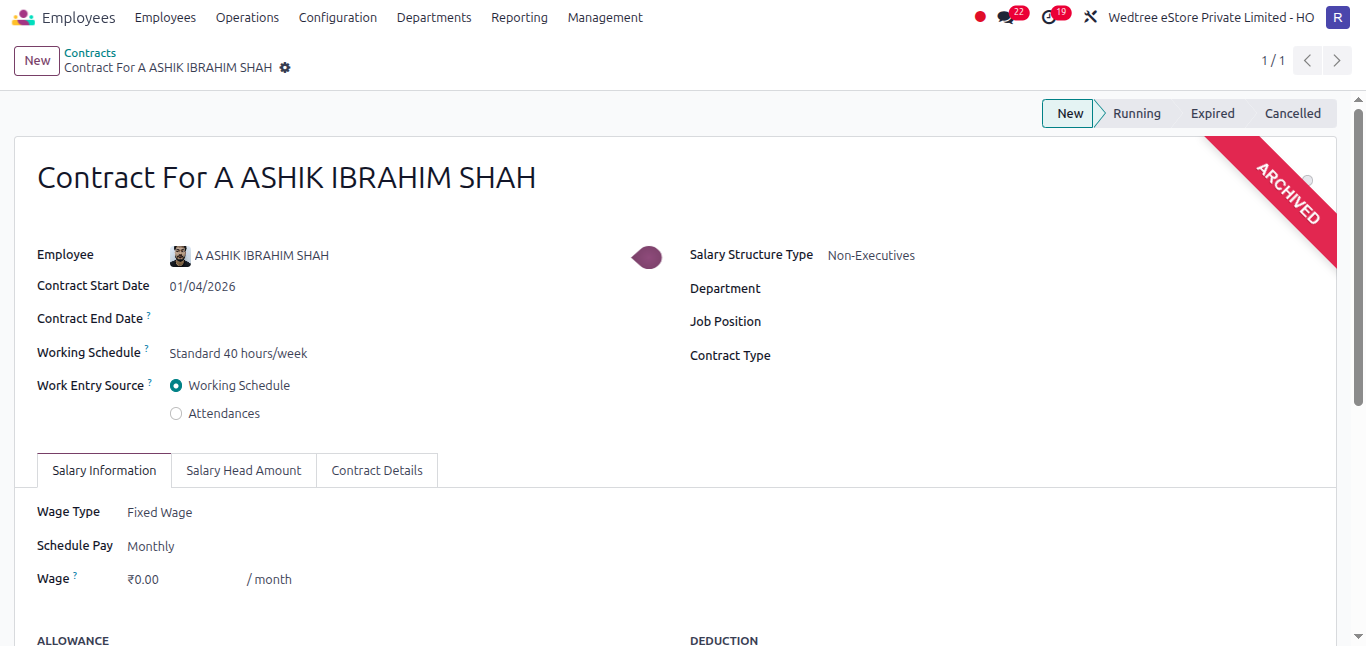
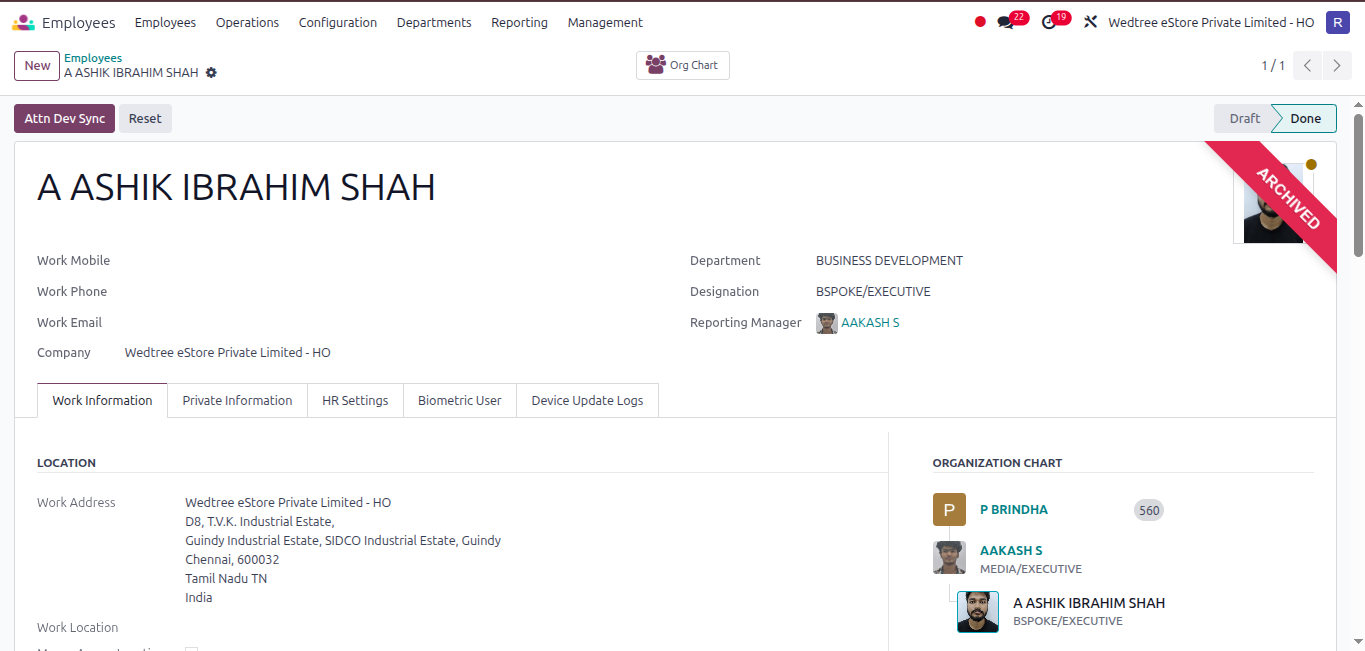
Their employee profile and contract are automatically archived.
Note
When the cron job executes the employee whose Last Working Day Requested is day before today.
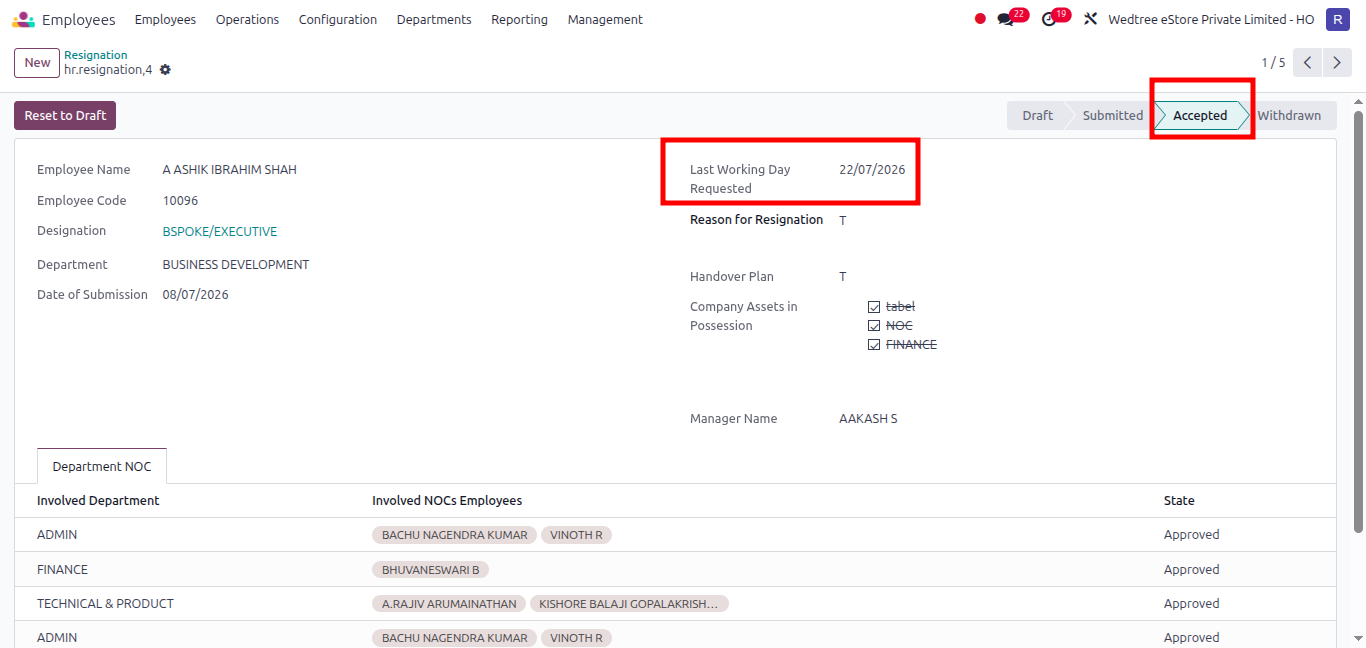
Employee Contract: The employee’s contract status changes to Archived.
Employee Profile: The employee’s profile is archived and hidden from the active employee list.
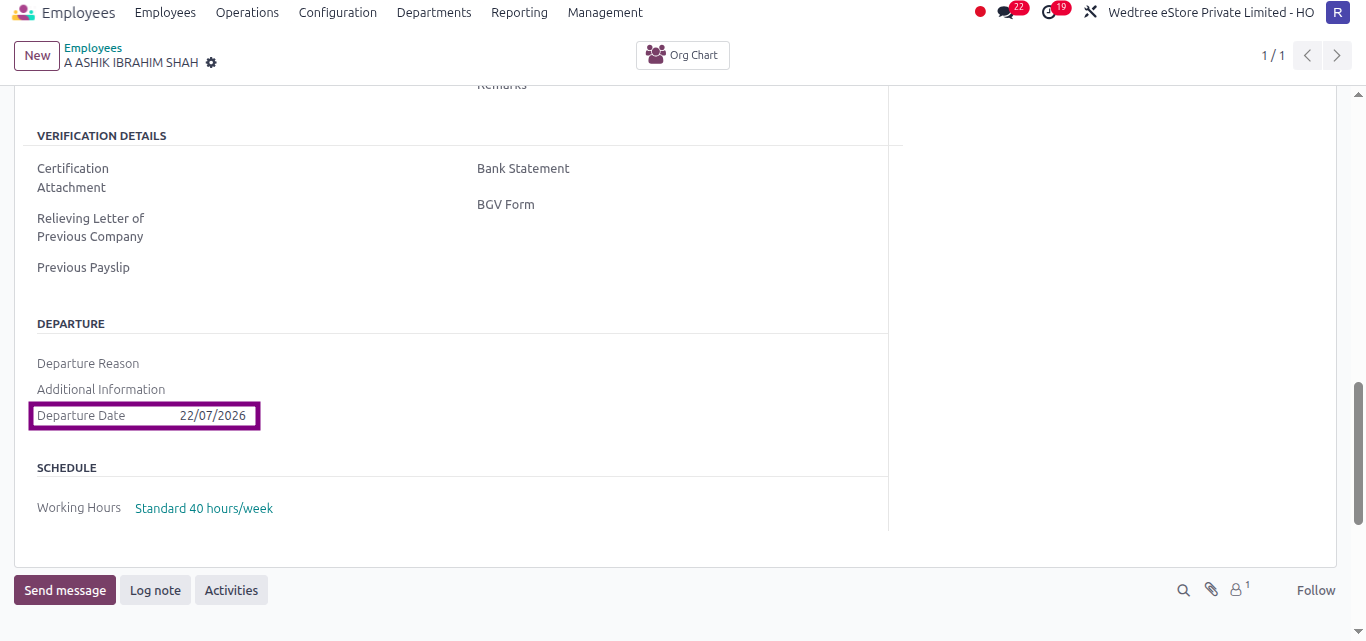
Departure Date: : The Departure Date inside the private information tab automatically updates to match their last working day.