Payroll Generation Process
Employee Creation
Roles Involved: HR Manager
To Create a new employee, login as a HR manager.
To access the menu, go to
The list View of Employee will open. Click on New button.
The Form View for creating a New Employee will appear.
Fill in all the mandatory fields in the Form View and click on the Save button.
See Employees
Employee’s Bank Account
Employee’s Bank Details are entered in the Employee’s Private Information tab under Bank Details.
Contracts Creation
See Contracts
Contracts should be in running state to show Salary Head Amount in Contract.
Leave Allocations
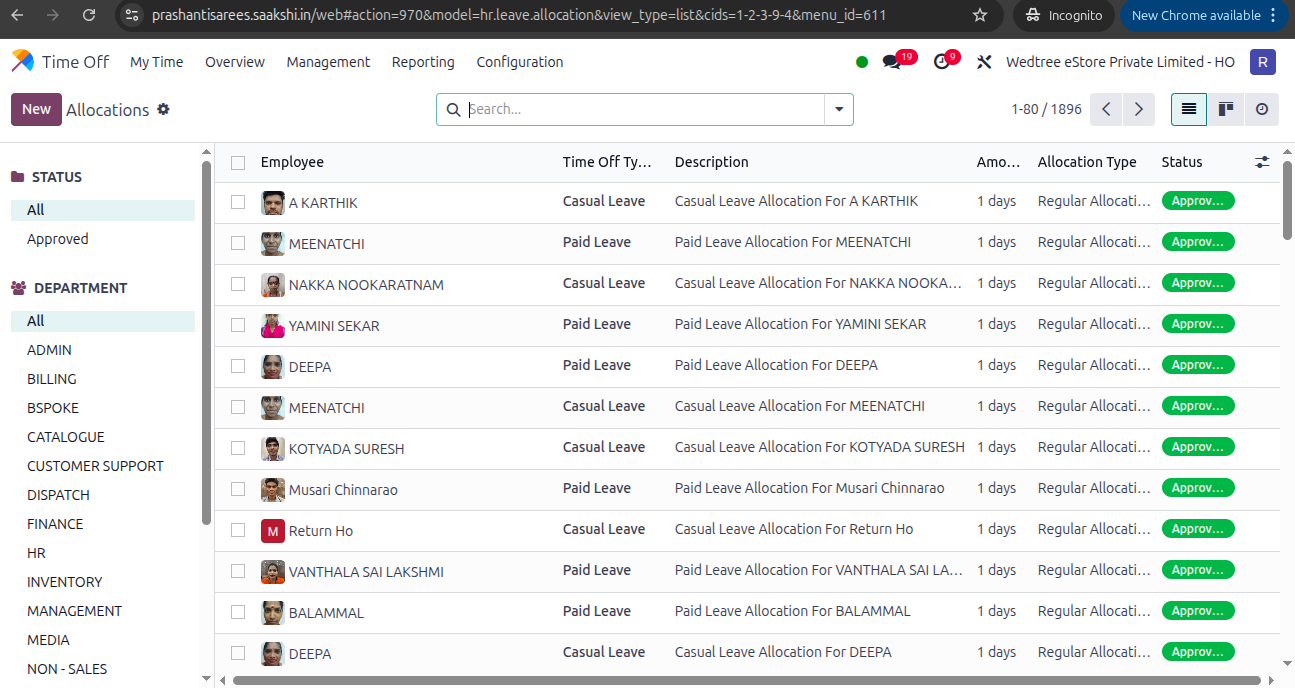
To Allocate Leaves and approve for Employees, Timeoff module is used.
To access the menu, go to
The Tree View of Allocations is as shown below. It is allocated and approved by running a Cron Job.
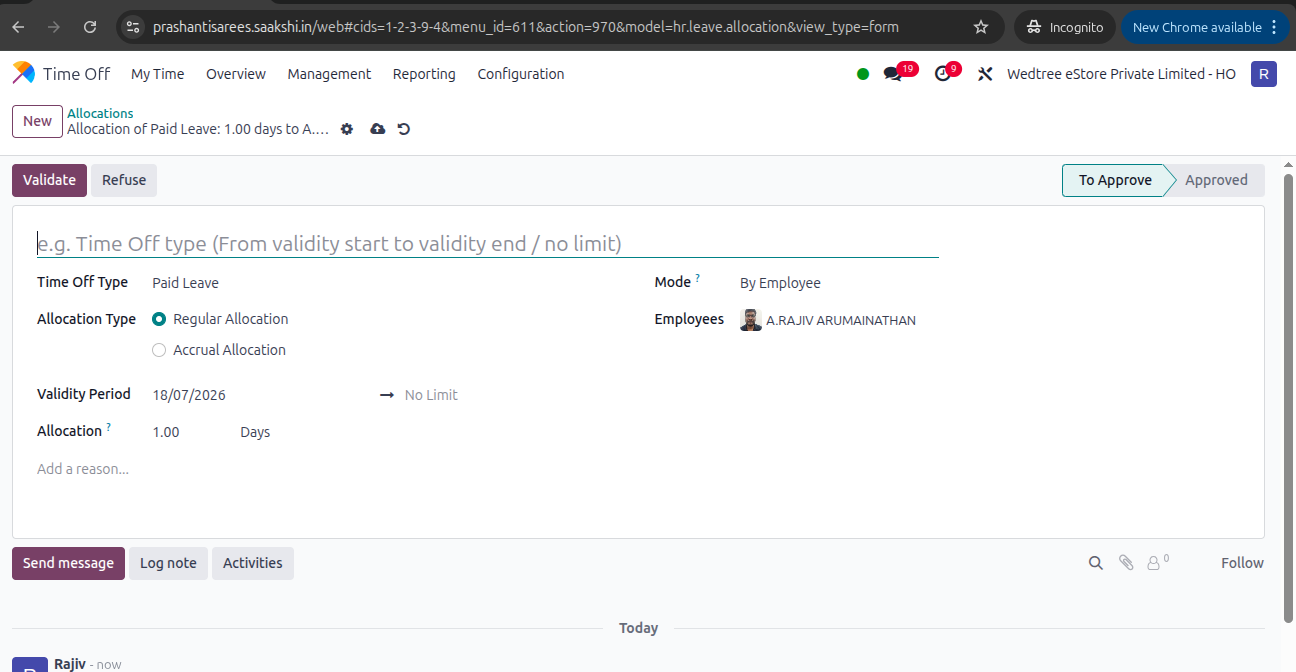
The Form View of Allocations is as shown below. For manual creation, enter all the mandatory fields and save it. The status goes to To Approve state. This should be approved by the HR Manager.
Leave Types Creation
To create Leave Types, Log in as Manager.
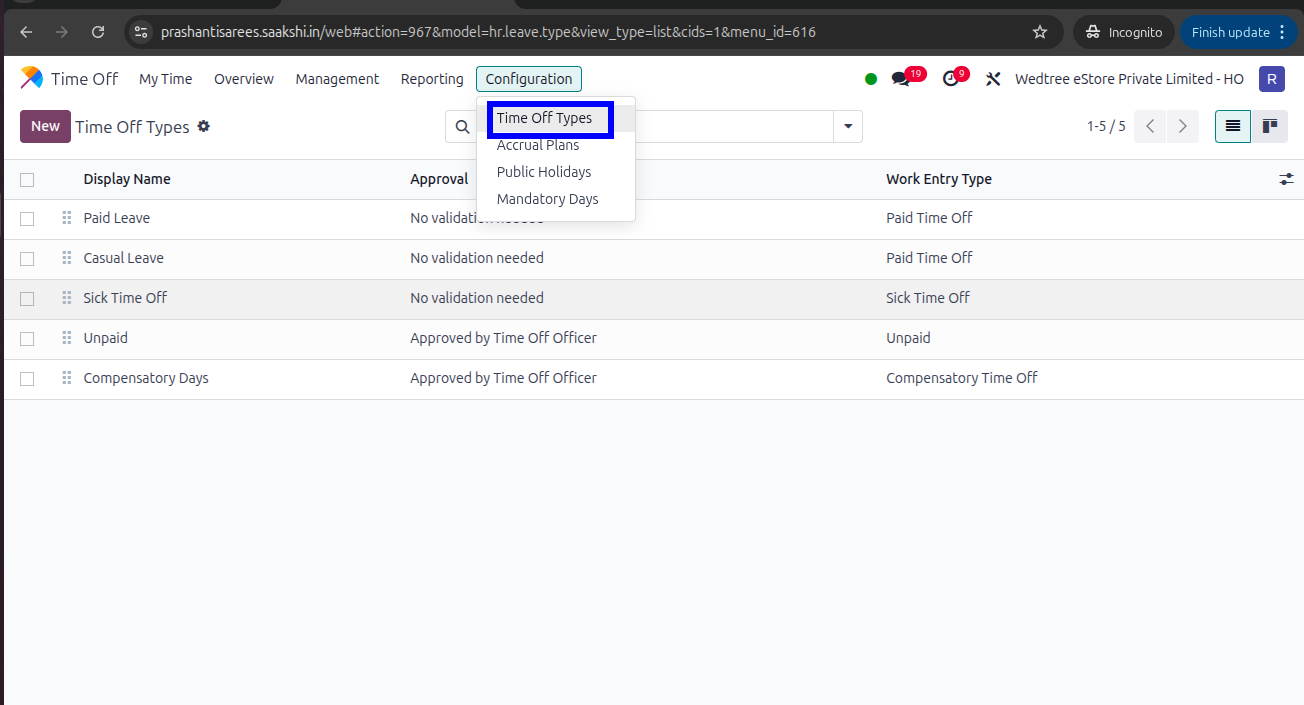
To access the menu, go to
The List View of Time Off Types is as shown below.
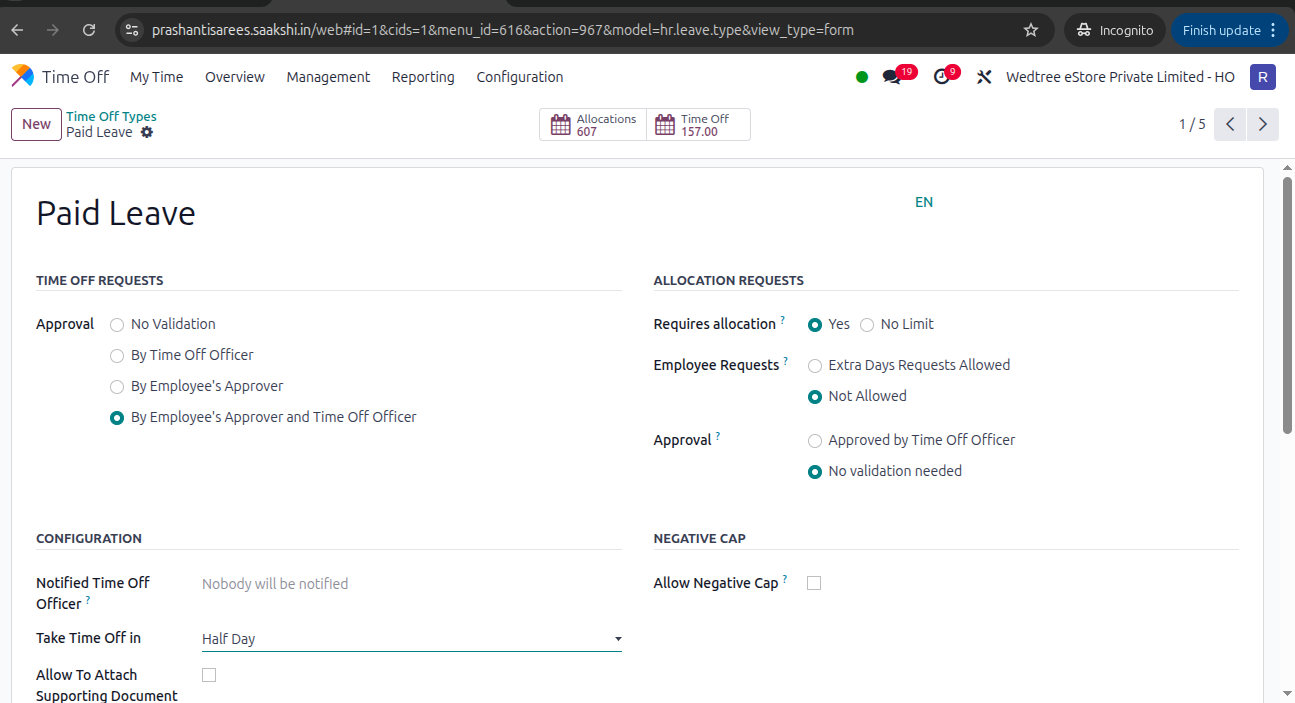
The Form View of Time Off Types is as shown below. We can create any Time Off Type here by entering required fields.
Leave Record Creation
For Leave Record Creation, log in as a Store Manager or Team Manager. Leaves should be allocated and approved before to create Leave Record for Employees.
To access the menu, go to
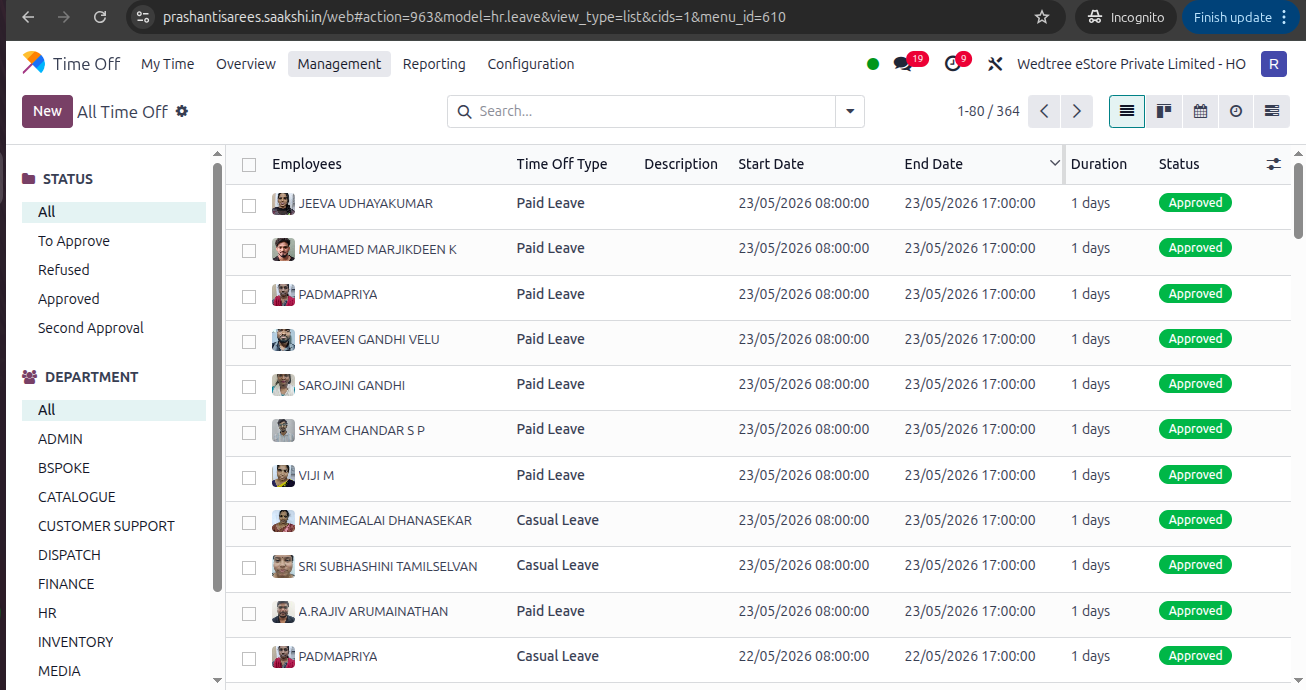
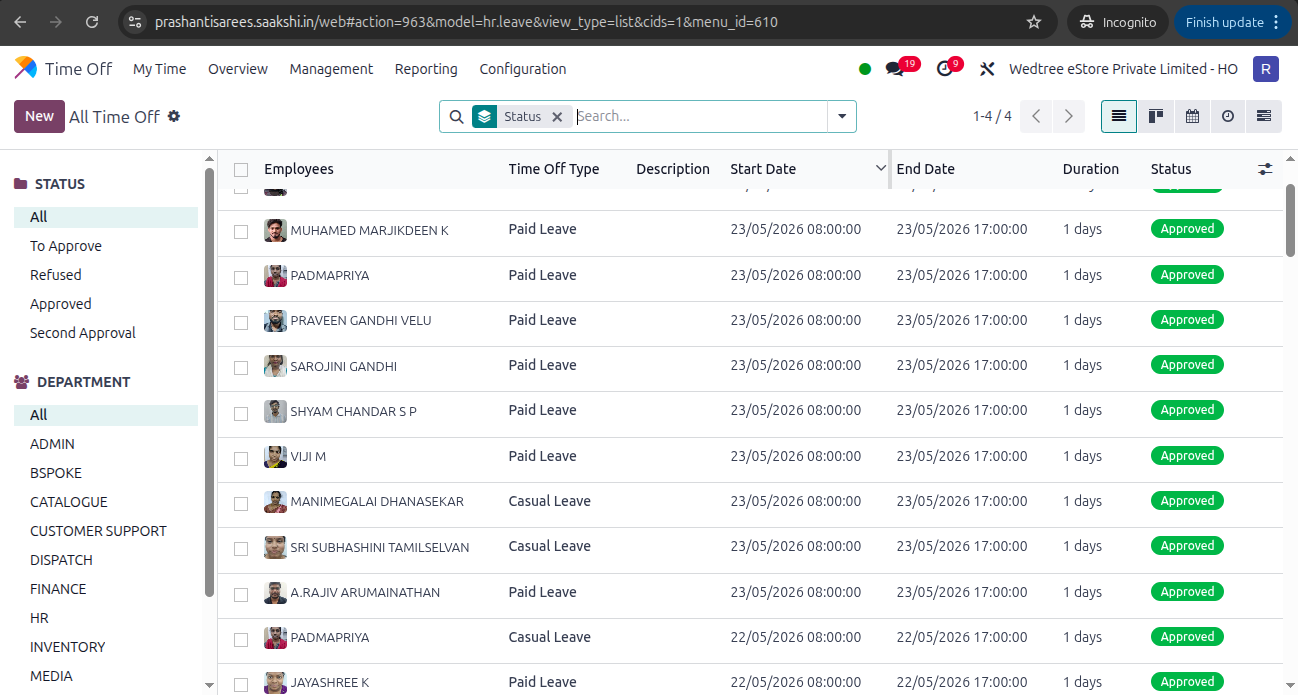
The List View of Leave Record is as shown below.
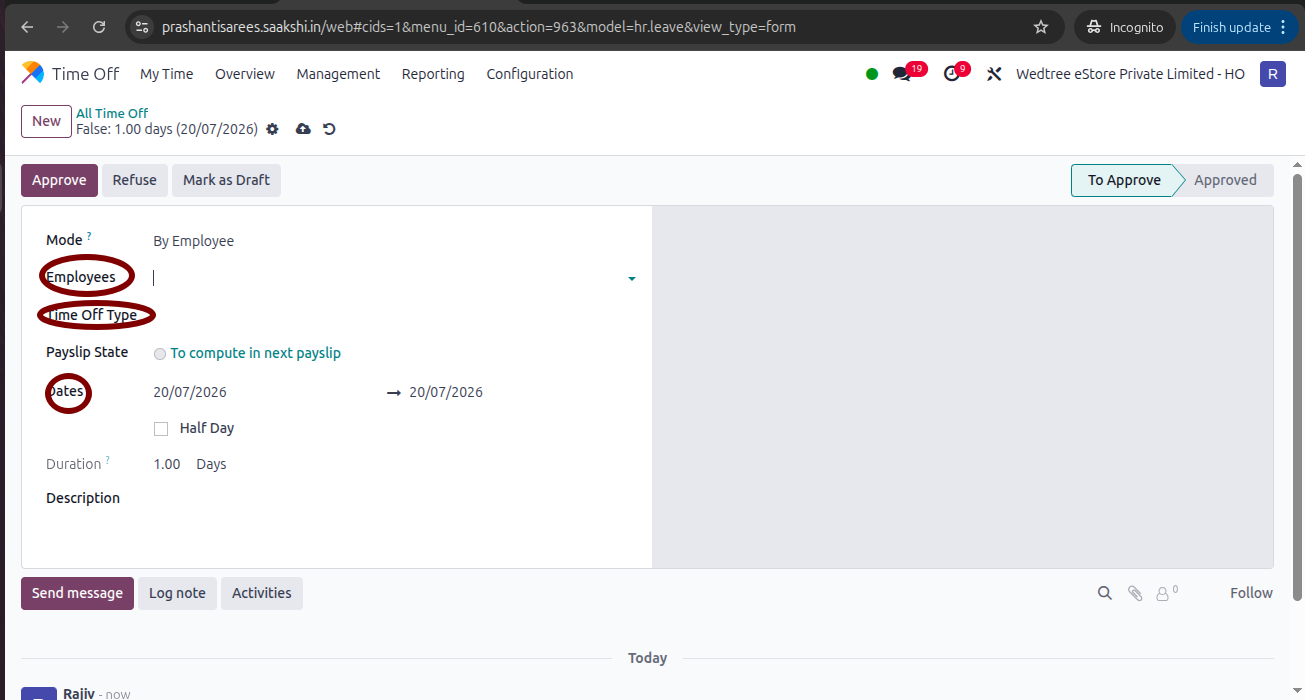
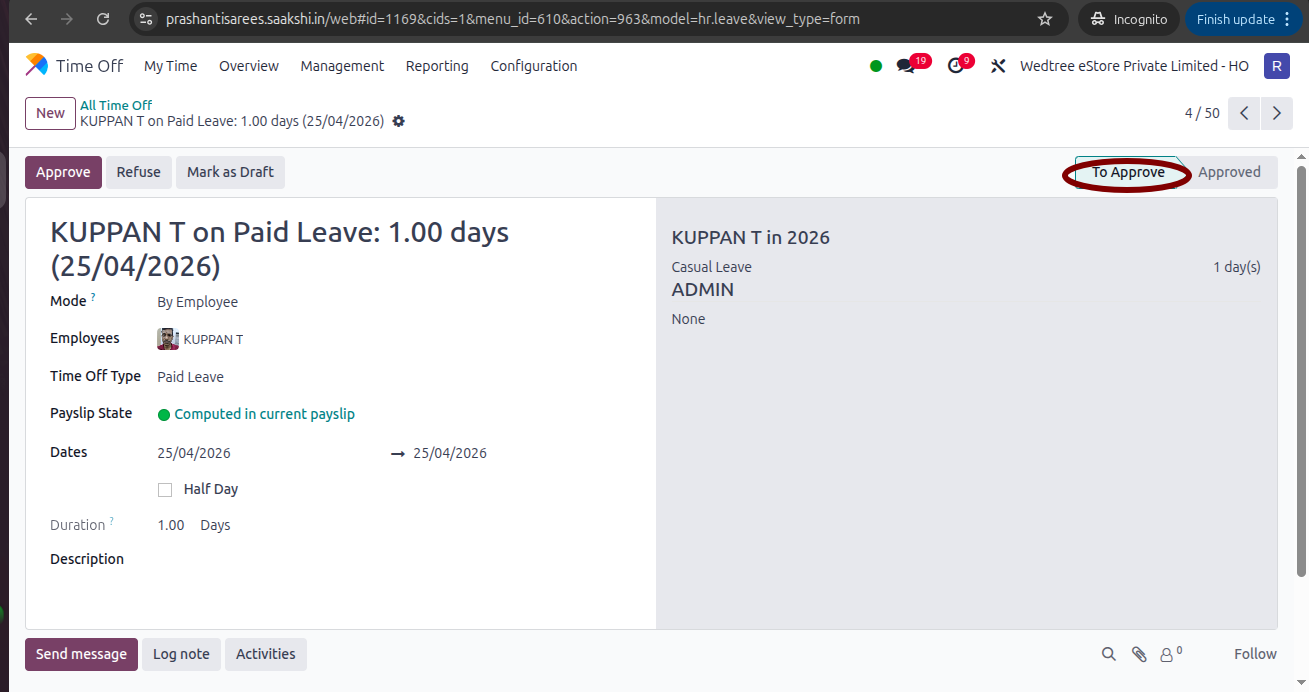
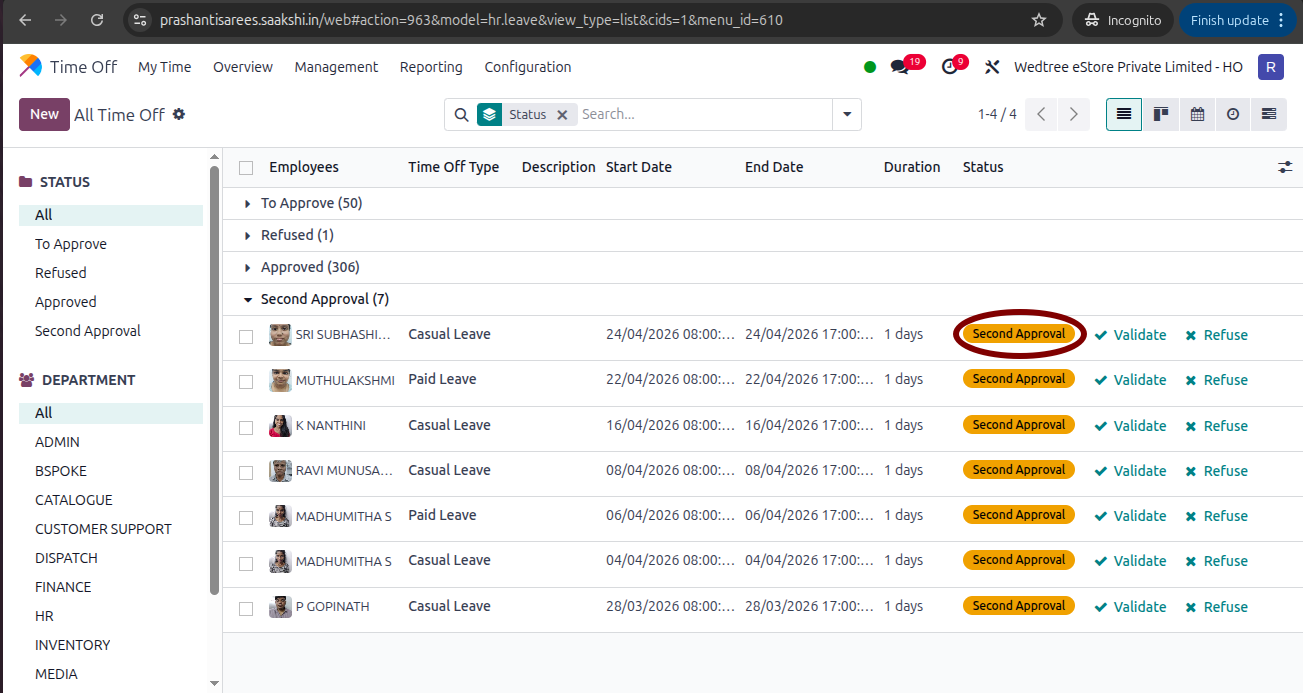
The Form View of Leave Record creation is as shown below. Fill in all the mandatory fields in the Form View, Select Employee’s name, Select Time Off Type, Choose the Dates as From and To Date, Enter a Description (if required). Click on the Save button. The Status goes to To Approve. Click on this and the status goes to Approved state. This goes to Second Approval by HR Manager.
Holidays Creation
Public Holidays should be created in Configuration menu under Public Holidays. To create this, log in as a Manager.
To access the menu, go to
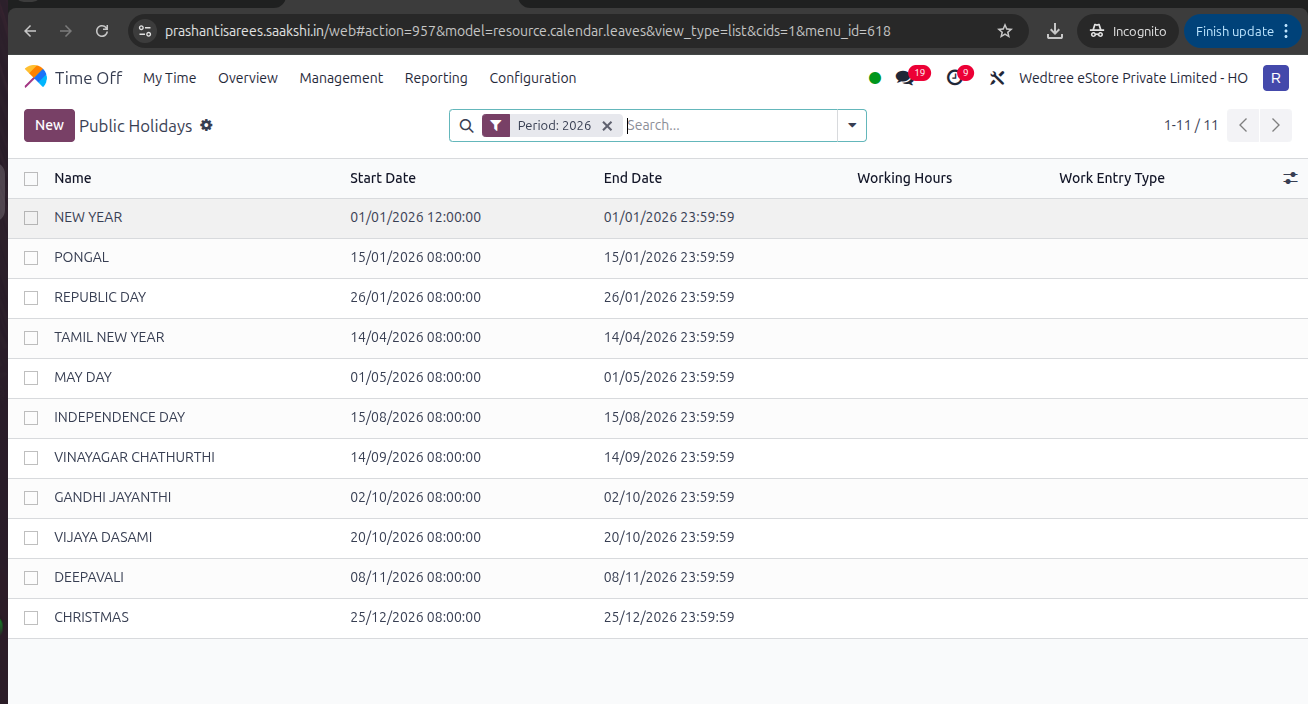
Tree View of Public Holidays is as shown below.
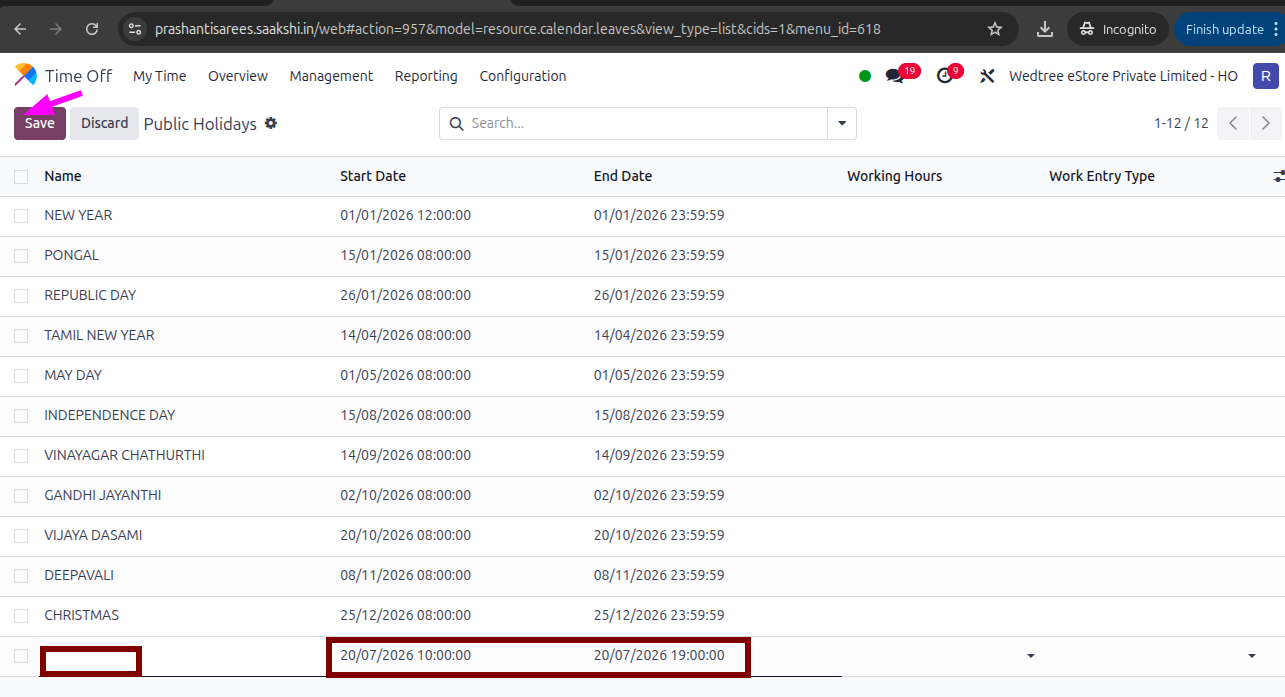
Click on New to create new Holiday and give Start Date and End Date then save it.
Employee Daily Status
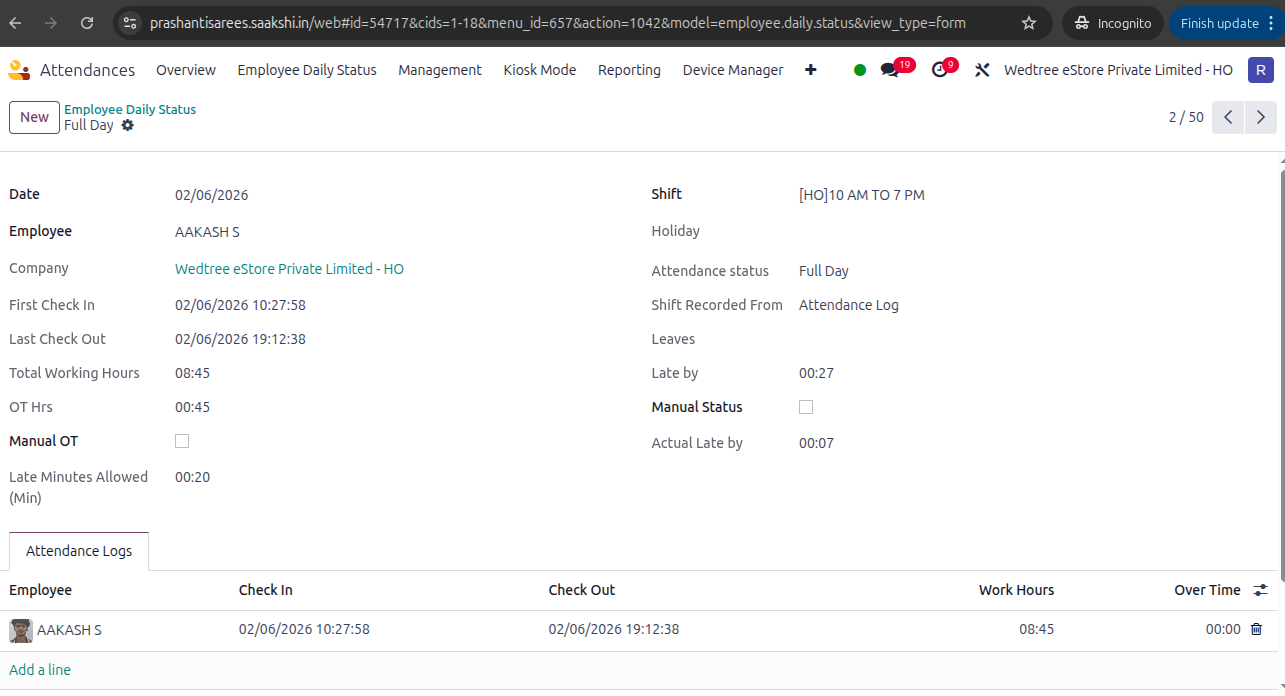
In Employee Daily Status menu, all attendance related information of an Employee for a selected date can be seen. It helps HR and managers monitor and review employees’ daily attendance records.
To access the menu, go to
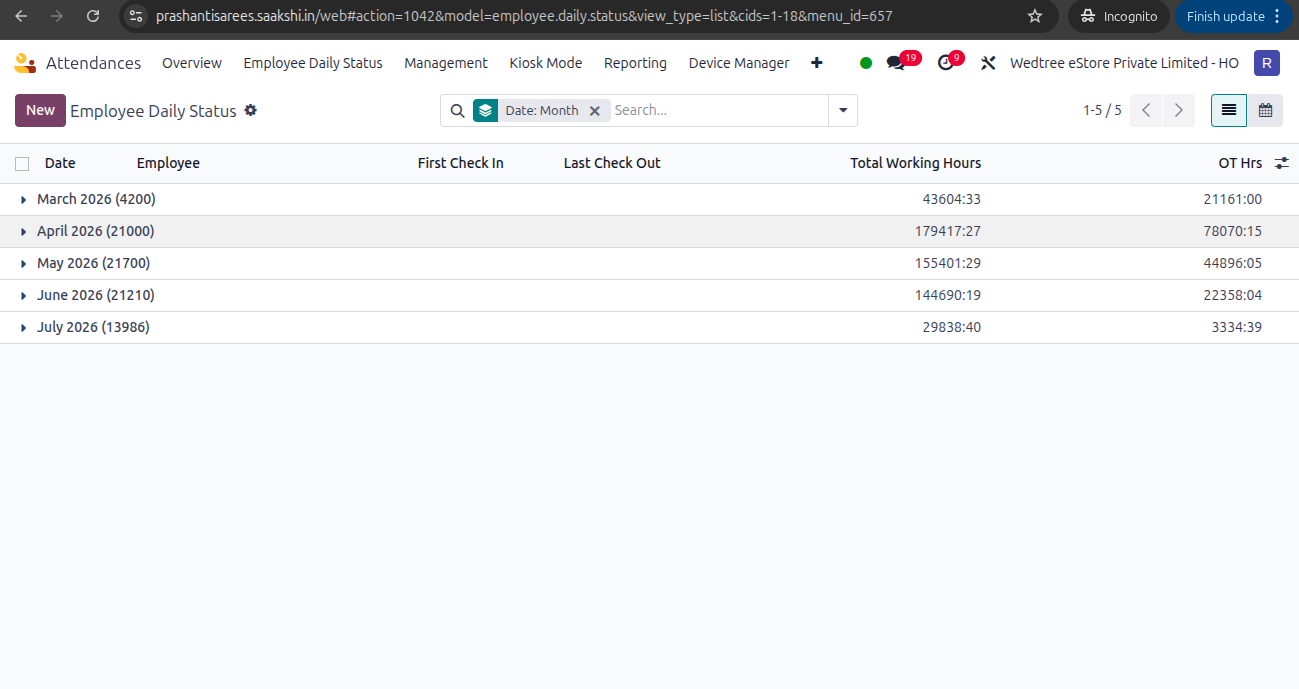
Log in as a Manager, the list view of Employee Daily Status is as shown below.
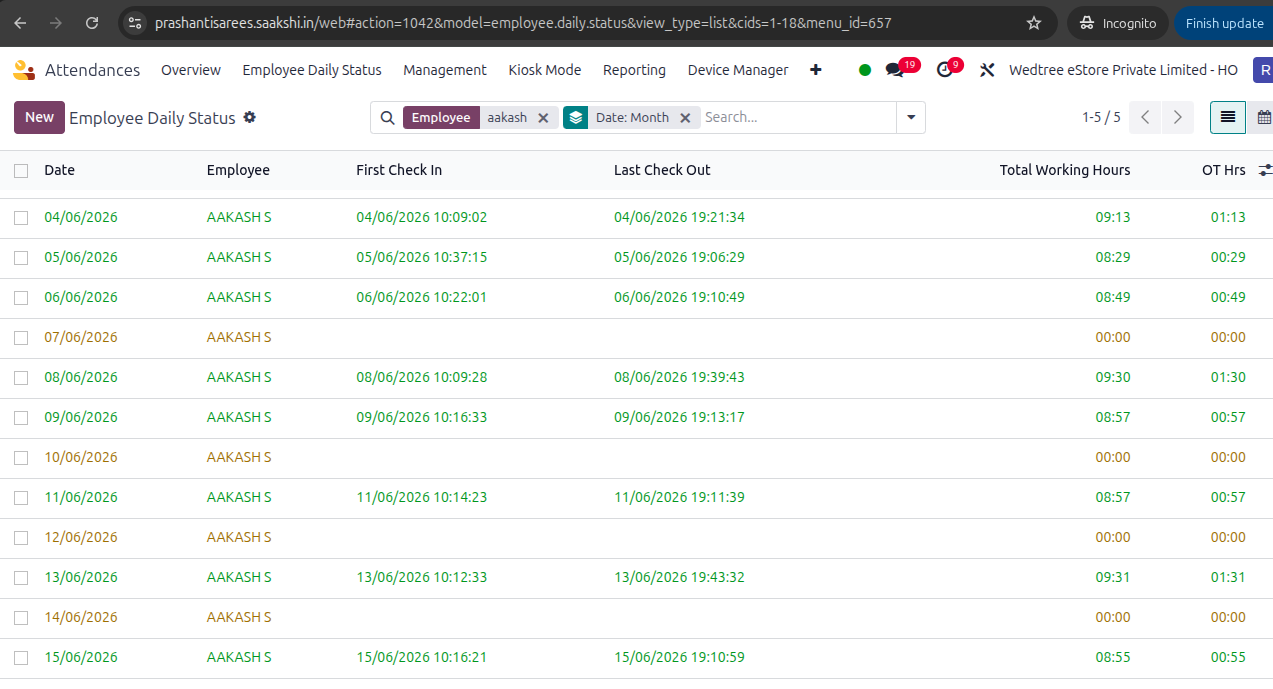
All attendance details of a particular employee can be seen by selecting that particular date.
Checklist before payroll generation
Before generating payroll, verify that the following activities have been completed:
Approve all leave records before generating payroll.
Update exited employee records.
Create new employee records with bank details.
Create contracts for new employees and assign the required payroll structure.
Complete leave allocation, if applicable.
Verify that no attendance records are in the TBD state.
Note
Complete all checklist items before generating payroll.
Payroll Generation Process
Payslip Batch Creation
See Batches
Salary Computation
See All Payslips
Monthly Allowance Deduction
Employee Advance
See Employee Advance