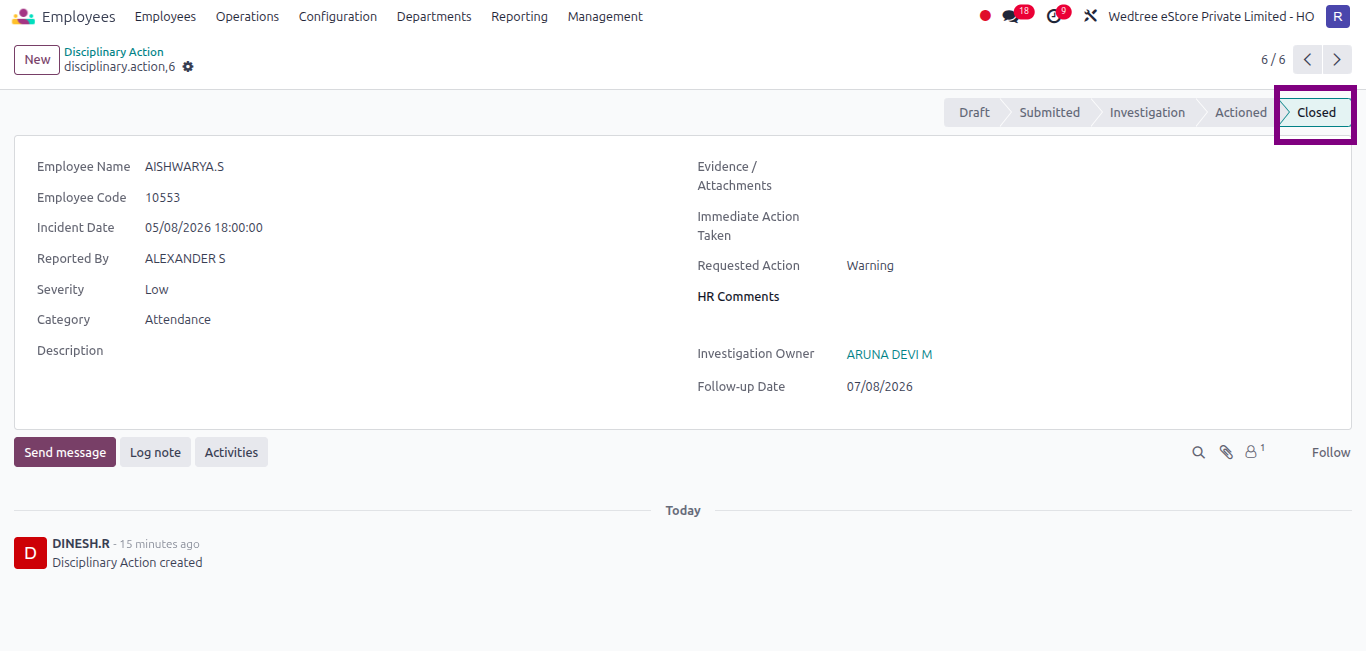
Disciplinary Action
About
A Disciplinary Action is used to record and manage the actions taken against an employee for policy violations, misconduct, attendance issues, or other workplace-related concerns.
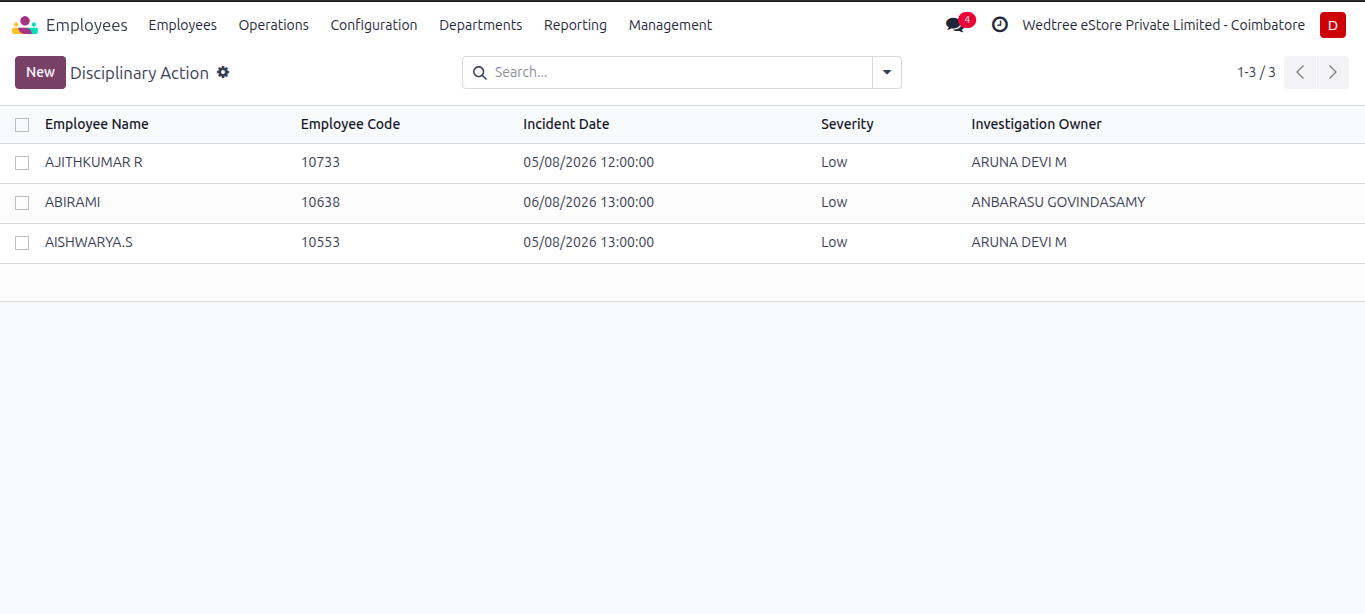
List View
Form View
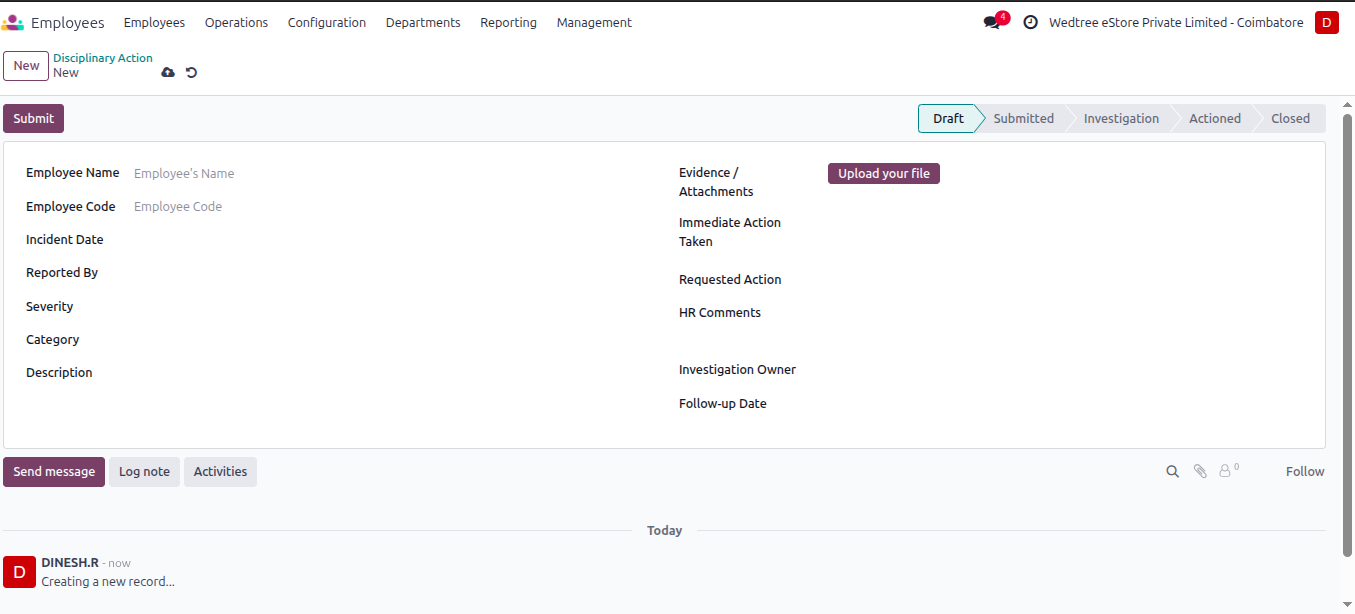
Process of creating a Disciplinary Action Form:
Click the New button at the top-left corner of the screen by the HR User to create a new Disciplinary Action record.
Fill in the employee details, reasons for leaving, and the requested last working day.
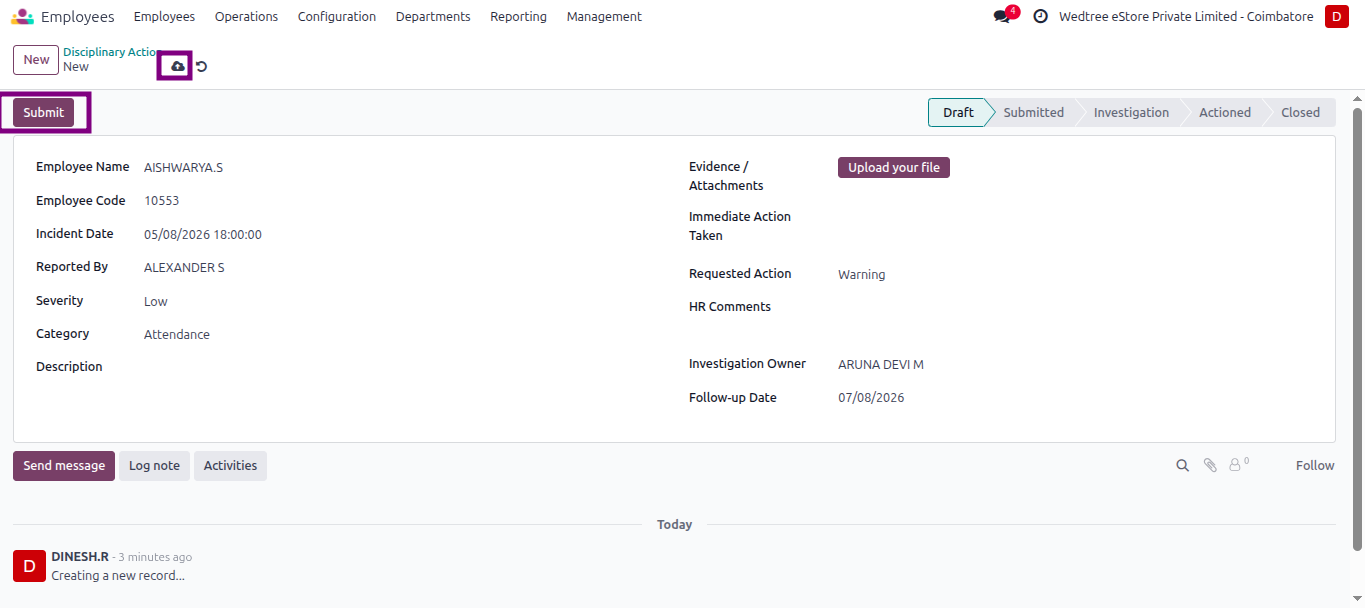
Click Save.
The Transfer Request is now in the Draft state.
Note
HR Users and Store Managers can create and submit Disciplinary Action records. HR Managers have the authority to review, investigate, take necessary actions, and move the record through the workflow states. Once a record is closed, it cannot be edited.
Click Submit to move the state to Submitted.
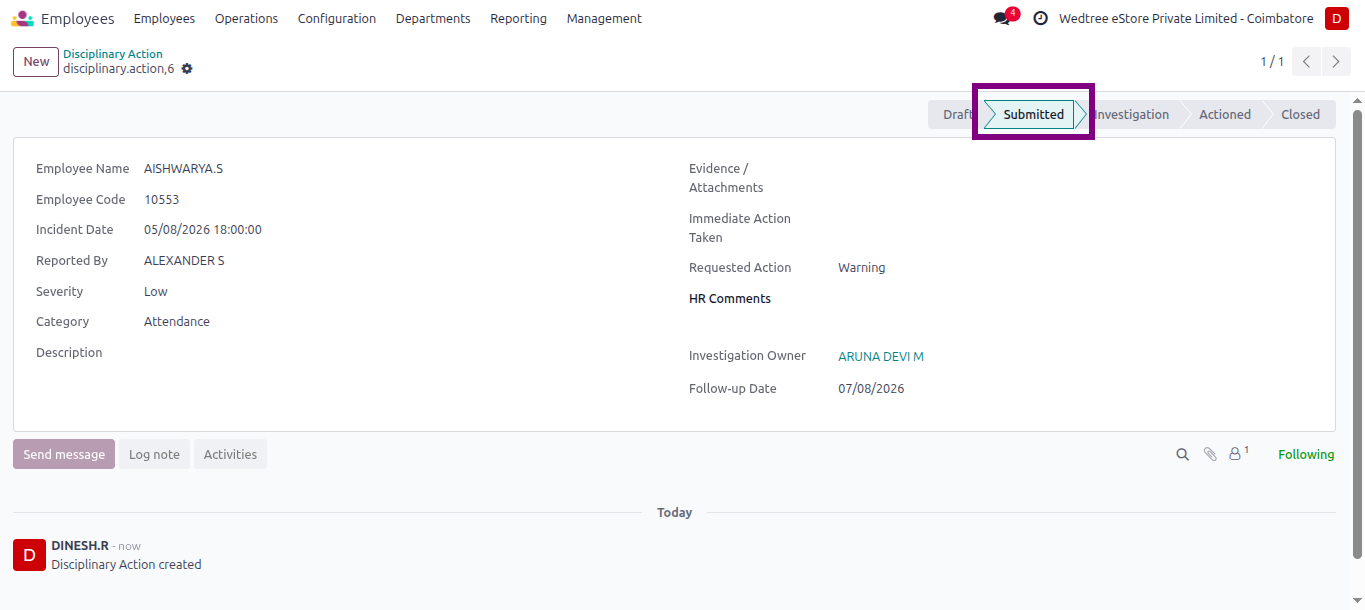
After Submit, the record moves to the Submitted state.
The Investigation button is visible only for HR Managers. HR Managers can review the case, perform the investigation, and proceed with the further workflow actions.
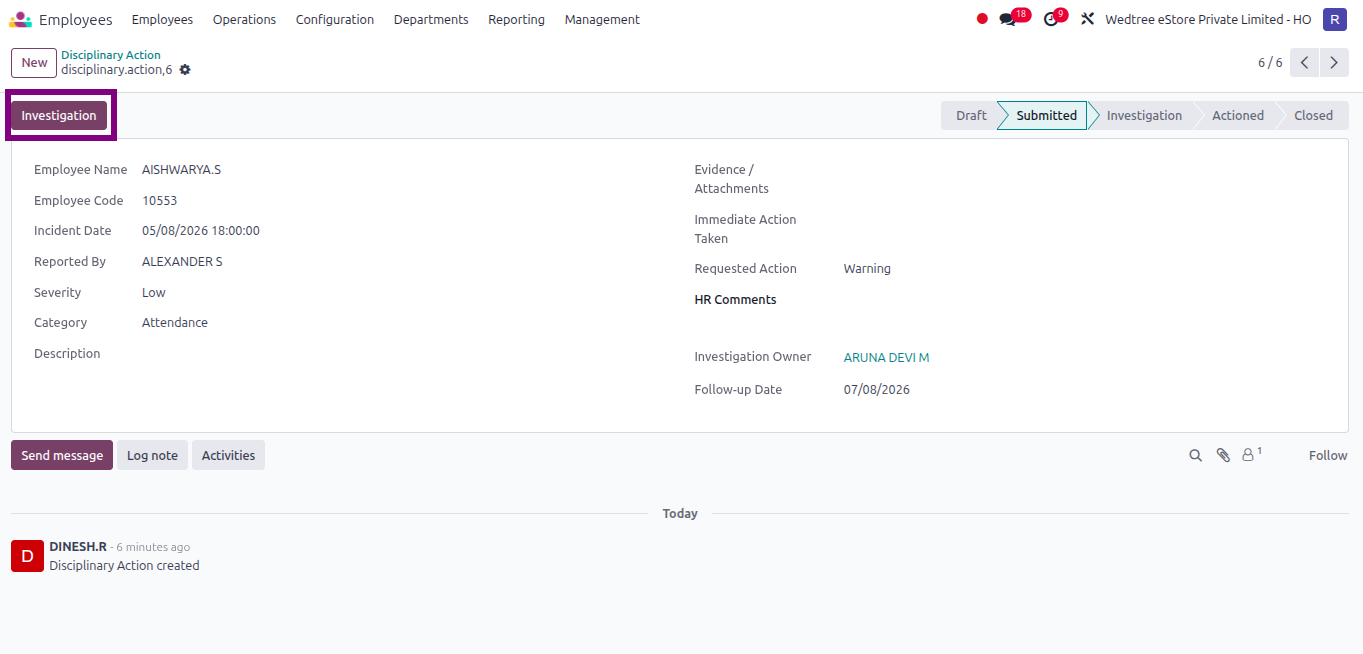
Click Investigation after reviewing the issue related to the employee. The record will move to the Investigation stage.
After completing the investigation, the Action button will be displayed for the HR Manager to proceed with the next step.
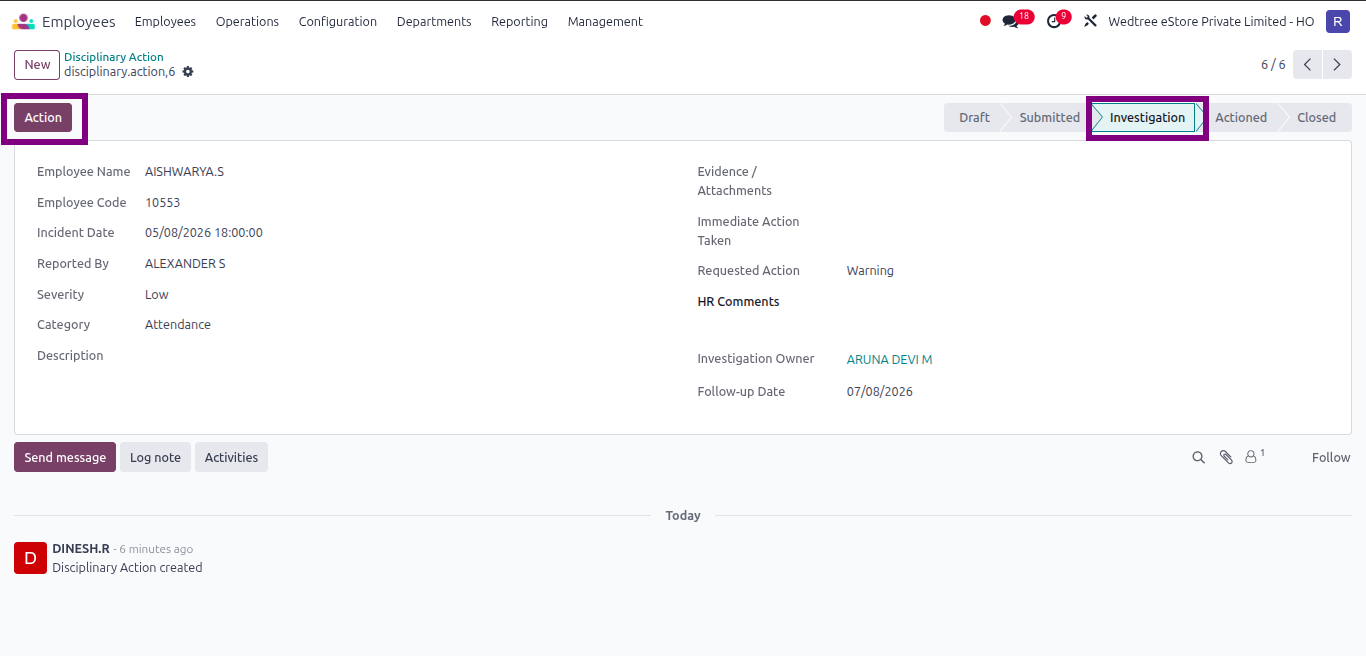
Click Action after taking the required action for the employee and Close button will be displayed.
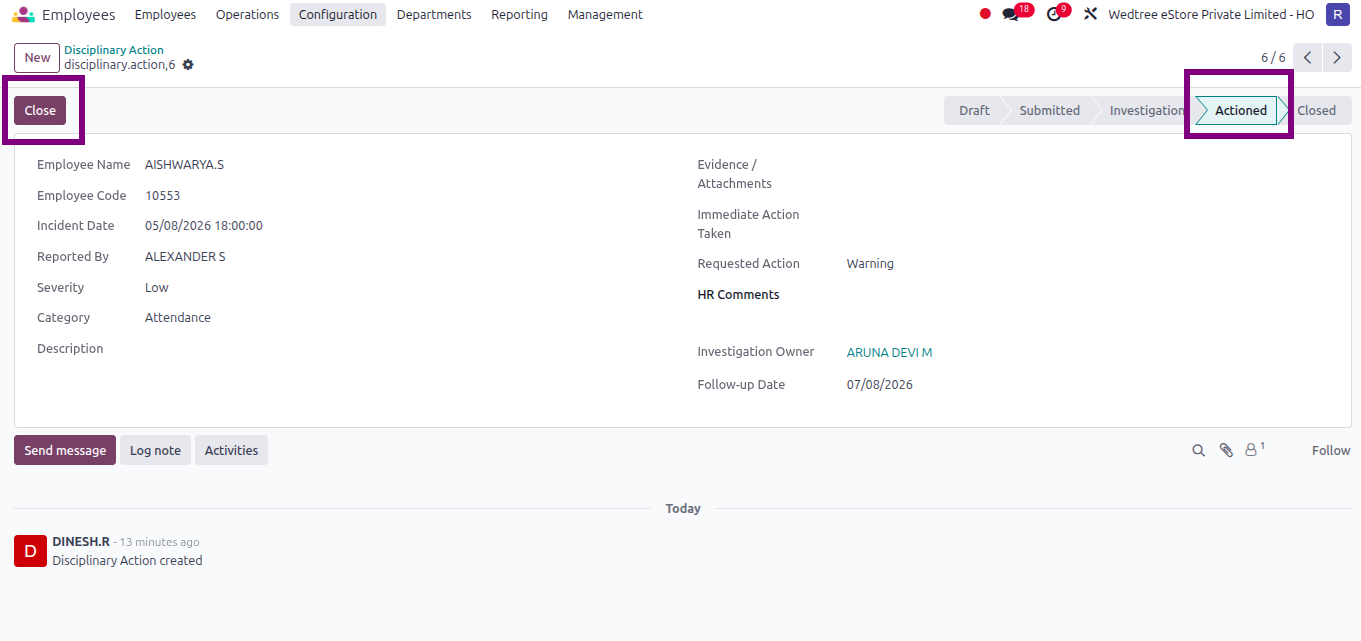
Click Close to close the record after completing the disciplinary process for the employee.