Transfer Request
About
A Transfer Request is used to move an employee to a new department, job position, or branch.
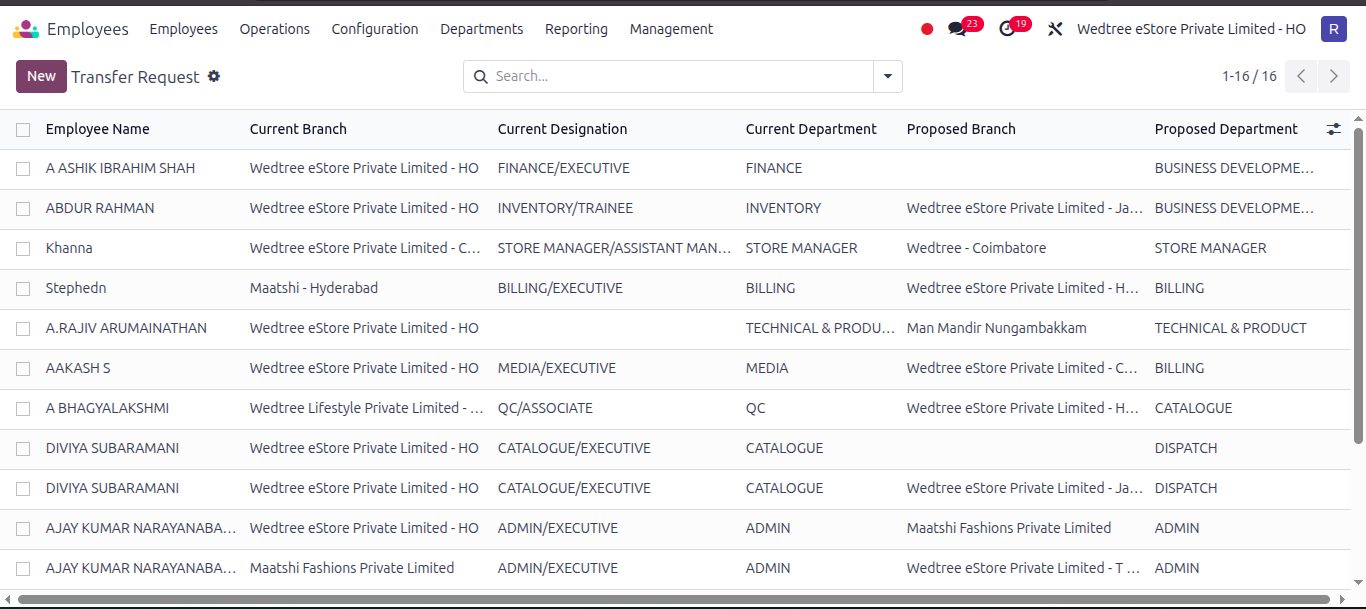
List View
Form View
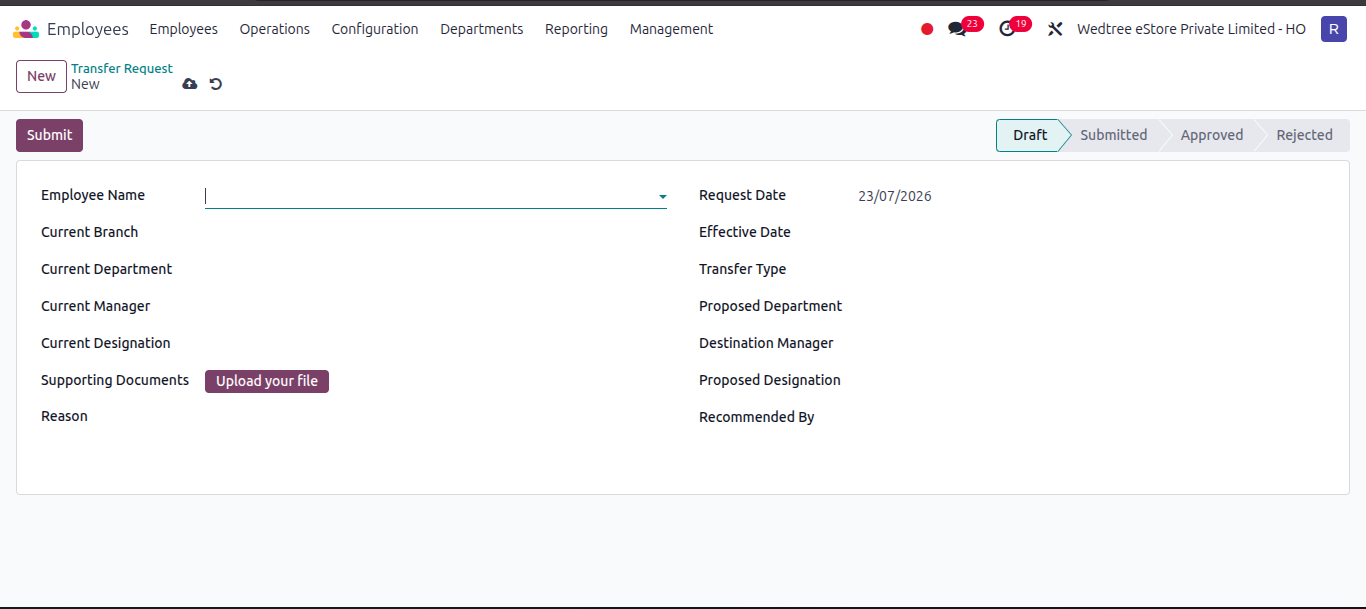
Process of creating a Transfer Request:
Click the New button at the top left of the screen.
Fill in the fields:
Employee Name
Effective Date
Transfer Type
Proposed Department
Destination Manager
Proposed Designation
Recommended By
Reason
You can also click Upload your file under Supporting Documents if needed.
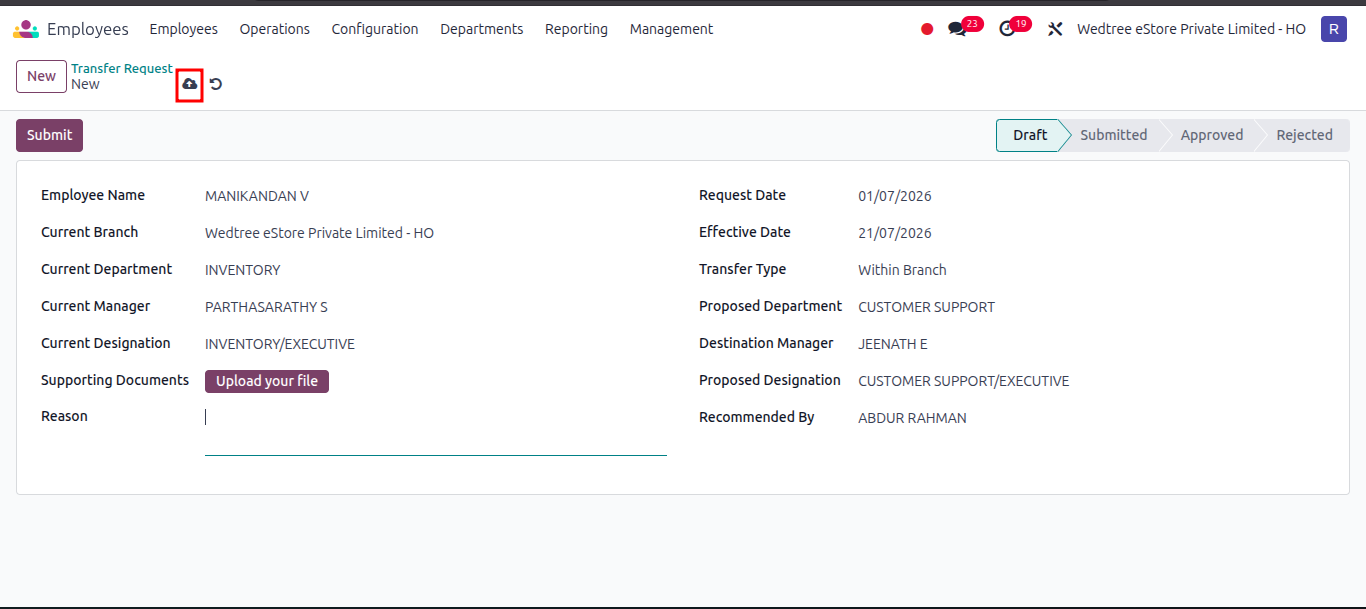
Click Save.
The Transfer Request is now in the Draft state.
Note
HR Users can create and submit transfer records, while HR Managers hold the authority to approve or reject them. Neither role can edit a record once it is Approved or Rejected.
Click Submit to move the state to Submitted.
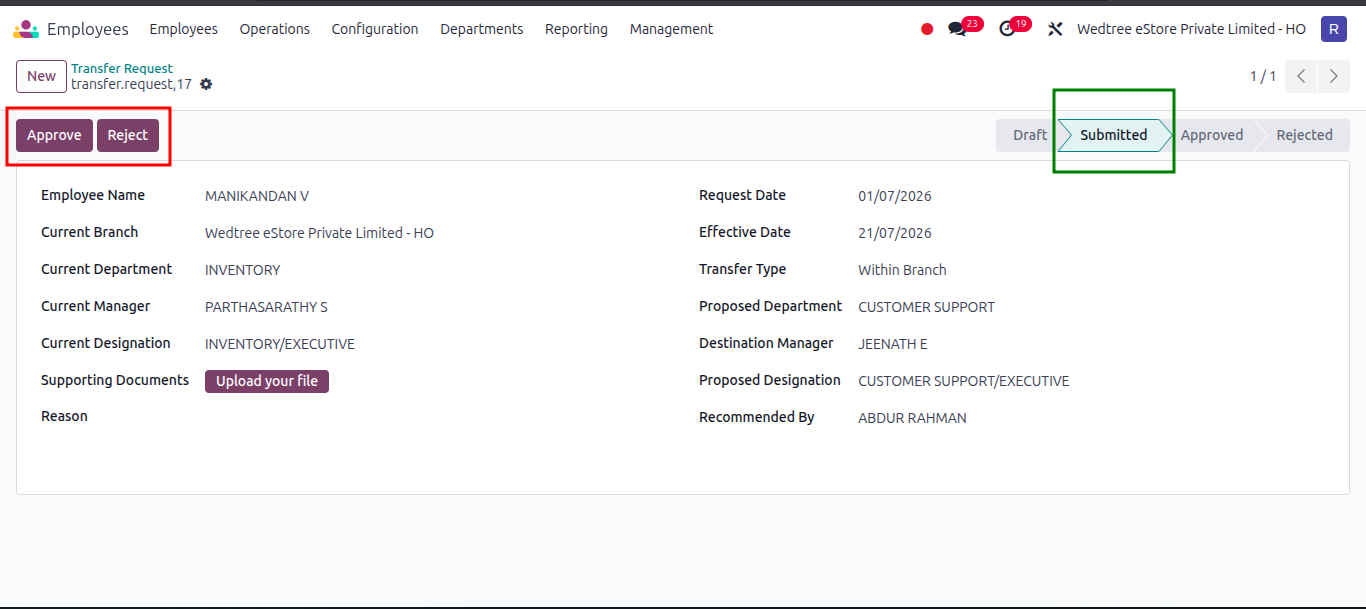
- After Submit, both the Accept and Reject buttons become visible in the header for the HR Manager.
Accept button to officially approve the Transfer Request.
Reject button to deny the request.
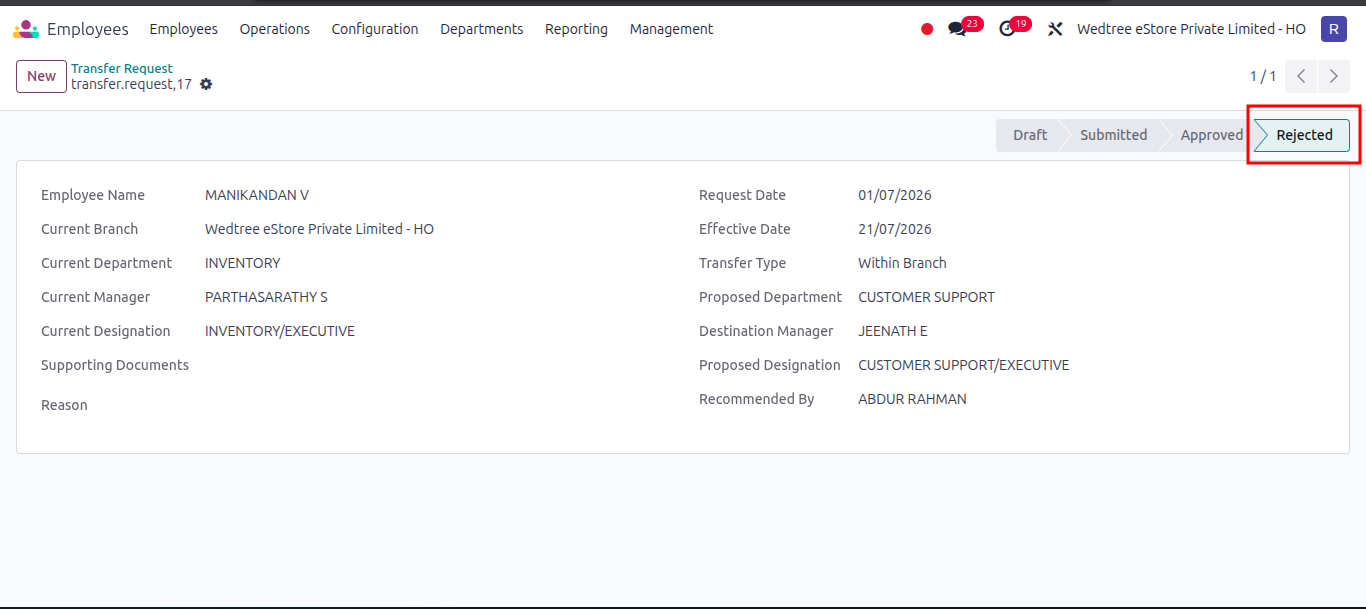
Note
If you click the Reject button, the state moves to the Rejected state.
Click the Accept button.
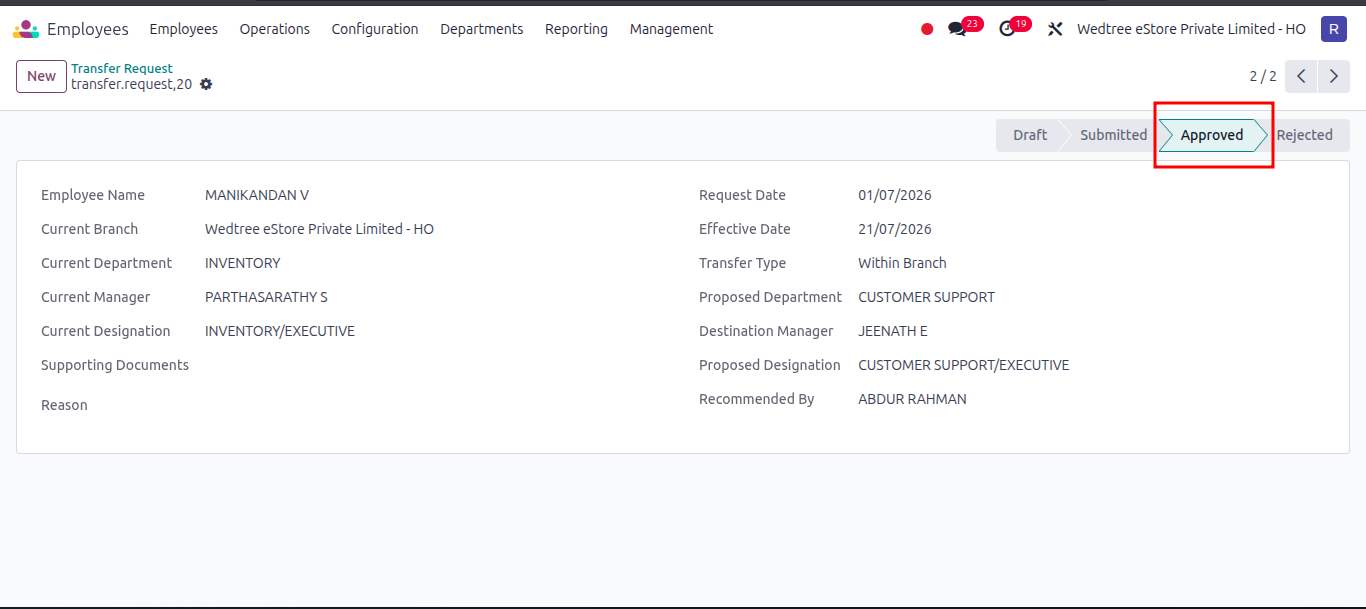
The Transfer Request will now be in the Accepted state.
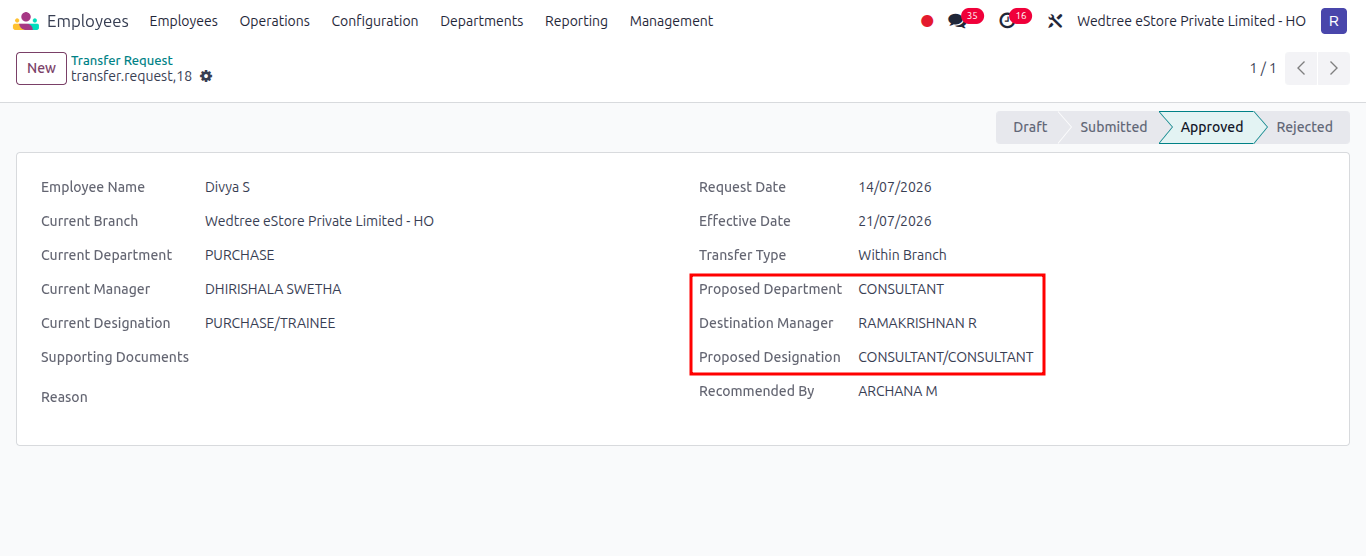
For employees associated with an accepted transfer request record:
In their employee profile, the system updates the following values:
Proposed Department
Destination Manager
Proposed Designation
Proposed Branch is visible, if the Transfer Type is set as New Branch.
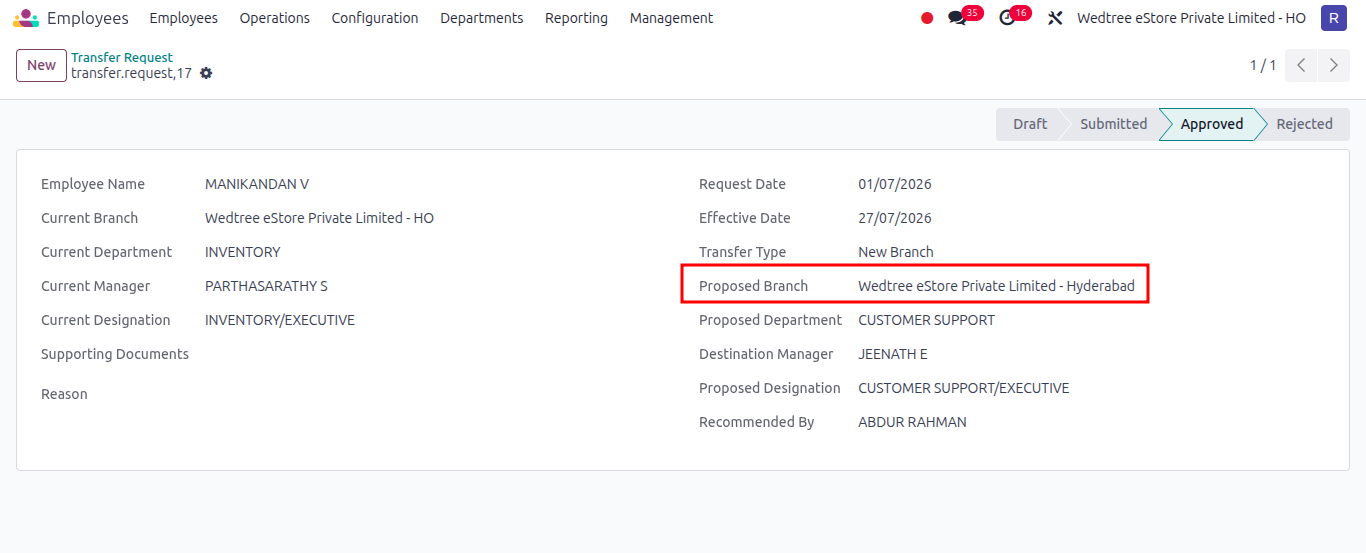
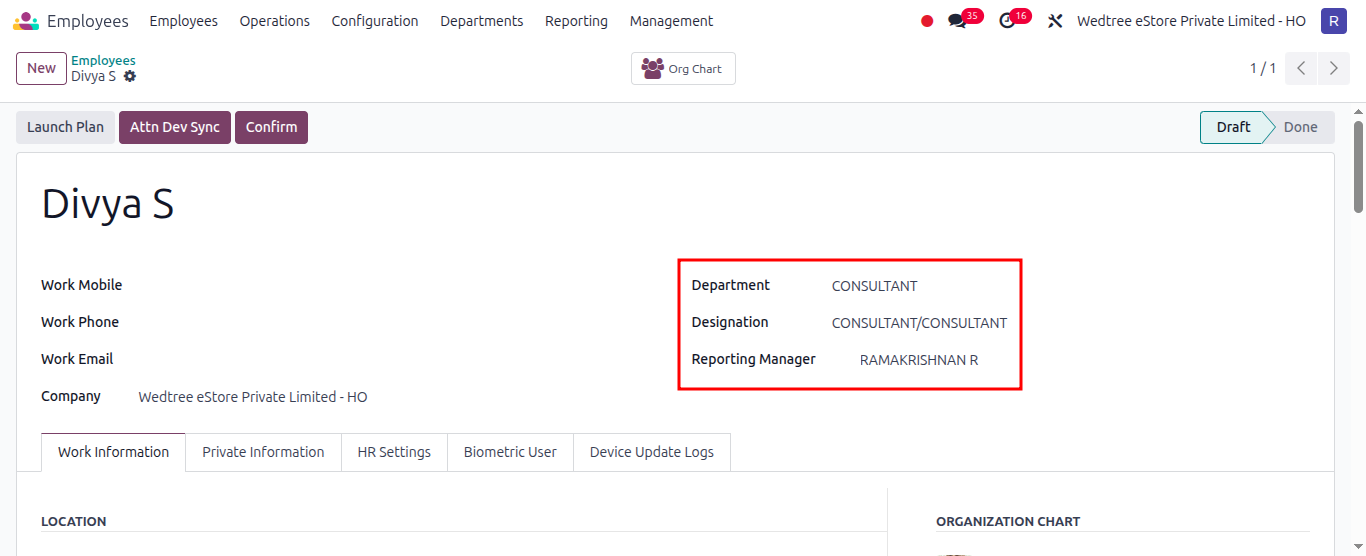
After the request is Accepted, the system updates the data in the Employee’s profile:
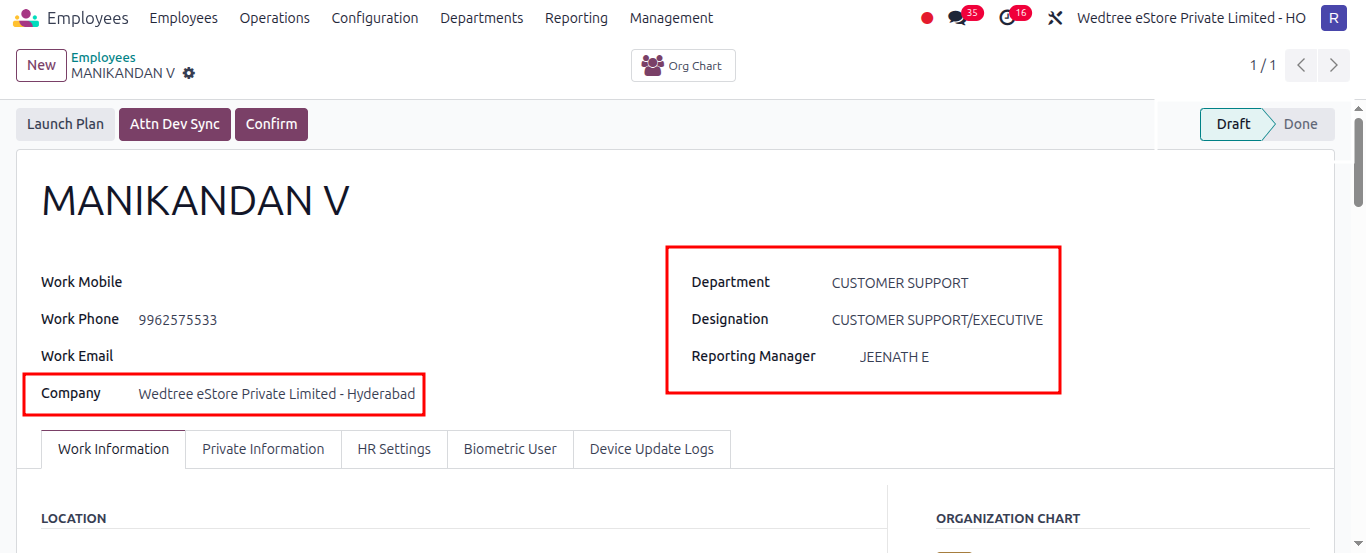
Demo Video for Employee Transfer Request
After the cron job executes
The Scheduled Action (Cron Job) is run on a daily basis to process pending records.
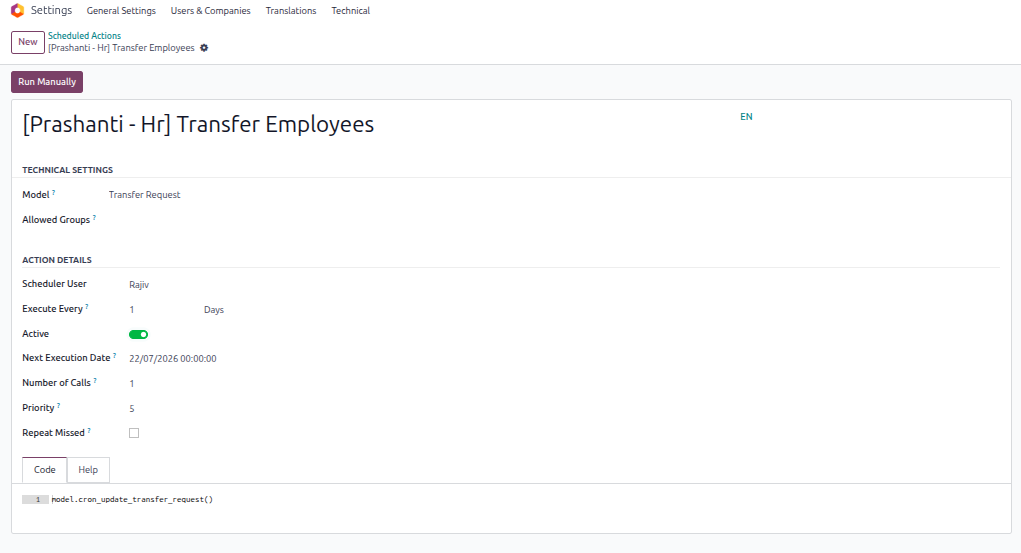
Note
When the cron job executes, it processes all employee records where the assigned Effective Date matches the current system date.
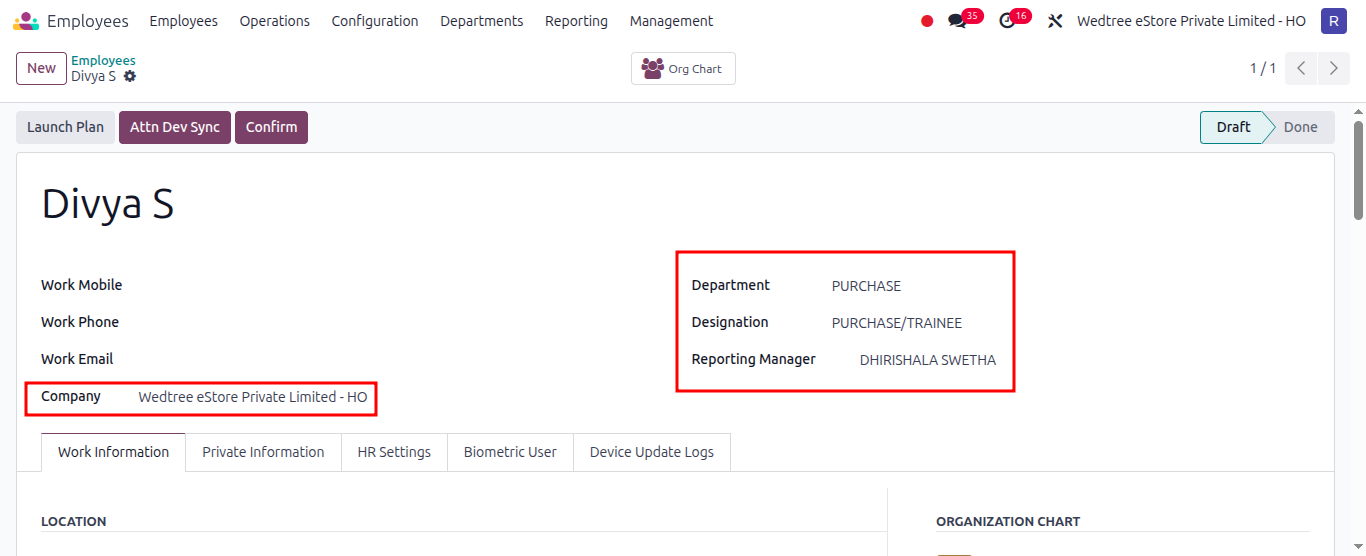
The system then automatically updates their active Employee Profile fields to match the approved values specified in the Transfer Request Form.
Transfer Request:
Employee’s Profile Before Cron Job:
Employee’s Profile After Cron Job: